
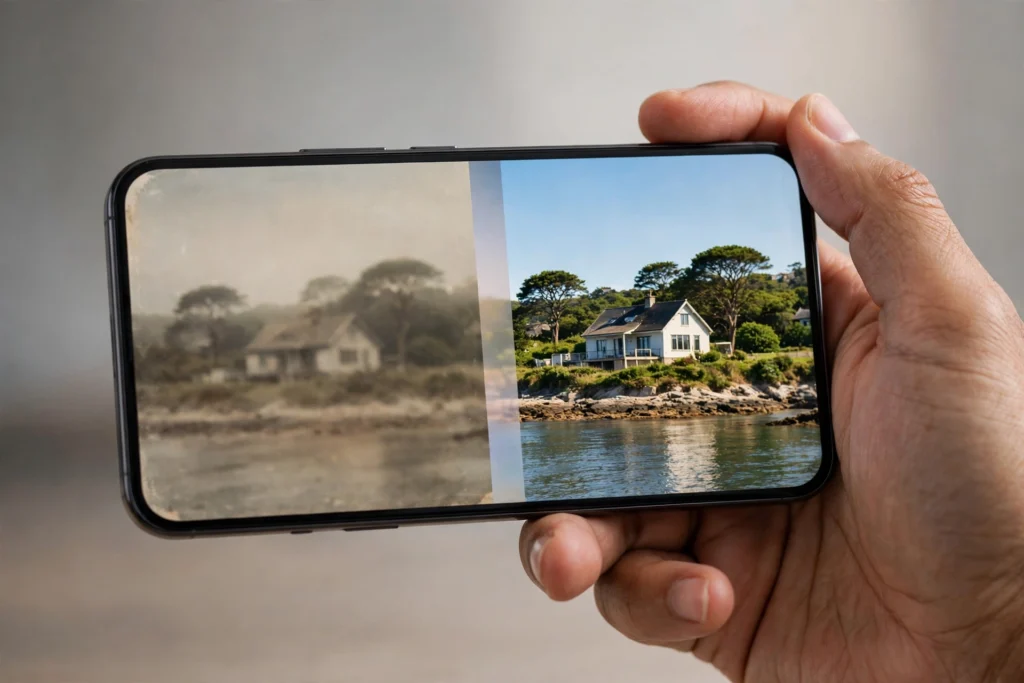
AI photo enhancers can sharpen a soft portrait, reduce noise, upscale a small image or restore an old family photograph. They are useful when the original file is low-resolution or poorly lit—but they do not recover every detail that was never captured. Some tools generate plausible facial features or textures, so an enhanced image is not always a faithful reconstruction.
This 2026 guide compares six tools with free access or free trials: Remini, Canva Upscale, Fotor, Pixelcut, YouCam Enhance and Adobe Express. Free limits, credits, watermarks and available features can change by account, device and region. Check the plan shown before uploading or exporting important images.
Related guides: free AI photo editors and AI image upscalers for sharpening photos. These resources provide additional context and practical steps related to this topic.
What can an AI photo enhancer actually fix?
- Upscaling: increases pixel dimensions so a small image can be displayed or printed larger.
- Sharpening and deblurring: improves the appearance of some soft details, though severe motion blur cannot always be recovered.
- Denoising: reduces grain and digital noise in low-light photos.
- Face restoration: reconstructs facial detail in old or low-resolution portraits, but may invent features.
- Colour and lighting correction: adjusts brightness, contrast, saturation and white balance.
- Restoration and repair: may help with scratches, fading or missing areas, depending on the tool.
AI enhancement is not the same as recovering the original scene. Always compare the result with the source, especially when facial identity, historical accuracy or product details matter.
1. Remini — portrait and face enhancement
Remini is known for portrait enhancement and restoring faces in low-resolution photos. It can be a useful first test for a soft family portrait, old selfie or image where the face is the main subject.
Best for: portraits and face-focused restoration.
Free access: the app offers limited free access in some versions and regions, often with ads or feature restrictions. Do not rely on a fixed number of daily enhancements; check the allowance and paywall shown in your own app.
Watch out: face restoration can generate plausible eyes, skin texture or other details that were not present in the original. Do not use the result as identity evidence or as an accurate historical record without preserving the untouched original.
2. Canva Upscale — quick enhancement for designs
Canva’s AI Image Enhancer includes an Upscale tool that can improve image clarity and resolution. You can then adjust brightness, contrast, saturation and filters in the same editor.
- Open Canva in a browser or the mobile app.
- Upload the photo to a design or open it in the photo editor.
- Select the image and choose Edit.
- Find Upscale under the available image tools.
- Apply the enhancement, inspect the result and make any manual adjustments.
- Download the finished image in a suitable format.
Best for: social posts, presentation images, product visuals and everyday design work.
Free access: Canva describes its Upscale tool as free to try, but feature availability can change. Check the tool and export options shown in your account.
3. Fotor AI Photo Enhancer — one-click correction
Fotor’s AI Photo Enhancer is designed for quick image improvement. Its tools can help with blur, noise, resolution and old-photo restoration, depending on the feature selected.
- Open Fotor’s photo enhancer.
- Upload a copy of the image you want to improve.
- Choose the relevant enhancement tool, such as AI Upscaler or Face Unblur.
- Preview the before-and-after result.
- Check the export resolution and any watermark or credit requirement before downloading.
Best for: testing several correction tools in one web editor.
Free access: Fotor Basic includes limited free credits and export restrictions. Some AI features require credits or a paid plan. See Fotor’s current plan comparison rather than assuming every enhancer is unlimited.
4. Pixelcut — product photos and image upscaling
Pixelcut is aimed at creators and sellers who need clean product visuals. Its Upscale tool can increase resolution, while its editing tools can help with backgrounds and other product-photo tasks.
- Open Pixelcut’s Image Upscaler.
- Upload the image.
- Choose an available upscale option and wait for processing.
- Compare the output with the original and download if the result meets your needs.
Best for: product images, marketplace listings and simple marketing visuals.
Free access: Pixelcut lists limited free usage. Its help centre says 2x upscaling is available for free, while 4x upscale and enhanced details may require Pro. See upscaling instructions and Free vs Pro limits.
5. YouCam Enhance — mobile photo restoration
YouCam Enhance is a mobile-first photo and video enhancement app from Perfect Corp. Its listed features include unblurring, denoising, upscaling and old-photo restoration, with additional editing and generation features depending on the plan.
Best for: quick edits on a phone and portrait or old-photo restoration.
Free access: the app is free to download, but a Premium subscription unlocks unlimited access to AI features and higher-quality output. Some advanced generation features may use credits. Check the current in-app offer before processing a batch of images.
6. Adobe Express — editing and generative touch-ups
Adobe Express combines everyday photo editing with AI-assisted features. You can adjust an image manually, use available generative tools to remove or insert elements where offered, and prepare the result for social posts or other designs.
Best for: people who want to enhance an image and then use it in a design, flyer or social graphic.
Free access: Adobe Express has a free plan with limited access to generative features. Some actions use daily or monthly generative credits, and premium features may require a subscription. Check Adobe’s generative credits FAQ for current rules.
For damaged photos, remember that generative fill creates new visual content. It can be useful for creative repair, but it should not be presented as an exact recovery of missing historical details.
Which AI photo enhancer should you choose?
| Your goal | Tool to try first | Why |
|---|---|---|
| Improve an old portrait | Remini or YouCam Enhance | Face-focused restoration features |
| Upscale an image for a design | Canva Upscale | Enhancement and layout tools in one workflow |
| Try several correction tools | Fotor | Multiple AI editing options |
| Improve a product image | Pixelcut | Upscaling and product-photo editing tools |
| Prepare an image for a flyer or social post | Adobe Express | Photo editing plus design features |
Try the same non-sensitive photo in two tools and compare the result at 100% zoom. Look at eyes, hair, text, edges and small details—not only the thumbnail. The sharpest-looking result is not always the most accurate.
How to enhance an old family photo without damaging the original
- Scan or photograph the original at the highest practical quality.
- Save an untouched copy in a separate folder or backup.
- Upload a duplicate to the enhancer.
- Try a moderate enhancement first; avoid maximum sharpening if it creates artificial texture.
- Compare the face, eyes, hair, clothing and background against the original.
- Save the enhanced copy with a clear filename, and keep the original alongside it.
If a face looks different after enhancement, do not assume the AI has recovered the true detail. It may have generated a plausible reconstruction.
Privacy and copyright: check before uploading
Many online enhancers process images on company servers. Read the privacy policy and avoid uploading sensitive material such as passports, identity cards, medical records, private client photos or confidential business documents unless you understand the service’s data handling and have permission.
Also check that you own the photo or have permission to edit and upload it. If you are enhancing a client’s product image or a photograph taken by another person, confirm that your use is allowed. Keep a copy of the original file and do not use AI reconstruction to misrepresent evidence or deceive viewers.
Common mistakes that make enhanced photos look worse
- Over-sharpening: creates halos, rough skin and artificial edges.
- Over-restoring faces: can change identity-related details and make a person look unlike the original.
- Upscaling a tiny image too far: increases pixel dimensions but cannot guarantee authentic detail.
- Ignoring export limits: a free plan may restrict resolution, credits or watermark-free downloads.
- Replacing the original: always preserve an untouched copy so you can compare and start again.
Frequently asked questions
1. What is the best free AI photo enhancer in 2026?
There is no single best tool for every photo. Remini and YouCam Enhance focus on portraits, Canva Upscale is convenient for designs, Fotor offers several correction tools and Pixelcut is useful for product images. Compare the output and current free limits for your specific image.
2. Can AI make a blurry photo clear?
AI can improve some blurry images by sharpening edges, reducing noise and generating plausible detail. Severe motion blur or missing information cannot always be recovered accurately. A generated face or texture may look realistic without matching the original.
3. Is Remini free to use?
Remini offers limited free access in some versions and regions, but features and daily allowances can vary. Check the current limit and subscription prompt in the app.
4. Can I enhance photos for free in Canva?
Canva currently describes its Upscale image enhancer as free to try. Availability and export options may change, so check what your account offers before starting a large batch.
5. Does Pixelcut offer free upscaling?
Pixelcut’s help centre says 2x upscaling is free, while 4x upscaling and enhanced details may require Pro. Free usage limits can apply to other tools.
6. Is Fotor completely free?
No. Fotor has a free Basic plan with limited credits and export restrictions. Some AI features and higher-quality downloads require credits or a paid plan.
7. Can AI restore an old damaged photograph?
Some tools can reduce scratches, improve contrast or generate missing areas. The result may contain invented details, so keep the original and treat the restoration as an interpretation rather than a guaranteed faithful reconstruction.
8. Will an AI enhancer improve image resolution for printing?
Upscaling can increase pixel dimensions, but it does not guarantee print-quality detail. Check the final pixel size, inspect the image at full resolution and order a small test print before using it for a large print.
9. Is it safe to upload personal photos to AI enhancers?
It depends on the service’s privacy and retention practices. Avoid uploading identity documents, medical images or confidential photos unless you understand the provider’s terms and have permission to do so.
10. Can AI photo enhancers change a person’s face?
Yes. Face restoration can generate or alter details such as eyes, skin texture and hair. Compare the result with the original and do not use AI-enhanced faces as identity proof.
Final takeaway
AI photo enhancers can improve a soft portrait, upscale a product image or make an old photo easier to view, but free access comes with limits and AI may invent details. Start with a copy of the original, test two tools, inspect the result closely and keep the untouched file. Choose the enhancer based on the photo—not on the biggest marketing promise.


Pingback: How to Spot AI-Generated Images in 2026: 7 Signs That Give Them Away - DrViram.in