
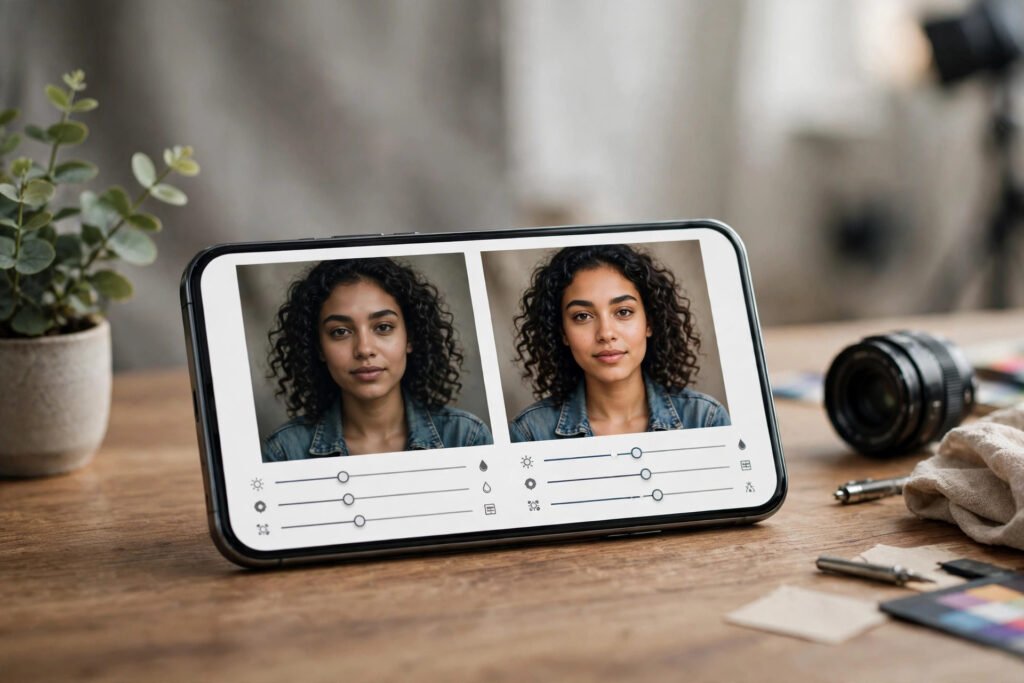
Good photo editing used to mean paying for Photoshop and spending weekends learning layers. In 2026, free AI photo editors handle the hard parts — background removal, object erasing, lighting fixes, even full style changes — in seconds, right in your browser or phone. Here are the six best free options that genuinely work, and how to get the most out of each.
1. Adobe Express AI Photo Editor
Adobe’s free web app packs generative fill, one-click background removal and photo restoration. You get a generous free tier with watermark-free exports for standard images. It shines at quick cleanup jobs: removing photobombers, extending backgrounds, and fixing old blurry photos.
Best for
Everyday fixes and social-media graphics when you want Adobe quality without a subscription.
2. Canva AI Photo Editor
Canva’s Magic Edit and Magic Eraser make object removal nearly foolproof. Upload a photo, brush over the thing you hate, and it vanishes convincingly. The free plan includes a solid monthly allowance of AI credits, enough for a casual user. If you already design thumbnails or posts in Canva, this keeps everything in one tab.
Best for
Bloggers, students and small businesses that live in Canva already.
3. Pixlr
The classic browser editor keeps getting smarter. Its free version now includes AI background removal, AI denoise and a generative expand tool. It feels like a lightweight Photoshop in your browser, and it still works without an account for basic edits.
Best for
People who want real editing controls (curves, layers, clone stamp) alongside AI shortcuts.
4. Photopea with AI plugins
Photopea is a free, browser-based Photoshop clone. Paired with free AI cutout services, it becomes a full professional workflow for banners, memes and product shots — all without installing anything.
Best for
Students and freelancers who need PSD support on a borrowed computer.
5. Google Photos Magic Editor
If your photos live in Google Photos, the built-in Magic Editor can move subjects, fill gaps and reimagine skies. It is the laziest good editor on this list: open the photo, tap, done. Google’s help page explains exactly what Magic Editor can and cannot change.
Best for
Phone photographers who want zero-friction edits of travel and family photos.
6. Remove.bg + free editors combo
Need a clean cutout fast? Remove.bg strips backgrounds in about five seconds. Pair it with our guide to free AI background remover tools and any editor above, and you have a free design studio for thumbnails, product photos and resumes.
Best for
YouTube thumbnails, ID photos and e-commerce product shots.
How to pick the right one
- Quick social posts: Canva or Google Photos — fastest from capture to post.
- Learning real editing: Pixlr or Photopea — they teach skills that transfer to Photoshop.
- Branding on a budget: Combine a free logo tool (see our AI logo makers roundup) with a background remover for complete creatives.
- Better AI results: Your prompts matter. Our guide to writing better AI prompts applies to image tools too — describe the result, not just the object.
Batch editing: a 10-minute weekly workflow
If you edit photos regularly — product shots, blog images, social posts — build a routine instead of editing one by one. Once a week: (1) drop the week’s photos into one folder, (2) run background removal on all of them in one go with a cutout tool, (3) do quick lighting fixes in Pixlr or Photopea, (4) export at the exact size each platform needs. Batching turns an hour of scattered editing into a focused ten-minute session, and consistent sizing makes your blog or feed look noticeably more professional.
Free does not mean unlimited
Every free tier has guardrails: daily AI-credit caps, lower export resolution, or premium features locked behind a paywall. Before committing to a workflow, test your real workload for a week. If you only edit ten photos a month, the free tier of any of these will serve you fine.
One more trick: captions sell photos
Once your photos look sharp, pair them with short videos. Our AI subtitle generator roundup helps you caption video versions of the same content in minutes — captions measurably increase watch time on reels and shorts.
What free AI editors still cannot do well
Be realistic about the limits. Small text inside images still comes out garbled, hands and fingers can look odd after heavy edits, and “enhance to 4K” claims usually just sharpen rather than add real detail. For print-quality work or client projects, review every export at full size before delivering. AI editors are assistants, not magicians — a badly lit, blurry original will still look like a cleaned-up blurry photo.
The bottom line
Start with Google Photos or Canva for speed, keep Pixlr bookmarked for serious edits, and use a dedicated cutout tool when backgrounds matter. That trio covers 95% of what most people need, costs nothing, and fits in a browser tab.
Pingback: Best Free AI Image Upscalers 2026: 6 Tools That Sharpen Blurry Photos - AppTricko
Pingback: Free AI Photo Enhancers in 2026: 6 Tools Compared