Android gave us a choice a few years ago: three buttons at the bottom of the screen, or swipes. Most people who switch to gestures never go back. Android gesture navigation replaces the back, home and recent-apps buttons with swipes from the edges and bottom of the screen, freeing up space and, once your muscle memory settles in, moving you around your phone noticeably faster. If you have never tried it, here is how to switch, the seven gestures that matter, and how to tune it so it feels right.
To switch, open Settings, search for “Navigation” or “System navigation”, and choose Gesture navigation. Give yourself three days before judging it — the first day feels clumsy for everyone, and by the third day your thumb will know where to go. Google’s support pages document the gestures for each Android version — worth checking, since makers like Samsung and Xiaomi sometimes adjust the details.
1. The Back Swipe
Swipe inward from the left or right edge of the screen to go back — the equivalent of the old back button. This is the gesture you will use most, and it works from either side, so use whichever thumb is free. The trick is to start the swipe from the very edge of the screen, not from a centimetre in: a swipe that starts too far inside will scroll the page instead of going back. When it helps: constantly — going back a page, closing a menu, leaving a photo you just opened. If it triggers when you only meant to scroll a sideways list, reduce the back sensitivity in Settings.
2. The Home Swipe
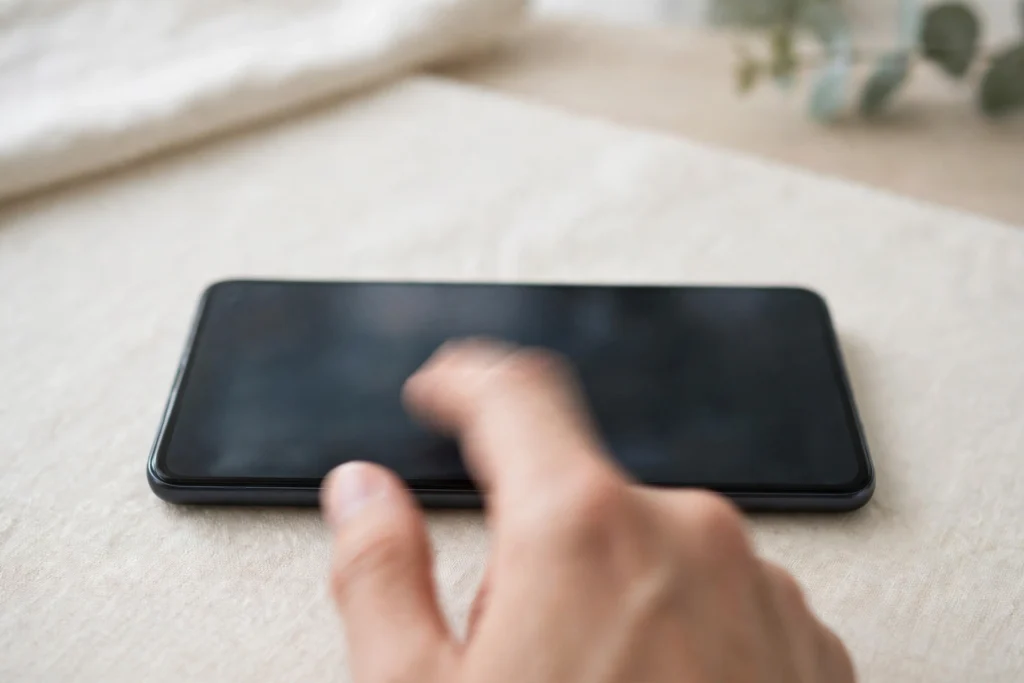
Swipe up from the bottom edge of the screen to go home, from anywhere. One quick flick and you are on your home screen, no matter how deep you were in an app. It is faster than finding a home button because the gesture is the same everywhere. When it helps: when you are five screens deep in settings or an app and want out immediately, or when a notification pulls you into an app and you want to return to what you were doing.
3. The Recent-Apps Swipe
Swipe up from the bottom and hold briefly — about half a second — to open the recent-apps view, the carousel of apps you have used lately. The hold is what separates it from the home swipe: a quick flick goes home, a flick-and-hold opens recents. When it helps: when you need to jump back to an app you were using two minutes ago, or when you want to close several apps at once. If you use split screen often, the recent-apps view is also where you start it, and our guide to using split screen on Android shows how to pair two apps once you are there.
4. Quick Switch Between Apps
Swipe sideways along the bottom edge of the screen — left or right on the thin gesture bar — to jump straight to your last-used app, without opening the recent-apps carousel at all. Swipe again to go back. This is the fastest gesture on this list and the one most people never discover. It is perfect for the two-app dance we all do: checking a message while reading an article, or copying a code into a login screen. The swipe is small — a short drag along the bottom edge is enough — and once you use it a few times it becomes automatic.
Some apps hide their menu behind a swipe from the left edge — the classic “hamburger” drawer. The problem is that the same motion is also the back gesture. The fix is built in: swipe in from the edge and hold for a moment, and the app’s side menu peeks out instead of going back. This gesture solves the one real conflict in gesture navigation, and it works in apps like Gmail, Drive and most apps with a navigation drawer. When it helps: whenever you need an app’s menu and the back swipe keeps sending you backwards instead.
6. The One-Handed Mode Trigger
On a large phone, the top of the screen is a long way from your thumb. Android’s one-handed mode shrinks the whole screen down toward the bottom so you can reach everything, and with gesture navigation you can trigger it with a quick downward swipe on the gesture bar at the bottom of the screen. Not every phone uses this exact trigger, but the idea is the same: one quick motion brings the whole phone within thumb’s reach. When it helps: on buses, while carrying bags, or any time you are using a big phone with one hand. For the full setup, see our guide to using one-handed mode on Android.
7. Circle to Search
On newer Android phones, press and hold the gesture bar at the bottom of the screen to start Circle to Search: then circle, highlight or tap anything on screen — an image, a word, a product — and Google searches for it without you leaving the app. It turns the bottom of your screen into a search trigger for whatever you are looking at. When it helps: identifying a plant in a photo, finding where to buy something you saw in a video, translating text on screen, or looking up a word without switching apps. And while you are customising how your phone looks and feels, our guide to customising your Android lock screen covers the other half of making the phone yours.
If gestures feel too eager or too stubborn, tune them before giving up. In Settings, under System navigation or Gesture navigation options, you will usually find a back-gesture sensitivity slider: higher sensitivity makes the back swipe trigger more easily, lower sensitivity demands a more deliberate swipe from the edge. Spend a few minutes here on day one and the gestures will feel like they were designed for your hand — because, after a little tuning, they were. Our guide to Android Digital Wellbeing shows how to cut screen time without losing the convenience.
Three days is all it takes. On day one the back swipe will feel wrong. On day two your thumb will start finding the edges on its own. On day three you will pick up someone else’s phone, swipe, and wonder why nothing happens. That is when you know android gesture navigation has become your default — and your phone, with its buttons gone and its screen a little bigger, will feel like it finally belongs to your thumb.

Dr Vivek Garg runs drviram.in — a tech blog about AI tools, apps, and online earning. Every guide here is tested hands-on before it is published.