
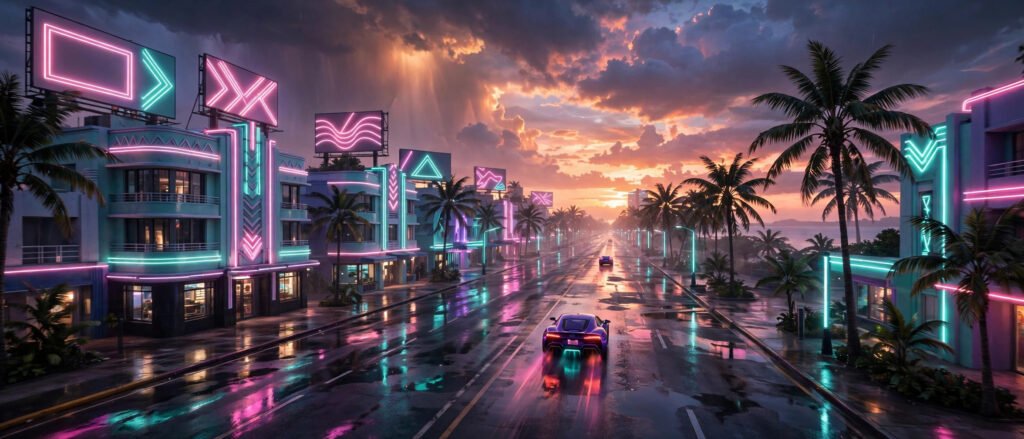
Grand Theft Auto 6 launched on November 19, 2026, for PlayStation 5 and Xbox Series X|S, and one question followed it everywhere: how do you make it look its best? Rockstar confirmed the game targets 30 frames per second on every console, with no performance mode and no 60fps option. The right GTA 6 graphics settings — in the game, on your console, and on your TV — can still make Leonida noticeably sharper and brighter.
GTA 6 Graphics Settings: What Rockstar Actually Lets You Change
First, the baseline: unlike GTA 5 on PS5 and Xbox Series X|S, which shipped with Fidelity, Performance, and Performance RT modes, GTA 6 has no graphics mode selector at launch. Rockstar’s November 10, 2026 newswire post said the game was “fully developed from the ground up to provide the best possible experience for the current generation of consoles, targeting 30 frames per second while pushing both platforms to their absolute limits.” What you can control instead is the picture pipeline around the game: HDR, brightness, your console’s video output, and your TV’s picture mode.
What Each Console Actually Renders
Digital Foundry tested all four console versions at launch:
| Console | Internal resolution | Output | Ray tracing | Frame rate |
|---|---|---|---|---|
| PS5 | 1440p | Upscaled to 4K | Global illumination + reflections | 30fps target, small dips |
| PS5 Pro | 1440p | 4K via PSSR | GI + reflections + shadows | Near-locked 30fps |
| Xbox Series X | 1440p | Upscaled to 4K | Global illumination + reflections | Mostly 30fps |
| Xbox Series S | 720p | 1080p via FSR 4 | GI + reflections, lower quality | Mid-to-high 20s, dips to 18–19fps in heavy fights |
The PS5 Pro is the clear winner: Sony’s PSSR AI upscaling produces an image Digital Foundry calls convincingly close to native 4K, and it is the only console with ray-traced shadows. The base PS5 and Series X render the same 1440p image but upscale it with Rockstar’s own, softer-looking method. Full details: Digital Foundry’s console-by-console comparison.
Step 1: Turn On HDR and Calibrate Brightness
Leonida lives or dies on its light — neon Vice City nights, washed-out Florida sun, rain-slicked streets — and HDR is the single biggest visual upgrade available, free. Confirm HDR is enabled in your console’s video output settings, then run the in-game brightness calibration and adjust it until the Rockstar logo is barely visible, as prompted. If your TV supports HDR10, use it.
Step 2: Switch Your TV to Game Mode
This is the step most people skip, and it changes everything. Game Mode turns off motion smoothing and heavy post-processing, cutting input lag and stopping the game from looking like a soap opera. The setting usually sits under Picture Mode or a gaming menu, and many sets switch it on automatically when a console is detected — but verify it, because a switch that never happened is the most common reason the game feels sluggish or looks smeared. Turn off motion interpolation (“MotionFlow,” “TruMotion,” “Auto Motion Plus”) and keep sharpness near the middle: over-sharpening adds halos around every palm tree and power line.
Step 3: Set the Right Output on Your Console
On Xbox Series X and Series S, set your display output to 120Hz if your TV supports it: GTA 6 still targets 30fps, but the 120Hz VRR container smooths frame pacing. On PlayStation 5, system-level VRR only operates above 48fps, so forcing VRR does nothing for a 30fps title — leave it on Auto. On both platforms, use an HDMI 2.1 port if your TV has one, and set the output to 4K (1080p on Series S) rather than Auto, so nothing quietly downscales the signal.
Step 4: PS5 Pro Owners — Let PSSR Do Its Job
On a PS5 Pro there is nothing to toggle — PSSR upscaling and extra ray-traced shadows are automatic. Just make sure nothing upstream holds them back: play on a 4K TV (on a 1080p screen the Pro’s advantage largely disappears), use the HDMI cable that came in the box, and keep the console’s output at 4K. The Pro holds 30fps most steadily, dipping only to around 24fps in extreme explosions.
Step 5: Xbox Series S Owners — Play to Its Strengths
The Series S renders at 720p and upscales to 1080p with AMD’s FSR 4, so play on a 1080p display if you have one — a 4K TV stretches the image further and makes the softness more obvious — sit a little closer than usual, and keep the console well ventilated, because heat worsens frame-rate dips in long sessions. The Series S still gets ray-traced global illumination and reflections, so Leonida’s lighting survives. If you are choosing between consoles, our GTA 6 vs GTA 5 comparison breaks down how the new game differs from its predecessor.
What About PC?
There is no PC version of GTA 6 and Rockstar has not announced one, so there are no official PC graphics settings yet. Any article claiming “official” PC system requirements is guessing — treat those numbers as rumor, not fact. Our GTA 6 PC system requirements article separates confirmed facts from speculation. New players should also read our GTA 6 beginner tips, and the GTA 6 price in USA breakdown compares the Standard and Ultimate editions.
Frequently Asked Questions
Can GTA 6 run at 60fps on any console?
No. Rockstar confirmed a 30fps target on all four consoles, with no performance mode at launch. A 40fps mode for 120Hz displays has been floated by Digital Foundry, but that is speculation — Rockstar has announced nothing.
Which console version of GTA 6 looks the best?
The PS5 Pro, by a clear margin: sharpest image via PSSR, the only console with ray-traced shadows, and the steadiest 30fps.
Does the base PS5 have ray tracing in GTA 6?
Yes — all four consoles have ray-traced global illumination and reflections. Only the PS5 Pro adds ray-traced shadows, and the Series S runs them at lower quality.
Will Rockstar add a performance mode in a future patch?
Unconfirmed. Higher frame-rate modes have only been reported second-hand as something Rockstar might consider later. Until Rockstar says so, treat any “60fps patch coming” claim as rumor.
The Bottom Line
GTA 6 has no graphics menu full of toggles, so the best-looking version comes from the basics: HDR on and calibrated, Game Mode on, motion smoothing off, the correct output resolution, and a 120Hz container on Xbox. Apply these GTA 6 graphics settings once and the difference is immediate. The 30fps target is a deliberate Rockstar choice: the studio traded frame rate for the density of Leonida itself. Set it up once, then forget the settings and enjoy Vice City.

Dr Vivek Garg runs drviram.in — a tech blog about AI tools, apps, and online earning. Every guide here is tested hands-on before it is published.
Pingback: GTA 6 Accessibility Settings: Every Option Explained for PS5 and Xbox
Pingback: GTA 6 Best TV: Which TV Is Best for Playing GTA 6 in the USA?