
Introduction
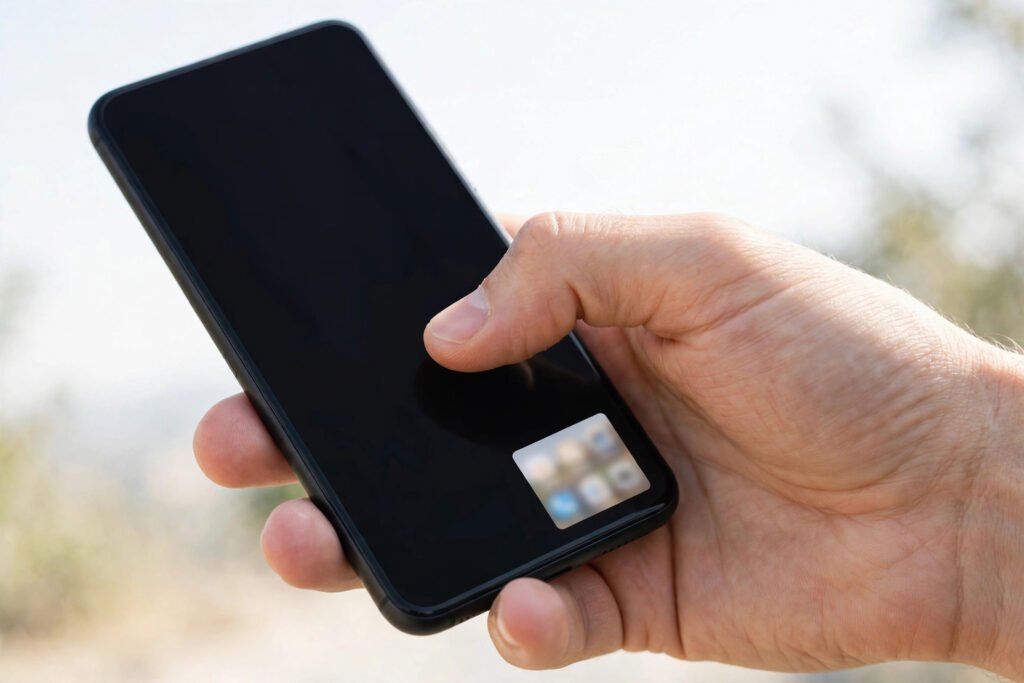
Phones keep getting bigger, but hands have not. Reaching the top corner of a tall screen with one thumb — while holding a bag, a coffee, or a child’s hand — is a daily struggle for millions of Android users. One-handed mode solves it elegantly: it shrinks the whole screen down to a smaller, reachable version, so every button sits within thumb range.
This guide shows how to turn on one-handed mode on Android in 2026, how it differs across Samsung, Pixel, and other brands, and the gestures and settings that make one-handed use genuinely comfortable.
What is one-handed mode?
One-handed mode temporarily shrinks the display — usually to the bottom-left or bottom-right corner — so you can reach the entire screen with one thumb. Everything still works normally: apps, keyboards, notifications, and navigation. Tap outside the shrunken screen, press the home gesture, or use the exit button to return to full size.
It is different from simply using a smaller phone or a compact keyboard. One-handed mode shrinks the entire interface, including app buttons at the top of the screen that your thumb could never otherwise reach.
How to turn on one-handed mode on most Android phones
On most Android phones running recent versions, the path is similar:
- Open Settings, then System (or search for “one-handed” in Settings).
- Tap Gestures, then One-handed mode.
- Turn it on, and choose whether the shrunken screen sits on the left or right side.
- To activate it, swipe down on the gesture bar at the bottom of the screen (on gesture navigation) or use the shortcut your phone offers.
For the exact steps on your model and Android version, check Google’s official Android help pages — manufacturers move these settings between updates.
One-handed mode on Samsung phones
Samsung’s version is one of the most polished. Go to Settings > Advanced features > One-handed mode and turn it on. You can activate it with a swipe down on the home button area or a double-tap on the home button, depending on your navigation setup. Samsung also lets you adjust the shrunken screen’s size and position, and you can switch sides with a single arrow tap — useful when you switch the phone between hands.
One-handed mode on Pixel and other Android phones
On Pixel phones, the setting lives under Settings > System > Gestures > One-handed mode. Once enabled, a quick swipe down on the bottom gesture bar shrinks the screen, and you can drag the shrunken window’s arrow to move it to the other side. On phones from other brands, look under Gestures, Accessibility, or Advanced Features — the name is almost always “one-handed mode,” so the Settings search bar finds it fastest.
If your phone does not offer a built-in mode, third-party apps can simulate a smaller reachable area, but a built-in mode is always smoother and safer — check for a system update before installing anything.
Make one-handed use comfortable: 6 more settings
- Move the keyboard: most keyboards offer a one-handed layout that shifts keys to one side. Enable it in your keyboard’s settings.
- Use reachability shortcuts: swiping down on the fingerprint sensor (on phones that support it) can pull down the notification shade without reaching the top.
- Put key apps in the bottom dock: your most-used apps belong in the bottom row, where your thumb already lives.
- Use split screen for two-handed tasks: when you do have both hands free, split screen on Android lets you run two apps side by side — the complement to one-handed mode, not a replacement.
- Tame notifications: fewer interruptions mean fewer one-handed scrambles. Our guide on Android notification settings shows how to silence the noise.
- Hide apps you rarely use: a cleaner home screen means less thumb travel. See how to hide apps on Android for the safe methods.
One-handed mode vs. other accessibility features
Android also offers a magnification gesture and a “screen zoom” display size setting. Display size permanently shrinks everything — useful if you always want larger touch targets, but it changes your layout everywhere. One-handed mode is temporary and reversible, which is why it fits the real use case: most of the time you have two hands, and sometimes you only have one.
If screen time or phone habits are the bigger issue, Android Digital Wellbeing offers timers, focus mode, and bedtime mode that work alongside one-handed mode.
Common problems and fixes
- Mode turns off by itself: that is by design — it exits when you tap outside the shrunken area or switch apps. Reactivate with the same gesture.
- Gesture does not work: make sure gesture navigation (not three-button navigation) is enabled, since the activation swipe depends on it.
- Screen shrinks to the wrong side: tap the arrow on the shrunken window to flip sides instantly.
- Keyboard stays full size: enable your keyboard’s own one-handed layout separately — the system mode and the keyboard layout are independent settings.
The bottom line
One-handed mode is one of Android’s most underused features, and it takes under a minute to enable. Turn it on now, learn the activation gesture, and the next time you are carrying groceries, holding a rail on a bus, or juggling too many things at once, your phone will finally fit the hand you have free.


Pingback: Android Widgets in 2026: 10 Useful Home Screen Picks