
Introduction
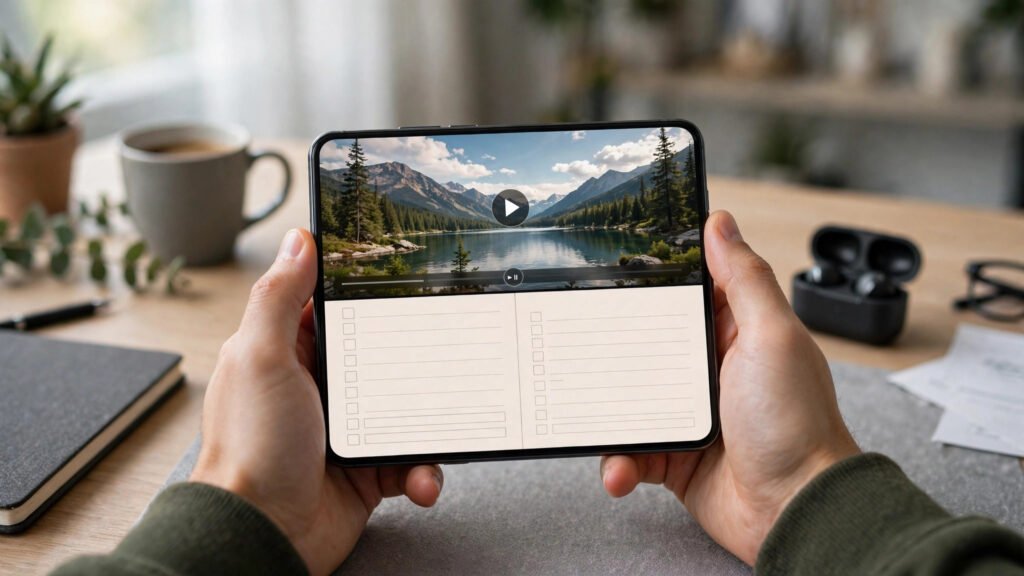
Split screen on Android lets you use two apps at once, side by side or one above the other. You can watch a video while replying to messages, compare prices in two shopping apps, or copy notes into an email without switching back and forth. Once you learn the gesture, it becomes one of your phone’s most useful features.
This guide explains what split screen is, how to turn it on using two different methods, the best app pairs to try, how to save app pairs, and what to do when an app refuses to split.
What Split Screen Is (and Is Not)
In split screen mode, your display is divided between two apps, and you can resize the divider to give one app more space. It is not picture-in-picture, where a video floats over another app, nor simply switching between recent apps.
Split screen works on most modern Android phones, and even better on tablets and foldables. On a small phone, give the app you are actively using most of the space.
How to Enable Split Screen: Recent Apps Method
- Step 1: Open the first app you want to use, for example your browser.
- Step 2: Open the recent apps screen. On gesture navigation, swipe up from the bottom and hold; on button navigation, tap the square recent-apps button.
- Step 3: Tap the app icon at the top of the first app’s card (or long-press the card, depending on your phone brand).
- Step 4: Choose “Split screen” from the menu that appears.
- Step 5: The first app moves to the top (or left) half. Now tap the second app from your recent apps or home screen to fill the other half.
Wording varies by brand — Samsung, Pixel, Xiaomi, and OnePlus all support it, but menu labels differ slightly. If you see no “Split screen” option, try the next method or the troubleshooting section.
How to Enable Split Screen: Gesture and Shortcut Methods
Some phones offer faster routes: certain Samsung models support a two-finger swipe or launching a pair from the Edge Panel. On Pixel phones, the recent-apps method is standard.
You can also open the second app first, then pick the first app from recent apps — order does not matter. Practise a few times with a browser and a notes app until it feels automatic.
While you are exploring Android settings, it is worth reviewing what your apps can access. Our guide to Android app permissions explains which permissions to allow and which to block.
Best App Pairs to Try
- Browser + Notes: research on one side, take notes on the other.
- Video + Messaging: watch a tutorial while asking questions in a chat.
- Maps + Music: navigate while controlling playback without switching apps.
- Calculator + Shopping: compare prices and totals while you browse.
- Email + Calendar: read an invitation and check your schedule at the same time.
- Photos + Social app: pick photos and post them without losing your place.
Start with pairs where one app is for reference and the other is where you act. Avoid pairing two typing-heavy apps on a small screen.
Saving App Pairs for Quick Launch
Some Android phones, notably Samsung, let you save an app pair so both apps open in split screen with one tap. Look for a “Save app pair” or star option on the divider between the two apps, or create the pair through the Edge Panel. Once saved, the pair appears as a single shortcut on your home screen or Edge Panel.
If your phone lacks saved pairs, keep both apps in recent apps and launch split screen from there. Clearing recent apps removes that shortcut.
Limitations You Should Know
Not every app supports split screen. Some games, camera apps, and banking apps block it for security or design reasons. There is no official way to force them to split, and workarounds promising to do so can compromise security.
Split screen also uses more battery and memory, since two apps run in the foreground. On older phones, one app may reload when you switch focus — close background apps first and keep pairs lightweight.
Notifications can also replace one half’s app when tapped, so be careful with messages mid-task.
Troubleshooting: When Split Screen Does Not Work
- App does not show a split option: the app likely does not support it. Try a different app to confirm split screen itself works.
- Option missing entirely: check Settings for multi-window or split screen settings, and make sure your phone’s software is up to date. Some budget models limit the feature.
- Second app will not fill the other half: go back to the home screen from the split view and tap the app icon — do not open it from a notification, which can break the split.
- Screen feels too cramped: drag the divider to resize, or switch to landscape orientation for wider apps.
- Phone slows down or an app reloads: close other background apps and try a lighter app pair.
- Split screen exits unexpectedly: check whether a gesture, such as swiping the divider to an edge, closed it. Dragging the divider fully to one side exits split screen on most phones.
For more ways to get the most from your phone, see our guides on mirroring Android to a TV, Android Digital Wellbeing, and hiding apps on Android without root. And if a setting still puzzles you, the official Android help pages are the reliable reference.
Final Tips
- Learn the recent-apps method first; it works on almost every Android phone.
- Pair one reference app with one action app for the best experience.
- Save frequent pairs where your phone supports it.
- Accept that some apps will not split — that is a security choice, not a bug.
Try it today: open your browser and notes app in split screen and research one topic while taking notes. Five minutes with a real task beats any guide.


Pingback: How to Use One-Handed Mode on Android in 2026