
What WhatsApp Multi-Device Actually Is
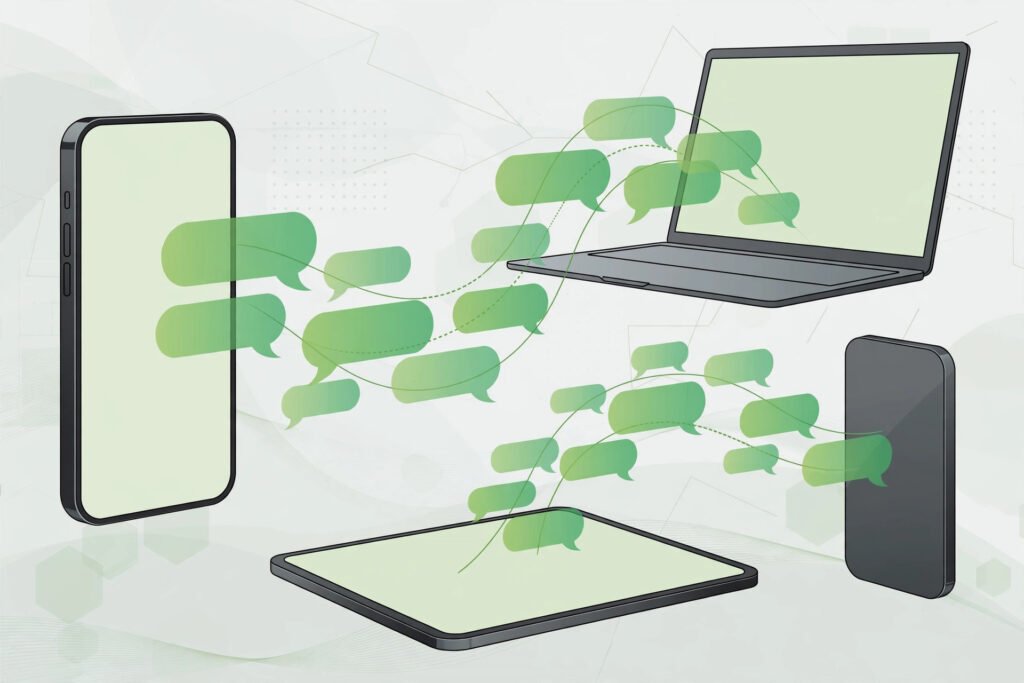
For years, your WhatsApp account lived on exactly one phone. Multi-device mode changed that: you can now use the same WhatsApp account on up to four companion devices plus your main phone, and each device connects to WhatsApp independently — your primary phone no longer needs to be online for the others to work.
This guide covers companion mode (linking a second phone), WhatsApp Web and desktop, the limits you need to know, and how to keep every linked device secure.
What You Need Before You Start
- A primary phone with WhatsApp already set up — this stays the “main” device.
- A second device (another phone, tablet, laptop, or desktop) with WhatsApp installed or a browser ready.
- Both devices online during linking, and the latest WhatsApp version on both — companion mode needs a recent app version, so update first.
How to Link a Second Phone (Companion Mode)
- Install WhatsApp on the second phone and open it. Agree to the terms.
- On the phone-number screen, do NOT enter a number. Tap the three-dot menu (Android) or find “Link as companion device” (iPhone) to switch to a QR code.
- On your primary phone, open WhatsApp → Settings → Linked devices → Link a device, and unlock with fingerprint, face, or PIN if asked.
- Scan the QR code on the second phone with your primary phone.
- Wait for the initial sync — your chats download to the second phone, and you can now message from either device.
Repeat to add up to three more companions — any mix of phones, tablets, and computers, four total. Before linking a brand-new phone, make sure your history is safe with our complete WhatsApp backup and transfer guide — a linking hiccup should never cost you a conversation.
Using WhatsApp Web and the Desktop App
WhatsApp Web and the desktop apps are simply companion devices with a bigger screen, and linking works the same way: open web.whatsapp.com or the desktop app, then scan the on-screen QR code from Settings → Linked devices on your primary phone.
Because each device connects independently, Web stays signed in even when your phone is off. On a shared or office computer, always log out when you finish — never leave your chats open on a machine others use.
The Limits You Should Know
- Four companion devices maximum, plus your primary phone. Linking a fifth signs out the least recently used one.
- Your primary phone must stay in occasional use. After a long inactivity period, all companions get logged out automatically.
- Some actions need the primary phone — deleting your account or changing your number cannot be done from a companion.
- Privacy settings are managed from the primary device; companions follow those rules.
Security Tips for Linked Devices
- Review linked devices regularly at Settings → Linked devices. See a browser session you do not recognize? Unlink it immediately.
- Remove devices you no longer use — old phones, sold tablets, office computers. A device stays linked until you explicitly remove it.
- Lock WhatsApp on companion phones with your phone’s app lock or biometrics.
- Never scan a QR code someone sends you. A common scam asks you to “scan this code to win a prize” — that links YOUR account to a stranger’s device. Legitimate linking only starts from your own primary phone.
- Run the full privacy checkup. Walk through our WhatsApp privacy settings security checklist to lock down last seen, profile photo, groups, and two-step verification.
How to Unlink a Device
- On your primary phone, open Settings → Linked devices.
- Tap the device, then Log out, and confirm.
Access is cut instantly. If you lose a linked phone, unlink it right away — and if you have not already, enable two-step verification to block unauthorized re-linking.
Troubleshooting Common Problems
QR code will not scan. Raise the second device’s brightness, clean your camera lens, hold the phone steady 15–20 cm away. Still failing? Restart both apps and retry.
“Link as companion device” is missing. Update WhatsApp on the second phone — the option only appears on recent versions, via the menu on the phone-number screen.
Chats not syncing. Stay on Wi-Fi with both apps open during the first sync; large histories take time. If it stalls, unlink and re-link.
Companion logged out by itself. Usually primary-phone inactivity or a fifth device bumping it. Scan a fresh QR code to log back in.
Messages do not appear on the other device. Check both devices have internet; sync resumes when the connection recovers. Persistent? Unlink and re-link.
Smart Ways to Use It
- Work phone + personal phone: one number, answer from whichever is in your hand.
- Phone + laptop for workdays: reply from your keyboard without breaking focus.
- Shop owners: handle customer chats from a shop tablet while keeping the main phone. Pair it with our WhatsApp Business setup guide for catalogs and broadcasts for a complete small-shop setup.
Once the basics feel natural, explore our roundup of WhatsApp hidden features and tricks for 2026 — several pair nicely with a multi-device setup.
FAQs
Is WhatsApp multi-device free?
Yes — linking companions, WhatsApp Web, and the desktop apps are all built into the regular app at no extra charge.
Does the primary phone need to be online for companions to work?
No. Each device connects independently, so companions keep working with the main phone off. But the primary phone must stay in occasional use, or companions get logged out after a long inactive stretch.
Are messages on linked devices end-to-end encrypted?
Yes — each linked device gets its own encryption identity. WhatsApp documents the details in its official FAQ and help pages.
How do I know if someone secretly linked my account?
Check Settings → Linked devices and review every entry’s “last active” time. Unlink anything unfamiliar immediately and turn on two-step verification.
Can I link an iPhone companion to an Android primary phone?
Yes — companion mode works across platforms in both directions, and chat history syncs during the initial linking.
Conclusion
Multi-device mode quietly solves one of WhatsApp’s oldest annoyances: being chained to a single phone. Link a second phone, add your laptop, and your conversations follow you — with encryption intact on every device. Just keep two habits: review your linked-device list regularly, and never scan a QR code you did not generate yourself. And your one small action today: open Settings → Linked devices right now and unlink any device you no longer use.


Pingback: Two WhatsApp Accounts on One Phone (4 Methods)
Pingback: WhatsApp Video Calls 2026: 8 Features to Know
Pingback: WhatsApp Call Links 2026: Complete Setup Guide
Pingback: WhatsApp Proxy 2026: Chat Without Internet
Pingback: WhatsApp on Smartwatch 2026: Read & Reply Guide
Pingback: How to Use WhatsApp on a Tablet 2026: Setup Guide