
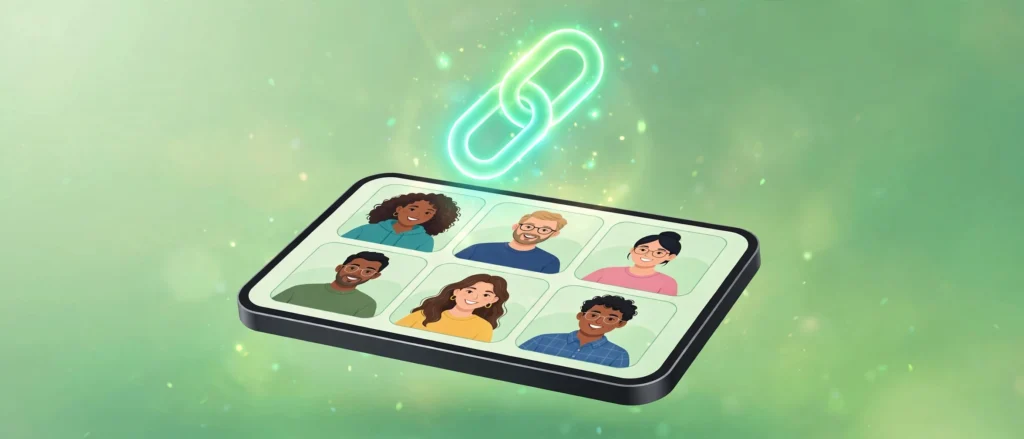
Every group call on WhatsApp used to start the same way: you scroll through your chats, add people one by one, wait for the stragglers, and then realize someone never got the invite at all. It worked, but it was clumsy — especially when you wanted to include people from different chats who don’t all belong to one group.
Call links fixed that. You create a link, send it wherever you like — a group chat, an email, even your status — and anyone with WhatsApp can tap it and join. We’ve used them for family catch-ups, work standups, and birthday singalongs, and they’ve quietly replaced ad-hoc group calls in most of our routines. Here’s everything worth knowing about them in 2026.
What is a WhatsApp call link, exactly?
A call link is a shareable URL that opens a WhatsApp voice or video call room. Anyone with WhatsApp and the link can join — they don’t need to be in your contacts or part of any group. The link stays active until you revoke or delete it, which means you can create one link for a recurring weekly call and reuse it every time. (If you want the wider picture of WhatsApp calling first, our roundup of WhatsApp video call features covers the rest of the toolkit.)
One thing to be clear about: a call link is not a scheduled call by itself. WhatsApp doesn’t attach a date and time to it — it’s simply an open room. We treat links as reusable rooms and handle the scheduling in the message we send with them, which works fine once you build the habit.
How to create a call link, step by step
1. Open the Calls tab
Open WhatsApp and switch to the Calls tab — at the bottom of the screen on iPhone, at the top on Android. This is where every call-related feature lives, including your call history and the link creator.
Best for: getting to the link creator in two taps from anywhere in the app.
2. Tap “Create call link”
At the top of the Calls tab you’ll see the “Create call link” option. Tap it and WhatsApp generates your link immediately — no form to fill, no waiting. It works the same on desktop and linked devices; if you take calls from a computer, our guide to using one WhatsApp account on multiple devices pairs well with this.
Best for: spinning up a link in about five seconds, with nothing to configure.
3. Choose Voice or Video
Before sharing, pick the call type: Voice for audio-only, Video for a full video room. This sets what the link opens. Choose honestly — an audio check-in doesn’t need everyone’s camera on, and people join voice calls more readily on busy days.
Best for: matching the call format to the meeting — voice for quick syncs, video for faces you actually want to see.
Tap the share option and send the link wherever your people are: a chat, a group, an email, or even your WhatsApp status for a wide invitation. You can also copy it to the clipboard for pasting into calendar invites or documents. Whoever taps it lands in your call room.
Best for: invitations that span multiple chats — one link covers every recipient.
How to join a call link
Joining is the easy part. Tap the link wherever you received it: WhatsApp opens and shows a Join button with the call type and who created the link. Check that the creator is someone you trust — a link is just a URL, and it could have been forwarded to you by anyone — then tap Join. If the room is empty when you arrive, you’ll simply wait in the call until others show up; there’s no waiting room or approval step.
Being in the creator’s contacts is not required, so a link works for inviting clients, distant relatives, or anyone you haven’t saved. And if you tap a link but only have a minute, you can always send a voice message instead of joining live.
Tips that make call links actually useful
1. Reuse one link for recurring calls
Create one link for your weekly team standup or family call and keep it. Since links stay active until revoked, you never have to generate and resend a fresh one — just drop the same link into each week’s reminder message.
Best for: recurring meetings where the attendee list barely changes.
2. Treat every link as public-by-design
Anyone with the link can join, and links get forwarded — screenshots of links end up in group chats you never saw. Never use a call link for anything sensitive; for private conversations, call people directly instead.
Best for: casual and semi-public calls where a surprise guest wouldn’t ruin anything.
3. Revoke the link when the series ends
When a recurring call wraps up for good, go back to the Calls tab, open the link, and delete or revoke it. This takes thirty seconds and closes a door you might otherwise forget was open. We do a quick audit of our active links every few months.
Best for: basic link hygiene — finished meetings shouldn’t have live doors.
4. Double-check before sharing multiple links
WhatsApp lists your active links in the Calls tab. When juggling several at once, glance at each one’s call type before sharing so the family-dinner link doesn’t go to your work group. A five-second check prevents the one mistake you really don’t want to make.
Best for: people running multiple active links across work and personal life.
5. Know your mid-call controls
Once you’re in, the standard group-call controls apply — mute yourself, flip the camera, and add more participants straight from the call screen. If something goes wrong mid-call — audio issues, a link that won’t open — WhatsApp’s official help center has the troubleshooting steps straight from the source.
Best for: keeping bigger calls orderly once everyone’s in the room.
Call links vs. starting a group call the old way
Starting a call straight from a group chat is still faster when everyone you need is already in that chat — two taps and you’re ringing people. Call links earn their keep when the attendee list spans multiple chats, includes people you’d rather not add to a group, or needs to be shared outside WhatsApp entirely, like in an email thread or a calendar invite. Use direct group calls for speed; use links for flexibility. Honestly, most of us use both, and that’s fine.
The bottom line
WhatsApp call links are one of those features that sound minor until you use them twice — then the old add-everyone-manually routine feels prehistoric. Create the link in the Calls tab, pick voice or video, share it anywhere, and reuse it for anything recurring. Just remember the one rule that matters: anyone with the link can join, so share deliberately and revoke when you’re done.
Do you use call links for recurring meetings, or are you still dialing everyone manually? Tell us in the comments — and keep following AppTricko for honest, practical tech guides every week.


Pingback: How to Pin Chats & Messages on WhatsApp (2026 Guide)