
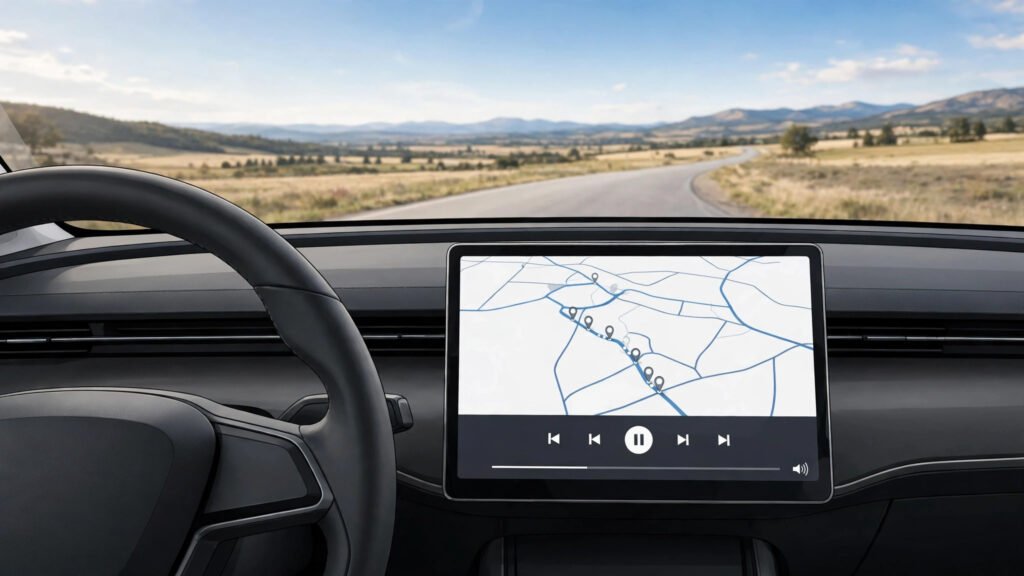
Android Auto puts supported navigation, calls, messages and audio apps on a compatible car display, so you can use them with voice controls and fewer distractions. It does not work in every car with a USB port: your phone, vehicle or aftermarket head unit must meet Google’s compatibility requirements.
This 2026 guide covers wired and wireless setup, phone and car requirements, safe settings, supported apps and a troubleshooting checklist. Complete the setup while the car is parked, not while driving.
What you need before setting up Android Auto
Phone requirements
- Wired Android Auto: Google’s current general help page lists Android 9.0 or newer with an active mobile-data plan. Android Go devices are not supported.
- Wireless Android Auto: requires a compatible phone with 5 GHz Wi-Fi support; Google lists Android 11 or newer as compatible for wireless projection, subject to regional requirements and device support.
- Software: install available Android, Google Play services and app updates before connecting.
Car or stereo requirements
Your vehicle’s infotainment system or an aftermarket receiver must explicitly support Android Auto. A USB port alone does not mean the car is compatible. Check the vehicle manufacturer’s manual or Google’s Android Auto compatibility information. If you use an aftermarket head unit, check its manufacturer’s support page and firmware.
Android Auto is integrated into compatible Android phones; you generally do not need to install a separate Android Auto app from the Play Store to use the car display.
How to set up Android Auto with a USB cable
- Park the car, put the transmission in Park and switch on the infotainment system.
- Unlock your Android phone and make sure mobile data is available.
- Use a high-quality data-capable USB cable. Google recommends a cable under 1 metre (3 feet) and advises against USB hubs and extensions.
- Connect the cable to the vehicle’s USB port that supports data or smartphone projection. Some cars have more than one port, but only one may support Android Auto.
- Connect the other end to your phone.
- Follow the setup prompts on the phone and car display. Review permissions and accept only the access needed for the features you plan to use.
- Tap Android Auto on the car screen if it does not open automatically.
- Once setup is complete, test navigation and audio while still parked.
If the car charges your phone but Android Auto does not launch, try the vehicle’s other USB port if it is documented as data-capable, then test a different short cable.
How to connect Android Auto wirelessly
Wireless setup requires both a compatible phone and a car or receiver that supports wireless Android Auto. Bluetooth pairing alone does not make an incompatible car wireless-ready.
- Park the car and switch on its infotainment system.
- Turn on Bluetooth, Wi-Fi and Location Services on your phone for the initial setup.
- Open the car’s Bluetooth or phone-pairing menu. On many vehicles, you can press and hold the steering-wheel voice-command button to start pairing; follow the vehicle manual if the menu differs.
- On your phone, open Bluetooth settings and select the car when it appears.
- Confirm the pairing code on both screens and follow the Android Auto prompts.
- Allow the car and phone to establish the wireless connection. Android Auto should appear on the car display.
- Test the connection while parked before driving.
After initial pairing, the phone and car generally reconnect automatically when you start the vehicle and the required wireless features are enabled.
Where to find Android Auto settings
On many phones, open Settings and search for Android Auto. Depending on the manufacturer and Android version, you may find it under Connected devices or Connection preferences. You can also search Settings directly rather than following a fixed menu path.
Review these settings while parked:
- Previously connected cars: review saved vehicles and remove cars you no longer use.
- Start Android Auto automatically: choose whether it should start when the phone connects, if the option is available.
- App launcher: organize supported apps so your regular navigation and audio apps are easy to find.
- Message notifications: decide whether message alerts and read-aloud features are appropriate for your driving situation.
- Assistant or Gemini voice features: use supported voice controls for navigation, calls and messages. Availability depends on device, language and rollout.
You do not need to enable developer settings, force a display resolution or set location to “always” just to use Android Auto. Avoid changing advanced options unless Google or your vehicle manufacturer’s troubleshooting instructions specifically require them.
Useful apps for Android Auto
Android Auto displays only apps and features that are compatible with its driving interface. Availability can vary by country, phone, car and app version.
- Navigation: Google Maps and Waze can provide directions and traffic information.
- Music and audio: supported services such as Spotify and YouTube Music can play audio through the car.
- Podcasts and audiobooks: compatible audio apps can help with longer journeys.
- Calls and messages: supported communication apps can announce messages and let you reply using voice controls.
Keep the app launcher simple. Install and update apps before you start driving, and do not browse or configure apps while the vehicle is moving.
Android Auto safety settings and good habits
- Complete pairing, permissions and app selection before leaving.
- Use voice commands for navigation, calls and messages where available.
- Keep the display uncluttered and use only the apps you need for the trip.
- Do not watch videos or try to bypass driving restrictions on the car display.
- Pull over safely before typing, changing settings or troubleshooting.
- Do not assume voice controls remove every distraction; keep attention on the road and follow local traffic laws.
For emergencies, set up your phone’s own Emergency SOS feature separately. Android Auto is not a replacement for emergency calling or the vehicle’s safety systems.
Android Auto not connecting? Try these fixes in order
1. Check compatibility first
Confirm that your phone meets the wired or wireless requirements and that the exact car or head unit supports Android Auto. A car having a USB port or Bluetooth does not prove compatibility.
2. Replace the USB cable
For a wired connection, use a short, high-quality data cable under 1 metre. Avoid hubs and extensions. Check the phone and car ports for visible dust or damage; do not insert metal objects into the ports.
3. Check the car’s infotainment settings
Some systems allow smartphone projection or Android Auto to be disabled. Check the vehicle manual and make sure the feature is enabled. Restart the infotainment system while safely parked.
4. Restart the phone and car system
Disconnect the phone, restart it and restart the car’s infotainment system according to the vehicle manual. Then try connecting again while parked.
5. Update software
Install available Android system updates, Google Play services updates and updates for compatible navigation or audio apps. For aftermarket receivers, check the manufacturer’s firmware support page.
6. Forget the car and pair again
If a previously paired vehicle will not connect, open Android Auto settings and find Previously connected cars. Remove or forget the affected car, then repeat the pairing process. Menu names vary by phone.
7. Check wireless requirements
For wireless use, confirm that Bluetooth and Wi-Fi are enabled and that the phone and head unit support wireless Android Auto. If wireless remains unreliable, test a wired connection to isolate the problem.
8. Contact the vehicle or phone manufacturer
If the steps above fail, note the phone model, Android version, car model, head-unit software version and whether the connection is wired or wireless. Share those details with the relevant manufacturer’s support team.
See Google’s official Android Auto setup instructions and connection troubleshooting guide.
Android Auto vs Bluetooth: what is the difference?
Bluetooth can connect a phone to a car for calls and audio, but Android Auto projects a supported interface onto a compatible car display, including navigation, supported messages and media controls. Wireless Android Auto uses Bluetooth for initial pairing and Wi-Fi for the wireless projection connection. A car that supports Bluetooth calling does not necessarily support Android Auto.
Frequently asked questions
1. Do I need to download Android Auto?
For use on a compatible car display, Android Auto is integrated into supported Android phones. You generally do not need to install a separate app. You can find its settings by searching Android Auto in phone Settings.
2. Which Android version is required for Android Auto?
Google’s general help page lists Android 9.0 or newer for wired Android Auto with an active data plan. Wireless projection requires a compatible phone with 5 GHz Wi-Fi; Google lists Android 11 or newer for wireless compatibility, subject to regional and device requirements.
3. Does every car with a USB port support Android Auto?
No. The car or aftermarket stereo must explicitly support Android Auto. A USB port may provide charging or data without supporting smartphone projection.
4. Can I use Android Auto wirelessly?
Yes, if both the phone and the car or head unit support wireless Android Auto. Initial setup generally uses Bluetooth pairing, with Wi-Fi used for the wireless connection.
5. Why does my phone charge but Android Auto does not open?
The cable may be charge-only or damaged, or the USB port may not support data. Try a short, high-quality data cable and the correct vehicle port, then check that Android Auto is enabled in the infotainment system.
6. Does Android Auto work on Android Go phones?
Google says Android Auto is not available on devices running Android Go edition. Check the exact phone model and operating system before troubleshooting further.
7. Can I watch YouTube videos on Android Auto?
Android Auto is designed for driving-safe apps and does not provide normal video playback on the car display while driving. Do not try to bypass those safety restrictions.
8. Does Android Auto use mobile data?
Navigation, streaming music, messages and other online services may use mobile data. Download offline maps or audio before a trip if you expect weak coverage, and review your data plan.
9. Why does wireless Android Auto drain my phone battery?
Wireless projection uses wireless radios and often navigation, location and streaming at the same time. Battery use depends on the phone, signal and apps. Use a suitable car charger if needed, and secure the phone so it does not distract you.
10. Is Android Auto safer than using my phone directly?
Android Auto offers a simplified interface and voice controls designed to reduce interaction with the phone, but it does not make distracted driving safe. Set up the system before moving, use voice features carefully and keep your attention on the road.
Final takeaway
Start by confirming that your phone and exact vehicle support Android Auto. Use a reliable data cable for wired setup or complete Bluetooth pairing for a supported wireless system. Configure apps and permissions while parked, keep software updated and troubleshoot methodically. The goal is simple: useful navigation and communication with fewer distractions—not another screen to operate while driving.
Related guide: enabling Wi-Fi Calling on Android.


Pingback: Android Live Captions 2026: Complete Setup Guide
Pingback: How to Control an Android Phone From a PC in 2026