
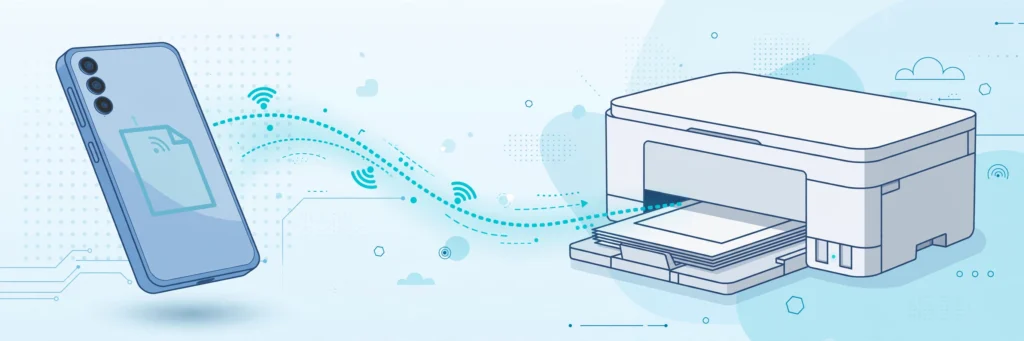
Need to print a boarding pass, a school form, or an invoice — and the only device nearby is your phone? Printing from Android is easier than most people think. Every modern Android phone has printing built in; you just need a compatible printer (or the right app) and about two minutes of setup.
This guide covers four methods that actually work in 2026 — wireless, manufacturer apps, USB, and printing straight from your apps — plus troubleshooting for when the printer refuses to cooperate. If your phone struggles with everyday tasks, our Android speed-up guide is worth a read first.
Method 1: Built-in Wireless Printing (Easiest)
Android has a Default Print Service that talks to most Wi-Fi printers with no extra app:
- Connect your phone and printer to the same Wi-Fi network.
- On your phone, go to Settings → Connected devices → Connection preferences → Printing.
- Tap Default Print Service and turn it on — your printer should appear in the list.
- Open the document, photo, or web page you want to print, tap ⋮ → Print (in Chrome) or Share → Print.
- Select your printer, choose copies and page range, and tap the print icon.
Most printers made in the last decade support this. Google’s Android help center documents the current printing settings if your menu layout differs.
Method 2: The Printer Manufacturer’s App (Most Features)
For full control — ink levels, double-sided printing, scanning — install your printer brand’s app: HP Smart, Epson iPrint, Canon PRINT, or Brother iPrint&Scan. These apps find your printer on the network automatically and unlock features the default service hides.
When to use this: photo printing (quality settings matter), scanning documents to your phone, or when the default service cannot find your printer. The apps are free and walk you through setup step by step.
Method 3: USB Printing via OTG (No Wi-Fi Needed)
No Wi-Fi printer? If your printer supports USB and your phone supports OTG (most do), a cheap USB-OTG adapter connects them directly:
- Connect the printer to your phone with the OTG adapter and a USB cable.
- Install a print app like PrintHand or your manufacturer’s app — Android’s default service sometimes needs the app’s help over USB.
- Open your document, choose Print, and select the USB-connected printer.
This is the most reliable method in offices and cyber cafes where you cannot join the printer’s Wi-Fi network.
Method 4: Print Directly From Your Apps
You rarely need to move files around — print from where the document already lives:
- Google Drive / Docs: open the file → ⋮ → Print. Works for PDFs, Docs, and Sheets.
- Photos: open the photo → ⋮ → Print — handy for ID photos and tickets.
- WhatsApp: documents people send you can be printed without downloading to a computer — open the document in WhatsApp, tap ⋮, and choose Print. Our WhatsApp backup guide also shows how to export entire chats as printable documents.
- Gmail: open the email or attachment → ⋮ → Print.
Troubleshooting: When the Printer Won’t Cooperate
- Printer not found: confirm both devices are on the same Wi-Fi band (2.4 GHz vs 5 GHz mismatches are the #1 cause). Restart the printer.
- Print job stuck: clear it from Settings → Connected devices → Printing → Print jobs, then retry.
- Blurry or faded prints: check ink levels in the manufacturer’s app and run a cleaning cycle from the printer’s own menu.
- Wrong paper size: set it in the print preview dialog before tapping print — Android defaults to the last-used size.
- Public Wi-Fi printing: avoid printing sensitive documents on shared networks; if you must, use your phone’s hotspot to the printer instead. Our Android security guide explains why this matters.
Save Paper: Print to PDF Instead
Android can “print” to a PDF file — same print dialog, just select Save as PDF as the printer. Perfect for archiving receipts, forms, and tickets digitally. Pair this with our storage cleanup guide so saved PDFs do not quietly eat your phone’s space.
The Bottom Line
For most people, Method 1 (built-in wireless printing) is all you will ever need — two minutes of setup, then print from any app. Grab the manufacturer’s app when you want the full feature set, keep a USB-OTG adapter for printer emergencies, and remember that “Save as PDF” is a print option too.
When did you last need to print from your phone — and did it work? Tell us in the comments — and keep following AppTricko for Android guides that skip the fluff.


Pingback: How to Scan Documents With Android: 4 Free Ways