
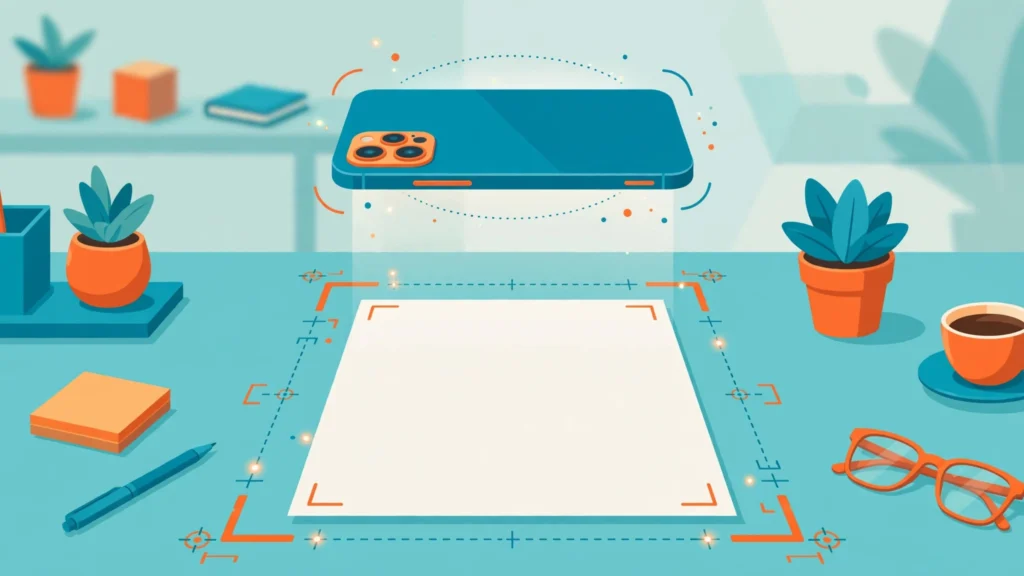
Job applications, rental agreements, ID cards, receipts — life keeps asking for scanned documents, and the nearest scanner is never nearby when you need it. Your Android phone is already a perfectly good scanner. The camera plus the right app produces clean, straightened, shareable PDFs in under a minute.
Here are four free methods that work in 2026, from built-in tools you already have to one purpose-built app worth installing.
Method 1: Google Drive scan (the best built-in option)
Most Android phones already have everything you need. Open the Google Drive app, tap the camera icon (or the + button, then Scan), and point your phone at the document. Drive auto-detects the page edges, straightens the perspective, and saves a clean PDF straight to your Drive.
Step by step: open Drive → tap the camera/scan icon → position the document in the frame and hold steady → tap capture → adjust the crop corners if needed → tap Save, choose a folder and filename → done. You can add multiple pages to one PDF by tapping the + after each capture. Google’s official help page explains scanning documents with Google Drive with screenshots for each step.
Best for: almost everyone. No new app, scans go straight to cloud storage, and sharing a Drive link beats emailing attachments.
Method 2: Your phone maker’s built-in scanner
Many manufacturers bundle their own scanning. Samsung phones have document scanning inside the Camera app (Scene Optimizer detects documents automatically) and in Samsung Notes. Xiaomi’s MIUI camera and several other skins include a document mode too. Check your camera app’s “More” tab — if you see Document or Scan mode, you already have a scanner.
These built-in modes often produce excellent results because they are tuned to your specific camera hardware. The output usually saves to your gallery as a cleaned-up image, which you can convert to PDF when sharing. If you then need to print that document, our guide to printing from an Android phone covers the next step.
Best for: Samsung and Xiaomi owners who want the fastest possible scan without opening another app.
Method 3: Files by Google scan
Google’s Files app (preinstalled on most Android phones) now includes document scanning: open Files, look for the Scan button, capture your pages, and save as PDF. It is simpler than Drive’s version — fewer options, but also fewer taps. Scans save to your phone storage, which suits people who prefer keeping documents local rather than in the cloud.
Best for: quick local scans and phones where Drive feels like overkill.
Method 4: Adobe Scan (the dedicated app)
If you scan documents regularly — expense receipts, contracts, study notes — a dedicated app earns its place. Adobe Scan is free, auto-detects page boundaries impressively well, cleans up shadows and glare, and runs OCR (text recognition) so your PDFs become searchable. You can reorder pages, sign documents in-app, and the free tier is genuinely usable without a subscription.
Best for: frequent scanners, students, and anyone who needs searchable PDFs rather than flat images. Once you have a pile of scanned PDFs, our roundup of AI PDF tools shows what you can do with them.
Tips for clean scans every time
Scanning is 80% technique. Lay the document on a contrasting background (white paper on a dark table) so edge detection locks on. Use bright, even light — one lamp directly overhead beats dim room light; avoid your own shadow falling across the page. Hold the phone parallel to the document, not at an angle, and wait a beat for autofocus before capturing. For books, press the page flat with your free hand. And always zoom-check the result before you walk away: re-scanning a blurry page later is impossible.
For sensitive documents (IDs, financial papers), prefer Methods 1–3 over random free scanner apps — big-name apps have published privacy policies, while obscure scanner apps have a history of aggressive data collection. Our Android security settings guide covers app permissions worth reviewing. And since scans are important documents, make sure they are backed up — see how to backup your Android phone.
The honest limits
Phone scans are excellent for everyday documents but they are not archival quality — fine print on old faded documents can come out soft, and glossy paper creates glare that no app fully fixes. OCR makes mistakes on handwriting, so always proofread searchable PDFs of anything official. And scanned copies are not legal originals everywhere: some institutions still want wet-ink originals for certain paperwork, so check before you shred anything.
The bottom line
Start with Google Drive’s built-in scanner — it is free, already installed, and handles 90% of scanning needs. Add Adobe Scan only if you scan weekly or need searchable PDFs. Either way, you can stop hunting for a scanner forever.
Which method are you using? Tell us in the comments — and keep following AppTricko for honest, practical tech guides every week.


Pingback: Record Android Screen 2026: 4 Free Methods
Pingback: How to Use Google Lens on Android in 2026: 8 Practical Tricks - AppTricko