
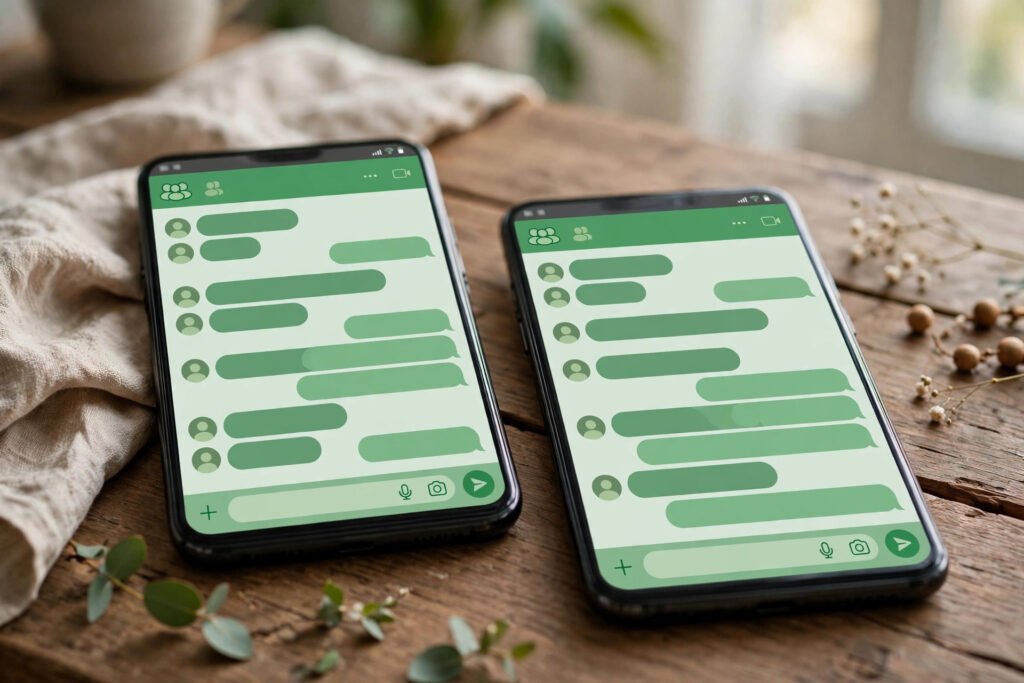
Adding people to a WhatsApp group one by one is slow, especially when you need their phone numbers saved first. A group invite link solves this: anyone with the link can join your group with one tap, no saved contact needed. It is perfect for a class group, a family function, a housing society, a coaching batch, or a small business customer group. This guide shows you how to create and share an invite link on Android and iPhone, how to revoke it, and how to keep your group safe.
What Is a WhatsApp Group Invite Link?
An invite link is a unique web link for your group — it looks like a chat.whatsapp.com address. When someone taps it, WhatsApp opens and shows them the group name, icon, and member count, with a “Join Group” button. Only group admins can create or revoke the link. Anyone who has the link can join, and they can also forward it to others, so treat it like a key to your group’s front door: share it where you want members, and revoke it when you do not.
How to Create an Invite Link on Android
Open the group chat and tap the group name at the top to open Group info. Scroll down and tap “Invite to group via link” — you will see the link, a QR code, and sharing options. Tap “Copy link” to copy it, or “Share link” to send it directly through WhatsApp, SMS, email, or any other app. You can also tap “Send link via WhatsApp” to forward it to individual contacts or other groups. The link stays active until an admin revokes it, so there is no expiry date to worry about.
How to Create an Invite Link on iPhone
The steps are nearly identical. Open the group, tap the group name at the top, then tap “Invite to Group via Link”. You will see the same options: copy, share, or view the QR code. If you do not see the option, make sure you are an admin of the group — only admins can create invite links. If WhatsApp is out of date on your phone, update it from the App Store first, since older versions sometimes hide this option under a different menu. For more admin controls, read our guide to WhatsApp group admin tips.
Every invite link also comes with a QR code, which is ideal for offline sharing. You can print the code on a poster, a visiting card, or a notice board, and people can join by scanning it with their phone camera — no typing needed. To show the code, open Group info, tap “Invite to group via link”, and tap the QR code icon. You can also share the code as an image in another chat. For more ways to use QR codes on WhatsApp, see our guide on WhatsApp QR codes.
How to Revoke or Reset an Invite Link
If your link has been shared too widely, or strangers are joining, revoke it. Open Group info, tap “Invite to group via link”, then tap “Revoke link”. WhatsApp immediately creates a new link and the old one stops working — anyone who taps the old link will see that it is invalid. Existing members are not affected. Do this whenever a group changes purpose, after an event ends, or if you spot the link posted somewhere public. It takes ten seconds and is the single most important safety habit for group admins.
Control Who Can Join: Approve New Participants
For extra control, turn on “Approve new participants” in Group settings. With this on, anyone who taps your invite link sends a join request instead of joining directly, and an admin approves or declines it. This is useful for paid communities, coaching batches, and any group where membership should be checked first. Combine it with the setting that only admins can change group info, and your group stays exactly the way you want it. If you are deciding between groups and broadcasts for announcements, our comparison of WhatsApp Broadcast vs Groups will help you choose.
Safety Tips for Sharing Invite Links
First, share the link only where you actually want members — never post a personal or family group link on a public page. Second, revoke and regenerate the link after a one-time event, like a wedding or a webinar, so it cannot keep spreading. Third, check your member list weekly and remove anyone you do not recognise. Fourth, remember that new members can see the group’s past messages only from the point they join, but they can see all members’ phone numbers — warn your members about this in sensitive groups. Fifth, if spam starts, use “Approve new participants” and report the spam accounts. Keeping your inbox organised also helps: read our guide on WhatsApp chat filters to manage busy groups.
Wrap-Up
A WhatsApp group invite link turns the slow job of adding members into a single shareable tap. Create it from Group info, share it through the app or as a QR code, and revoke it the moment it has served its purpose. With approve-new-participants turned on, you get the convenience of a link and the control of a private group. If anything about the feature changes, WhatsApp’s own Help Center is the most reliable place to check the latest steps.

