
Introduction
Sharing your WhatsApp contact usually means reading out a phone number, typing it into a phone, and hoping nobody mistyped a digit. WhatsApp’s QR code removes all of that. One scan adds your contact, joins a group, or opens a chat — no typing, no mistakes, no awkward number exchanges at events and meetings.
Yet most users never open their QR code, and many who do are unsure whether sharing it is safe. This guide explains how the WhatsApp QR code works in 2026, how to share your contact and join groups with it, and how to stay safe while using it.
What is a WhatsApp QR code?
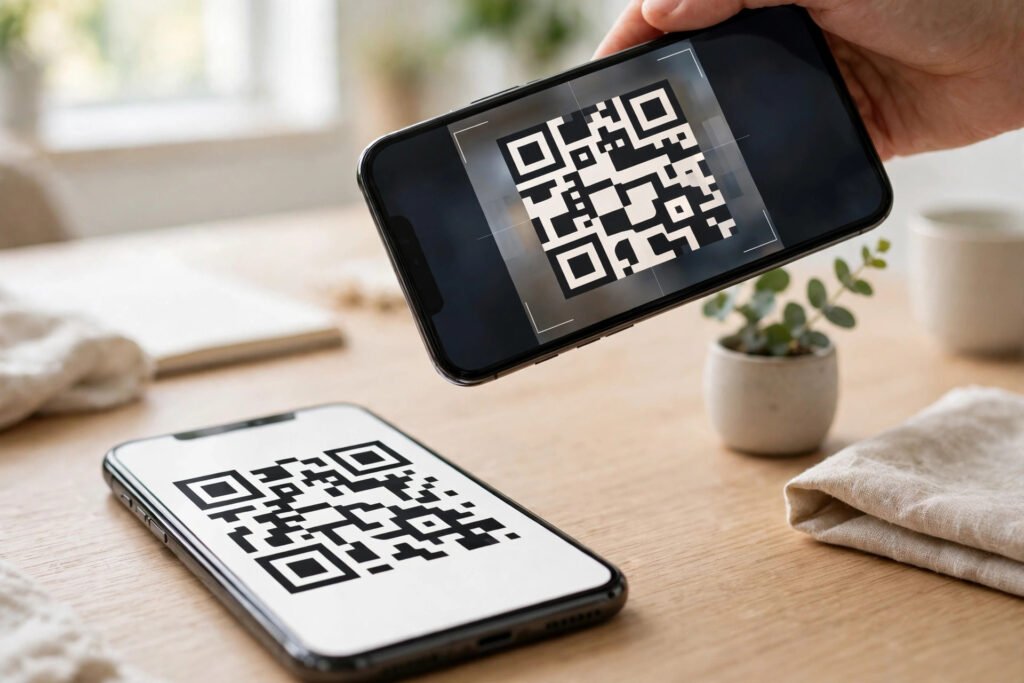
Your WhatsApp QR code is a scannable code linked to your WhatsApp account and phone number. When someone scans it with their phone camera or from inside WhatsApp, they see your profile and can start a chat with you — the same result as saving your number, without typing it.
Groups have their own QR codes too. A group admin can share the group’s QR code or invite link, and anyone who scans it joins the group (subject to the group’s approval settings). Channels and business profiles can also use QR codes to help people find them quickly.
- Open WhatsApp and go to Settings.
- Tap the QR code icon next to your name and profile photo.
- Your personal QR code appears. Tap Share to send it via another app, or show your screen so someone can scan it directly.
- To scan someone else’s code, open the same screen and switch to the Scan tab, then point your camera at their code.
The exact layout varies slightly by phone and app version, but the QR icon next to your profile name is consistent across Android and iPhone. For the current official steps, check WhatsApp’s official help center.
Practical ways to use QR codes
- At events and meetings: show your code instead of dictating a number. New contacts are added in seconds, even in a noisy room.
- On a business card or shop counter: print your business QR code so customers can message you without searching for your number.
- For group invites: share a group QR code on a poster or in a presentation, instead of adding members one by one.
- For quick customer support: a QR code on a receipt or package lets buyers reach you directly when they need help.
QR codes pair well with organized chats. Once new contacts start arriving, our guide on WhatsApp chat filters shows how to keep your inbox manageable, and pinning chats keeps your most important conversations at the top.
How to join a group with a QR code
- Ask the group admin for the group’s QR code or invite link.
- Open WhatsApp, go to Settings, tap the QR icon, and switch to Scan.
- Point your camera at the code. WhatsApp shows the group name and member count before you join.
- Tap Join Group to enter. If the group requires admin approval, your request goes to the admins first.
Always check the group name and member count before joining. Scammers sometimes share QR codes for lookalike groups with similar names. If you run a group yourself, our guide on group admin settings covers approval controls that stop strangers joining without permission.
Is sharing your QR code safe?
Your QR code reveals the same information as giving someone your phone number — no more, no less. Anyone with your code can message you, so treat it like your number: share it freely with people you want to hear from, and do not post it publicly on the open internet.
The good news is that you can reset it. If your code ends up somewhere you did not intend — a screenshot shared too widely, a printed poster left up after an event — reset it from the same QR screen. The old code stops working immediately, and you get a fresh one. Your existing chats are unaffected.
Two safety habits worth building:
- Reset after public use. If you printed a code for an event, reset it when the event ends.
- Lock sensitive chats. New contacts from a public code should not be able to glance at private conversations. Our guide on WhatsApp chat lock shows how to hide chats behind your phone’s lock method.
For community use, QR codes also work alongside WhatsApp Communities, where one invite can connect people to several related groups at once.
Common problems and fixes
- Code will not scan: increase screen brightness, clean the camera lens, and hold the phone steady about 15 cm away. A cracked screen or a low-resolution screenshot is the usual culprit.
- Code expired or invalid: the owner may have reset it. Ask them to share the current code again.
- Wrong person added: you scanned an old screenshot. Confirm the profile name and photo before sending your first message.
- Unwanted messages after sharing publicly: reset your code, block the sender, and be more selective about where the new code appears.
The bottom line
The WhatsApp QR code is a small feature that removes a surprisingly common friction: exchanging numbers. Use it at events, on business materials, and for group invites, reset it after public use, and combine it with chat filters, pins, and chat lock to keep the new contacts organized and your private chats private. One scan, no typing, no wrong numbers — that is the whole point.


Pingback: WhatsApp Starred Messages 2026: How to Save and Find Important Messages - AppTricko
Pingback: WhatsApp Payments 2026: How to Send Money Safely