GTA 6 Cinematic Camera: How to Turn It On, Change Angles, and Use Auto Drive
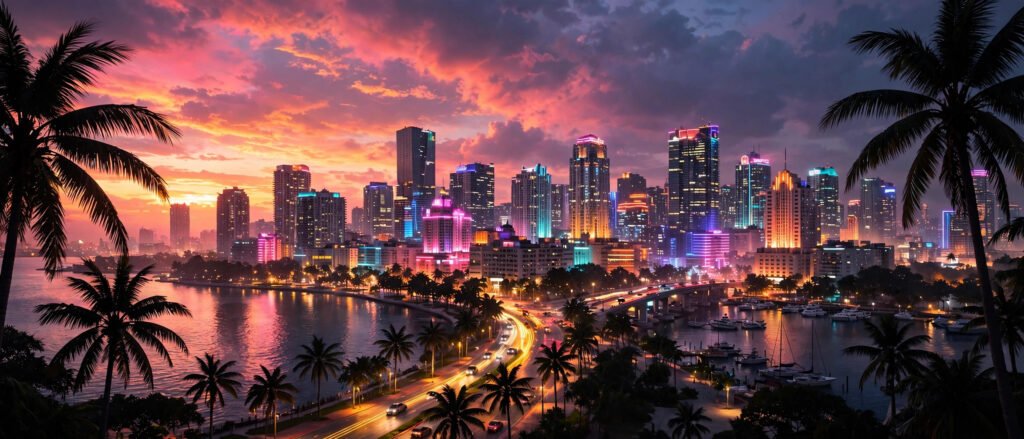
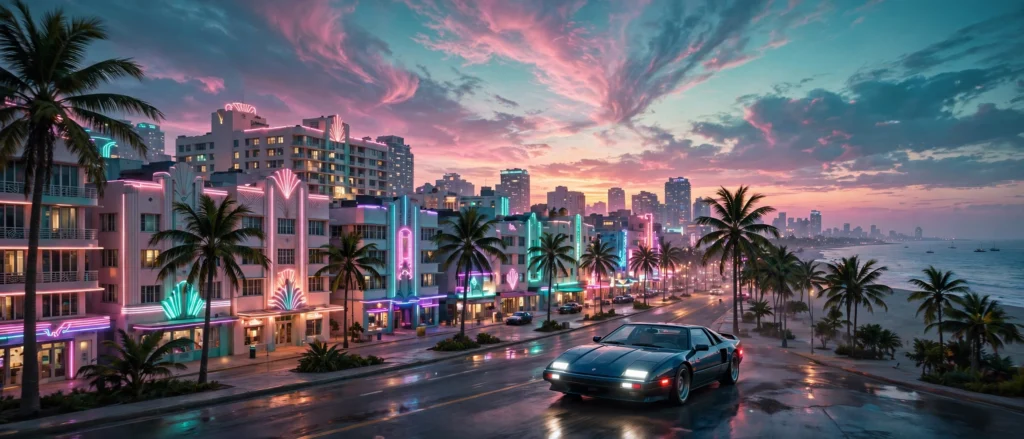
The gta 6 cinematic camera is the closest thing Leonida has to a film crew. One button press takes the camera out of your hands, drops black bars across the top and bottom of the screen, hides the HUD, and starts cutting between sweeping wide shots and low, dramatic angles while you cruise down Ocean Drive. It is the best way to actually see the city Rockstar built.
This guide covers turning it on for PS5 and Xbox, changing angles, Auto Drive, where it works beyond cars, and the settings worth changing first. If you still need a copy of the game, Grand Theft Auto VI for PS5 is $79.99 on Amazon (Standard Edition, code in box).
What Is the GTA 6 Cinematic Camera?
The cinematic camera is a special camera mode that frames the action like a movie instead of a video game. When it is active, the game takes over framing: it cuts between high helicopter-style shots, low tracking shots, and close-ups of your character, with black letterbox bars and no HUD or minimap. You still control the vehicle or your character, but the camera is not yours anymore.
It is for watching, not playing: it shines on long drives through Vice City neon, the Grassrivers wetlands, or the causeway to the Leonida Keys. It also works on foot, while swimming, and on a yacht deck, and Idle Camera triggers it automatically when you stop playing.
How to Turn On the Cinematic Camera in GTA 6
Unlike GTA 5, GTA 6 hides the cinematic camera inside Quick Navigation, the held-button menu for setting a route without opening the pause map:
- Hold Down on the D-pad until Quick Navigation opens: the screen blurs and a small round reticle appears, with map and mission icons floating in the world.
- While still holding the D-pad, press Options on PS5 or the Menu button on Xbox. It is listed as CINEMATIC in the bottom-right corner.
- Release the buttons. The view switches to a wide film-style shot with black bars at the top and bottom, and the HUD and minimap disappear.
To turn it off, hold Down on the D-pad again. A hint in the top-left corner reminds you of this, and an Exit Cinematic prompt fills in the bottom-right corner as you hold the button. The normal camera, HUD, and minimap return.
Keep holding the D-pad through the whole sequence: releasing it early closes Quick Navigation and nothing happens. It feels awkward the first two times and becomes muscle memory after that. A full control table is also available in Game8’s cinematic camera and Auto Drive guide.
How to Change Camera Angles in Cinematic Mode
In a vehicle, press Square on PS5 or X on Xbox to cycle the three angles, shown as CAMERA 1, 2, and 3: a high helicopter-style shot, a low tracking shot, and a close-up of your character. The game keeps cutting on its own; the button jumps to the next framing when you want a different look.
In Quick Navigation, L1/R1 on PS5 (LB/RB on Xbox) move the reticle between markers, and R3/RS sets a destination on the selected marker, which is how you prepare Auto Drive.
If you want a specific shot the cinematic camera will not give you, pause and use GTA 6 Photo Mode instead: it lets you move the camera freely, change the lighting, and set up the exact frame.
What Is Auto Drive and How Do You Use It?
Auto Drive makes the cinematic camera genuinely useful instead of just pretty: your car steers itself to your destination while the camera films the trip.
- Set a destination first. Open the map and pick a mission or point of interest, or use Quick Navigation: hold Down on the D-pad, move the reticle with L1/R1, and press R3.
- Get in a vehicle and start driving. This works in owned and stolen cars alike.
- Turn on the cinematic camera (hold D-pad Down, then Options on PS5 or Menu on Xbox). Auto Drive can only be enabled while the cinematic camera is active.
- When the ENABLE AUTO DRIVE prompt appears in the bottom-right corner, hold Circle on PS5 or B on Xbox until the ring fills. The label switches to DISABLE AUTO DRIVE.
- While Auto Drive is on, use L2 and R2 on PS5 (LT and RT on Xbox) to change the speed between SPEED 1, 2, and 3. Press Circle or B again to take the wheel back.
Two things to know. First, Auto Drive needs a road: it can refuse to engage in the wrong lane or off-road. Second, traffic slows it down; the car waits or crawls behind other vehicles. To skip the drive entirely, GTA 6 fast travel with Paradise Taxi or RydeMe is faster; Auto Drive is for when the drive itself is the point. For drifting, Focus mode, and police escapes, see our GTA 6 driving guide.
Best Settings for Cinematic Camera and Auto Drive
Auto Drive (Settings > Gameplay): Restricted means the car waits for a safe gap before pulling out; Unrestricted means it drives no matter what traffic is doing. If your car keeps refusing to move, check this setting first.
Idle Camera (Settings > Camera): Turn this on to drift into the cinematic camera on its own when you put the controller down. It is the easiest way to see Leonida as a screensaver, and it costs nothing.
Camera height and distance (Settings > Camera): These set how high the regular camera sits and how far it pulls back. They do not control the cinematic angles directly, but they change what the camera returns to when you exit cinematic mode. For everything else visual, including HDR and brightness, our GTA 6 graphics settings guide has the full per-console setup.
Cinematic Camera on Foot, in Water, and in the Air
Most players only use it in a car, which wastes half of what it does. The same Quick Navigation menu offers CINEMATIC on foot too: walking Ocean Drive or the Vice City boardwalk, swimming underwater where it frames the light from the surface, and standing on a yacht deck for slow, sweeping shots of the boat and the water. Try it at golden hour on the beach at sunset or on the causeway at dawn, when the low light does most of the work.
One limit to know: the cinematic camera is a watching tool, not a playing tool. You cannot aim, fight, or drive precisely while it is on, and there is no minimap while it is active. If a mission objective appears or trouble shows up, hold the D-pad down and take the camera back immediately.
Frequently Asked Questions
Does the gta 6 cinematic camera work on Xbox too?
Yes. The steps are identical: hold Down on the D-pad to open Quick Navigation, then press the Menu button for CINEMATIC. Square becomes X for changing angles, Circle becomes B for Auto Drive, and L2/R2 become LT/RT for Auto Drive speed.
Can I use Auto Drive without the cinematic camera?
No. Auto Drive can only be enabled while the cinematic camera is active. If you turn the cinematic camera off, Auto Drive turns off with it. That is by design: Auto Drive is the cinematic camera’s driving mode, not a separate autopilot.
Does Auto Drive work in any vehicle?
It works in cars, both owned and stolen. It needs a set destination and a road to follow, and it can refuse to engage if you are off-road or in the wrong lane. Boats, planes, and helicopters do not get Auto Drive.
Does the cinematic camera work on foot?
Yes. Open Quick Navigation by holding Down on the D-pad while on foot and press Options or Menu for CINEMATIC. It also works while swimming underwater and while standing on a yacht deck.
Is there a full first-person mode in GTA 6?
No. As of November 2026, Rockstar has not announced a full first-person mode for GTA 6. Limited first-person views exist, such as standing still and aiming, looking through a weapon scope, and the phone view while driving, but none of these is a full first-person mode.
Does using the cinematic camera or Auto Drive affect trophies or achievements?
No. They are normal gameplay features, not cheats, so they do not disable saving, trophies, or achievements. Cheats stay locked until you finish the story, and activating one disables saving and trophies for that session.
How to Film Leonida Like a Movie
If you want to record what the cinematic camera shows you, a little planning goes a long way. Pick a route with variety: Ocean Drive neon, then the wetlands, then the causeway to the Leonida Keys. Drive at SPEED 1 or 2 instead of 3, because slower speeds give the camera time to settle into each shot. Try it in rain or at sunset, when reflections and low light make an ordinary street look expensive. And if a particular frame is perfect, pause and switch to Photo Mode to capture it properly, since the cinematic camera never stays still for long.
The cinematic camera will not make you better at the game or help you escape the police. What it does is remind you why the drive is worth taking: Leonida is the most detailed open world Rockstar has ever built, and this is the easiest way to sit back and look at it.
As an Amazon Associate, I earn from qualifying purchases.

Dr Vivek Garg runs drviram.in — a tech blog about AI tools, apps, and online earning. Every guide here is tested hands-on before it is published.