WhatsApp is the quietest storage thief on your phone. Every photo, video, voice note, and document you receive gets saved — often twice — and a busy family group can eat several gigabytes before you notice. Good whatsapp storage management fixes that without deleting a single important chat. Below are the questions everyone asks, answered with the exact steps.
How Do I Check How Much Storage WhatsApp Is Using?
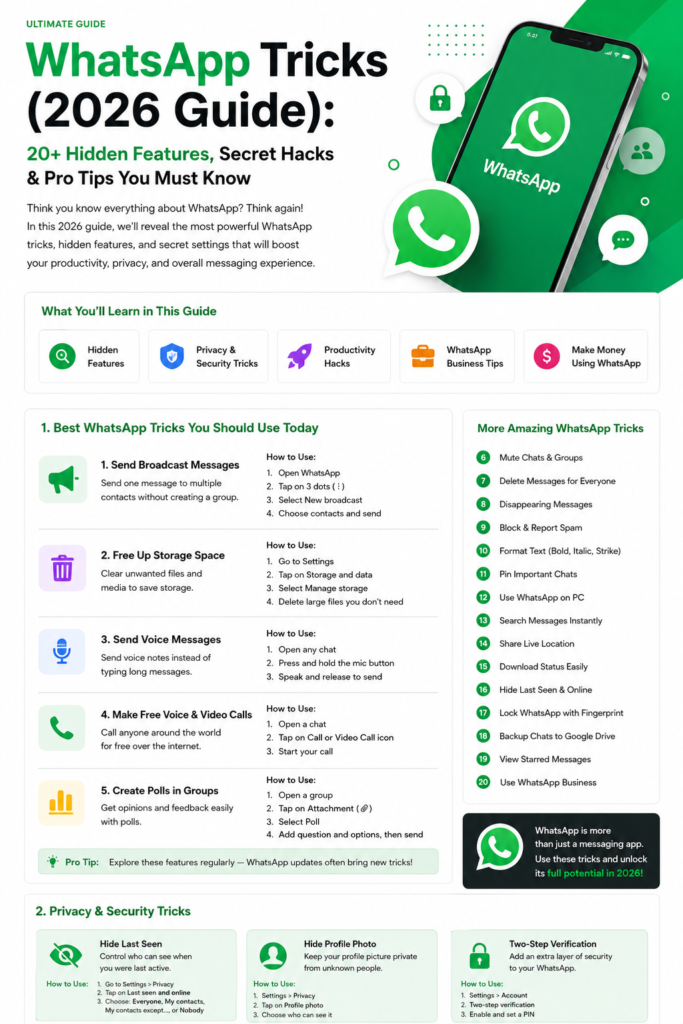
Open WhatsApp, go to Settings, then Storage and data, then Manage storage. You will see a bar showing how much space WhatsApp uses, followed by the biggest files: items larger than 5 MB and media forwarded many times. Tap any chat in the list to see exactly how much space that one conversation occupies. Most people are surprised to find that two or three groups account for most of the total — that is where your cleanup starts. For the full official walkthrough, see the WhatsApp Help Center.
How Do I Delete Large WhatsApp Files Without Losing Important Chats?
Inside Manage storage, tap “Larger than 5 MB” to see the biggest videos and documents first. Select the files you do not need and delete them — this removes the media, not the chat or its text messages. Next, check “Forwarded many times” and clear the memes and videos that circulate endlessly. Always review before deleting: a video you received once from a family member may be the only copy that exists. If you are unsure, back up first — our complete guide to WhatsApp backup and transfer shows how to protect your chats before any cleanup.
Can I Stop WhatsApp From Auto-Downloading Everything?
Yes, and this is the single most effective setting in whatsapp storage management. Go to Settings, then Storage and data, then Media auto-download. You will see three sections: when using mobile data, when connected on Wi-Fi, and when roaming. Uncheck photos, videos, audio, and documents for mobile data, and keep only photos on Wi-Fi if you like. From then on, media arrives as a small preview you tap to download — nothing lands on your phone unless you choose it. Note that voice messages are never auto-downloaded; you always tap to play them.
Why Does WhatsApp Use So Much Space Even After I Delete Photos?
Three reasons catch people out. First, deleted chats leave their media behind if you only cleared the chat view — always delete from Manage storage or use “Clear chat” with media included. Second, WhatsApp keeps a local database and cached files that grow over time; clearing the app cache from your phone’s Settings frees this without touching chats. Third, on many Android phones, received media is also copied into your gallery, so the same photo occupies space twice — turning off “Media visibility” for noisy groups stops the duplicates. If your whole phone is nearly full, our guide on freeing up Android storage covers the wider cleanup.
Should I Use Disappearing Messages to Save Space?
Disappearing messages help, but only for new chats. Turn them on for casual groups and the messages vanish after the timer you choose, so nothing accumulates. They do not delete media you already saved, and they do not suit chats where you need a record — bills, addresses, work instructions. A practical approach is to enable them for high-volume fun groups and keep them off for family and work chats, where you manage storage manually instead.
How Do I Stop WhatsApp Media From Filling My Gallery?
Open any chat, tap its name, and turn off Media visibility — new photos and videos from that chat will stay inside WhatsApp and never appear in your gallery. Do this for every large group, and set it globally under Settings, then Chats, then Media visibility. This single change stops the most common complaint of all: opening your gallery and finding hundreds of forwarded images you never asked for. Our guide on sending HD photos and videos on WhatsApp also explains how WhatsApp handles media quality when you do choose to share.
What About Voice Messages and Documents?
Voice messages are small individually but add up in long conversations; there is no bulk delete for them, so clear them chat by chat from Manage storage. Documents — PDFs, spreadsheets, and presentations — are the hidden giants: a few work files can outweigh a thousand photos, so check the Documents section in your phone’s file manager too. And if your chats feel cluttered for other reasons, our guide on using WhatsApp chat filters shows how to organise your inbox so important conversations stay easy to find.
A Five-Minute Monthly WhatsApp Storage Management Routine
Once a month, spend five minutes: open Manage storage, delete the large and forwarded files you do not need, check that media auto-download is still off for mobile data, and confirm your backup ran recently. That is the whole system. Good whatsapp storage management is not a one-time cleanup — it is a small habit that keeps your phone fast, your gallery clean, and your important chats safe.
The Bottom Line
WhatsApp storage problems are almost never about one big file. They come from hundreds of small files arriving automatically, day after day. Turn off auto-download, clean up from Manage storage once a month, and keep media visibility off for noisy groups — your phone will thank you with free space and a faster gallery.

Dr Vivek Garg runs drviram.in — a tech blog about AI tools, apps, and online earning. Every guide here is tested hands-on before it is published.