A new phone is exciting until you realise your WhatsApp chats live on the old one. Years of family groups, work conversations, photos, and voice notes do not move by themselves — and the wrong method can leave you with an empty chat list. This guide explains how to transfer whatsapp chats to a new phone on every combination: Android to Android, iPhone to iPhone, and switching between the two.
The short version: use the built-in transfer tool in WhatsApp itself, and always make a backup first. The details depend on which phones you are moving between, so find your situation below.
Before You Start: Make a Backup
Whatever method you use, back up first. On Android, open WhatsApp, go to Settings, then Chats, then Chat backup, and tap Back Up to Google Drive. On iPhone, go to Settings, then Chats, then Chat Backup, and tap Back Up Now to iCloud. Wait for the backup to finish completely — a half-finished backup is the most common reason chats go missing. Our detailed guide to backing up WhatsApp chats covers Google Drive and local backups step by step if you want the full walkthrough.
Android to Android: The Easiest Move
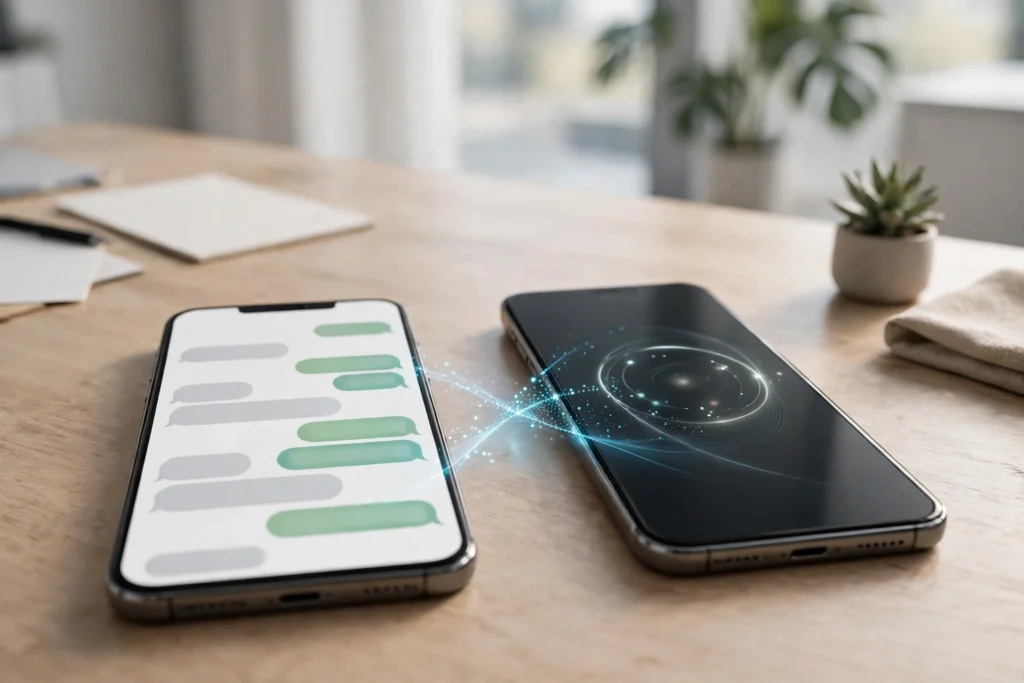
Moving between two Android phones is the simplest transfer. On your new phone, install WhatsApp but do not open it yet. On your old phone, open WhatsApp, go to Settings, then Chats, then Transfer chats to Android, and tap Start. WhatsApp will show a QR code — scan it with the new phone, keep both phones close together with Wi-Fi on, and the chats move directly from one phone to the other. Media comes across too, and the transfer usually takes a few minutes depending on how much you have.
If the QR method fails, restore from your Google Drive backup instead: open WhatsApp on the new phone, verify your number, and tap Restore when asked — using the same Google account and phone number as the backup. The direct transfer is faster because it skips the cloud upload and download.
iPhone to iPhone: Restore From iCloud
On iPhone, transfers run through iCloud. Make sure the backup on your old phone is complete, then open WhatsApp on the new iPhone, verify your number, and tap Restore Chat History when prompted. All your chats and media come back from iCloud, provided you are signed in with the same Apple ID and the backup was made with the same phone number.
Check your iCloud storage first — a backup larger than your free 5 GB will not complete. If you are short on space, delete old videos from a few large chats, or back up over Wi-Fi overnight. If you also use WhatsApp on other devices, our guide to using WhatsApp on two phones explains how linked devices behave during a move.
Switching Between Android and iPhone
Moving between Android and iPhone needs a cable or a transfer app, because the backups live on different clouds. This cross-platform move is the trickiest part of how to transfer whatsapp chats to a new phone, so take it slowly. From Android to iPhone, use Apple’s Move to iOS app: during iPhone setup, choose to transfer WhatsApp data, connect the two phones with a cable, and follow the prompts. From iPhone to Android, connect the phones with a cable during the Android setup, choose WhatsApp in the transfer options, and scan the QR code that appears.
Two things to know. First, the transfer must usually happen during the new phone’s first setup — if you have already set the phone up, you may need to factory reset it and start again. Second, call history and display names transfer, but some media may not, so check your most important chats afterwards. Keep both phones charged and do not close WhatsApp until it confirms the transfer is done.
Frequently Asked Questions on How to Transfer WhatsApp Chats to a New Phone
Can I transfer WhatsApp chats without a backup?
Yes — on Android the direct QR-code transfer moves chats phone to phone without a cloud backup. On iPhone, a transfer without iCloud is not officially supported, so make the backup first. Either way, a backup is your safety net if the transfer fails halfway.
Will my chats transfer if I change my phone number?
Not automatically. Change your number on the old phone first, from Settings, then Account, then Change Number, and let WhatsApp move your account before you switch phones. If you have already moved, you can still change the number on the new phone, but your groups will need to be told — your contacts see a notification in each group either way. For keeping private chats safe while you sort this out, see our guide to WhatsApp chat lock.
Do WhatsApp calls and statuses transfer too?
Call history usually transfers, but status updates do not — statuses are temporary and are not part of the backup. Saved stickers usually transfer, while downloaded media depends on the method: direct transfers bring media across, but some cloud restores skip very large videos if storage runs out.
How long does a WhatsApp transfer take?
A small chat history moves in two to five minutes; a large one — years of chats with thousands of photos and videos — can take thirty minutes or more. Direct phone-to-phone transfer is faster than a cloud restore because it skips the upload and download. Start when you have time and a charger nearby, and do not use either phone until it finishes.
What should I do if the transfer gets stuck?
First, check both phones are on the same Wi-Fi network and neither has gone to sleep, then restart WhatsApp on both and try again. If the QR code will not scan, clean the camera lens and hold the phone steady, or switch to the Google Drive or iCloud restore instead. If a cloud restore keeps failing, check that the backup actually completed on the old phone — a backup that looks done but was interrupted will fail every restore. Freeing space helps here too, and our guide to managing WhatsApp storage shows how to slim a backup down without losing chats.
Can I keep WhatsApp on the old phone after transferring?
No. WhatsApp allows one primary phone per account, so the moment you verify your number on the new phone, the old phone is logged out. Your chats on the old phone remain as a local copy until you delete the app, but they will not receive new messages. If you want WhatsApp on a second device, use a linked device instead of a second primary phone.
Final Thoughts
Moving WhatsApp is a ten-minute job when the backup is ready and a stressful one when it is not. The rule is simple: back up first, use WhatsApp’s own transfer tool, and verify your most important chats before you wipe or sell the old phone. That is the whole answer to how to transfer whatsapp chats to a new phone — back up, follow the prompts, and check before you delete anything. WhatsApp’s own Help Center has the latest official steps if the menus change.

Dr Vivek Garg runs drviram.in — a tech blog about AI tools, apps, and online earning. Every guide here is tested hands-on before it is published.