
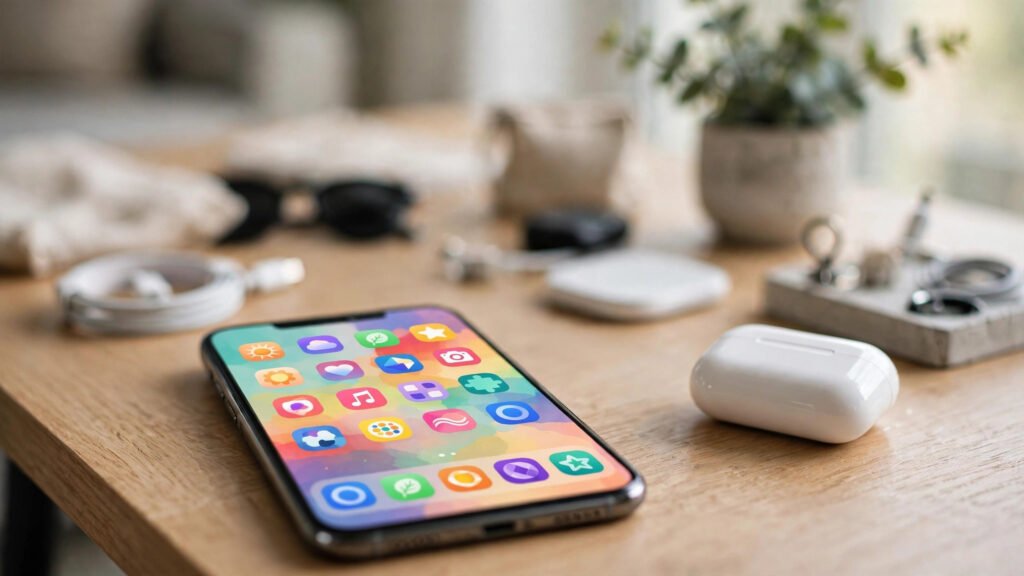
What Is an Android Launcher (and Why Switch)?
Your launcher is the app that draws your home screen, app drawer, icons, and gestures — it is the face of your phone. Every Android phone ships with a default launcher (Samsung’s One UI Home, Pixel Launcher, MIUI’s system launcher), but you are not stuck with it. Installing a third-party launcher is like redecorating your house without moving: same phone, completely different feel.
People switch launchers for three reasons: looks (icon packs, themes, layouts the stock launcher cannot do), speed (lighter launchers on older phones), and workflow (gestures and shortcuts that match how you actually use your phone). Here are the 7 best Android launchers in 2026, each with a distinct personality.
The 7 Best Android Launchers in 2026
1. Nova Launcher — the customization king
Nova has been the gold standard for a decade and still is. Virtually everything is adjustable: grid size, icon size, animations, gestures, unread badges, nested folders. If you want pixel-level control and do not mind spending an afternoon tuning, nothing else comes close. The free version covers most needs; the Prime unlock adds gestures and extra effects.
2. Niagara Launcher — the minimalist’s dream
Niagara throws out the grid entirely: a clean vertical list of your favorite apps, one-handed friendly, with embedded widgets and notifications inline. It is the launcher for people overwhelmed by their home screen. Setup takes two minutes, and the calm it brings to a chaotic phone is hard to overstate.
3. Microsoft Launcher — best for Windows users
If your digital life spans a Windows PC and an Android phone, Microsoft Launcher ties them together: timeline sync, sticky notes that appear on both devices, and tight integration with Office and To Do. The daily wallpaper and news feed are genuinely pleasant bonuses.
4. Action Launcher — the Pixel-style power user pick
Action Launcher takes the clean Pixel look and adds power features underneath: covers (tap an icon to open, swipe for a hidden folder), shutters (swipe an icon to peek at its widget), and quicktheme colors pulled from your wallpaper. Great for people who like stock Android’s look but want more muscle.
5. Lawnchair — the open-source favorite
Lawnchair recreates and extends the Pixel Launcher experience as a free, open-source project. No ads, no upsells, no data harvesting — just a fast, clean launcher with theming options the stock Pixel launcher lacks. Privacy-conscious users should start here.
6. Smart Launcher — the automatic organizer
Smart Launcher auto-sorts your apps into categories (Communication, Games, Media…) so you never organize an app drawer again. Its flower-shaped home layout looks unusual for about a day, then feels inevitable. Best for people with 200+ apps who refuse to tidy.
7. AIO Launcher — the information dashboard
AIO turns your home screen into a scrolling feed of information: weather, calendar, recent calls, system stats, RSS, even Bitcoin prices — all as compact widgets, no icons at all. It is not pretty in the conventional sense, but for data-first users it replaces five apps at a glance.
Quick Comparison
- Maximum customization: Nova Launcher
- Minimalism: Niagara Launcher
- Windows ecosystem: Microsoft Launcher
- Pixel look + power: Action Launcher, Lawnchair
- Auto-organization: Smart Launcher
- Info dashboard: AIO Launcher
- Open source / no ads: Lawnchair
How to Switch Launchers Safely
- Install your chosen launcher from the Google Play Store — stick to well-known launchers with millions of downloads. Google’s Play Store Help explains how to check an app’s safety signals (developer info, reviews, permissions) before installing anything system-level.
- Open it and tap “Set as default” when prompted, or go to Settings → Apps → Default apps → Home app and select it.
- Grant only needed permissions. A launcher needs to draw over other apps and access app lists; it does not need your contacts or location.
- Rebuild your essentials first: phone, messages, camera, and your top 5 apps on the home screen. Everything else can wait.
- Give it three days. A new launcher feels wrong for 48 hours because muscle memory rebels. Judge it after the adjustment period, not during.
Switching back is equally easy — change the default Home app back in Settings. Your old layout is preserved, so experimenting is risk-free.
Do Launchers Slow Down Your Phone?
A well-built launcher has negligible performance impact — your phone already runs a launcher, you are just swapping which one. That said: heavy live wallpapers, dozens of widgets, and aggressive animations can cost battery and smoothness on older devices. If your phone already struggles, pair a light launcher (Niagara or Lawnchair) with the cleanup steps in our guide to speeding up a slow Android phone and the developer options worth enabling for a full refresh. And keep the 12 Android security settings in mind whenever you install anything with deep system access.
Pro Customization Tips
- Icon packs (from the Play Store) reskin every icon at once — one pack plus a matching wallpaper is 80% of a “new phone” look.
- Match wallpaper to theme: dark wallpaper + dark icon pack + dark mode = a cohesive premium feel for free.
- Use gestures for speed: double-tap to lock, swipe up for search, two-finger swipe for camera. Once learned, you will never tap through menus again.
- One home screen, not five: constraint breeds clarity. Most people use 8 apps for 90% of their time — everything else belongs in the drawer.
- Explore more app picks in our best useful mobile apps of 2026 to fill that fresh home screen with worthy apps.
FAQs
What is an Android launcher?
The app that renders your home screen, app drawer, icons, widgets, and gestures. Every Android phone has one, and you can replace the default with any launcher from the Play Store.
Are third-party launchers safe?
Established launchers with millions of downloads are safe. Stick to well-known names, check permissions at install, and avoid obscure launchers that request contacts, SMS, or location access they do not need.
Will a launcher drain my battery?
Normally no — a launcher replaces the default one rather than adding load. Battery cost comes from extras: live wallpapers, many active widgets, and heavy animations. Keep those modest on older phones.
Can I go back to my default launcher?
Yes, instantly: Settings → Apps → Default apps → Home app, and reselect your phone’s original launcher. Your previous layout is preserved.
Do launchers work on Samsung/Xiaomi/OnePlus phones?
Yes — launchers work on virtually all Android phones. Some manufacturer-specific gestures (like Samsung’s edge panels) may behave slightly differently, but core functionality is universal.
Which launcher is best for old, slow phones?
Niagara Launcher or Lawnchair — both are lightweight and fast. Pair with a static wallpaper and minimal widgets for the best results.
Are launchers free?
The best ones have generous free versions (Nova, Niagara, Lawnchair are free to start). Paid unlocks add premium gestures and effects but are optional.
Do I lose my widgets when switching?
Widgets belong to the launcher layout, so you will re-add them in the new launcher. Your apps and data are untouched — only the home-screen arrangement changes.
Conclusion
A new launcher is the cheapest phone upgrade that exists: free, reversible, and transformative. Whether you want Nova’s total control, Niagara’s calm, or AIO’s data firehose, there is a home screen with your name on it. Your one small action today: install one launcher from this list, set it as default, and spend ten minutes arranging just your top 8 apps.
Which launcher runs on your phone right now? Share your setup in the comments — home-screen inspiration is a team sport.


Pingback: How to Hide Apps on Android in 2026: 4 Easy Methods
Pingback: How to Schedule Text Messages on Android in 2026: SMS and WhatsApp Reminders - DrViram.in
Pingback: How to Customize Your Android Lock Screen 2026