
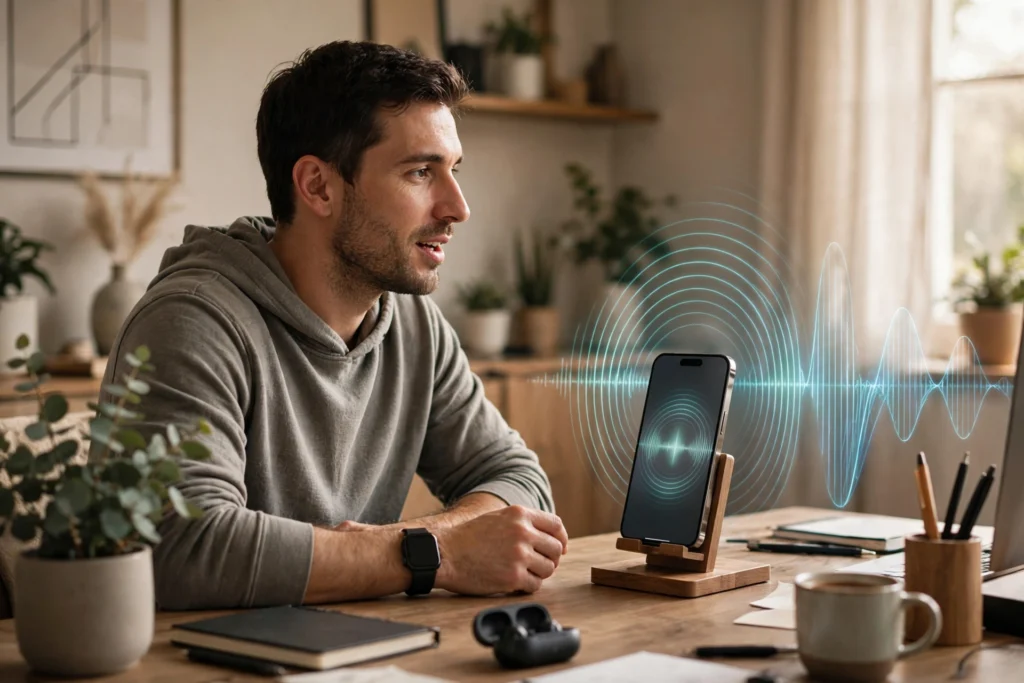
Typing is not always the easiest way to use an AI assistant. With ChatGPT Voice, you can speak naturally, hear a spoken response and continue the conversation without typing every message. Voice is useful for brainstorming, language practice, asking follow-up questions and getting help when your hands are busy.
ChatGPT’s voice experience has changed over time. In 2026, the app may offer Live, Advanced and Standard voice options, depending on your plan, region, app version and account settings. This guide explains how to start a voice conversation, choose an available mode, use it responsibly and understand the main limitations.
What is ChatGPT Voice?
ChatGPT Voice lets you speak to ChatGPT and hear a spoken response. Voice works within a chat, so you can follow the conversation in text, type when you prefer and review earlier messages without starting a separate conversation.
The main options may include:
- Live: a natural, back-and-forth voice experience that can listen while responding, so you can interrupt or continue speaking. It can work with text and images in the same chat and use web search or connected features when available to your account. Live does not support video or screen sharing.
- Advanced: the previous real-time voice experience. Eligible subscribers can use supported mobile features such as live video and screen sharing in this mode.
- Standard: a turn-by-turn voice experience that transcribes your speech before generating a response.
These options and their availability can change. OpenAI’s official ChatGPT Voice help page is the best place to check the latest feature and plan details.
How to start a voice conversation on Android or iPhone
- Install or update the official ChatGPT app from Google Play or the Apple App Store.
- Open the app and sign in.
- Open a chat or start a new one.
- Tap the Voice icon in the message bar.
- If prompted, allow ChatGPT to use your phone’s microphone.
- If this is your first voice conversation, choose a voice if the app asks you to.
- Start speaking. Use the microphone control to mute or unmute, and the exit control to end the conversation.
The icon and layout can change between app versions. If you do not see Voice, update the app, check your account and region, and make sure microphone permission is enabled in your phone settings.
How to use ChatGPT Voice on a computer
- Open ChatGPT.com in a supported browser and sign in.
- Open a conversation.
- Select the Voice icon in the prompt area.
- Allow microphone access if your browser asks.
- Speak naturally and listen to the response.
- Use the microphone control to mute and the exit control to finish.
If your microphone is not detected, check your browser’s site permissions, Windows or macOS input settings, and whether another app is using the microphone. A headset can reduce echo and background noise.
How to switch between Live, Advanced and Standard
- Open ChatGPT and go to Settings.
- Open Voice.
- Review the voice experience options shown for your account.
- Select Live, Advanced or Standard if the option is available.
- Return to a chat and tap the Voice icon to start.
Not every account will show all three options. Workspace settings, parental controls, plan, region and app version can affect what is available. Use Advanced when you need eligible mobile video or screen-sharing capabilities; Live is the current default experience for many users.
Live can work with text and images in the same chat when the relevant feature is available. During a Live conversation, use the add button in the message bar to attach a supported image, or type a message instead of speaking.
Live does not support live video or screen sharing. Eligible subscribers can use those capabilities in the ChatGPT iOS or Android app when using Advanced Voice:
- To share live video, start an Advanced voice conversation and tap the camera button. Tap it again to stop.
- To share your screen, open the more-options menu, choose Share Screen and follow your phone’s prompts.
- To stop sharing, return to ChatGPT and use the screen-sharing control or your device’s system controls.
Availability and usage limits apply. Do not show passwords, payment details, confidential documents or other sensitive information while sharing your screen or camera.
5 practical ways to use ChatGPT Voice
1. Brainstorm ideas while walking
Talk through a blog topic, business idea or project problem. Ask ChatGPT to challenge your assumptions, list alternatives or summarize the strongest options.
2. Practise a new language
Ask ChatGPT to have a short conversation in the language you are learning. Request slower speech, simple vocabulary or corrections after each answer. Treat its feedback as practice, not a formal language assessment.
3. Rehearse an interview or presentation
Ask ChatGPT to act as an interviewer or audience member. Answer questions aloud, then ask for feedback on clarity, structure and confidence. You can repeat difficult questions until the response feels natural.
4. Learn a topic through follow-up questions
Ask for an explanation, then interrupt to request an example, a simpler version or a comparison. Voice is helpful when you want to explore a topic conversationally rather than write a long prompt.
5. Get hands-free help with everyday tasks
Ask for recipe ideas, a packing checklist or a step-by-step plan while doing another task. Do not use the phone or interact with Voice while driving if it distracts you; follow local hands-free and road-safety laws.
Tips for clearer voice conversations
- Use a quiet place: background conversations and television audio can confuse the microphone.
- Try headphones: they can reduce echo and make the conversation easier to hear.
- Give context first: say what you are trying to accomplish before asking detailed questions.
- Ask for a specific format: for example, “give me three options” or “explain this in simple language.”
- Interrupt and redirect: in Live, you can speak while ChatGPT is responding. If it misunderstands, correct it directly.
- Ask for a summary: request a short recap before ending if you want to remember the main points.
- Check the transcript: voice transcripts may not exactly match the spoken conversation, especially with noise or overlapping speech.
Voice limits, availability and performance
Voice usage limits depend on your plan and can change. ChatGPT notifies you when you reach a limit. Access may also depend on region, app version, workspace settings and account controls. Check the current Voice help page for the latest plan-specific limits instead of relying on an old fixed number.
Voice can mishear accents, names, numbers or speech in a noisy room. It can also provide incorrect information. For medical, legal, financial or safety-related decisions, verify important details with a reliable source or qualified professional.
Voice uses more battery and data than a short text exchange because it processes audio continuously. If you are on a limited mobile data plan, consider using Wi-Fi for longer conversations.
Privacy: what happens to voice conversations?
Voice conversations are associated with your ChatGPT chat history and may include an audio or video clip alongside the transcript, depending on the mode and features used. Review the Data Controls in your account to understand how your conversations may be used and what options are available.
- Avoid speaking passwords, one-time codes, bank details or other secrets.
- Be aware of people nearby who may hear your conversation.
- Before sharing video or your screen, close private tabs and notifications.
- Review your account’s data and audio controls if you do not want to share optional content for model improvement.
OpenAI’s Voice documentation describes current voice modes, transcripts, media sharing and data controls.
ChatGPT Voice vs phone voice assistants
Phone assistants such as Siri and Google Assistant are designed for device actions like setting alarms, making calls or controlling compatible smart-home devices. ChatGPT Voice is designed more for conversational help: explaining, brainstorming, practising and working through a question. The tools can complement each other; do not assume ChatGPT Voice can perform every phone-level action.
If you want to compare AI assistants, read our guide to ChatGPT vs Gemini vs Claude or our guide to using Gemini for everyday tasks.
Frequently asked questions
1. Is ChatGPT Voice available for free users?
Yes, Voice is available with limited access on the Free plan in supported regions. Usage limits and the voice model can change, so check the current plan information shown in ChatGPT.
2. How do I turn on ChatGPT Voice?
Open the ChatGPT app or ChatGPT.com, open a chat and select the Voice icon. Allow microphone access if prompted, then start speaking.
3. Can I use ChatGPT Voice on a Windows PC?
You can use Voice on ChatGPT.com in a supported browser. Select the Voice icon and allow the browser to use your microphone. Desktop app availability and controls may vary.
4. What is the difference between Live and Advanced Voice?
Live is the current natural back-and-forth experience and supports text and images in the same chat when available, but not live video or screen sharing. Advanced is the previous real-time experience and retains eligible mobile video and screen-sharing features.
5. Can ChatGPT see my camera during a voice conversation?
Eligible subscribers can share live video in the mobile app using Advanced Voice. Live mode does not support live video. Only share when you understand what is visible to the camera.
Eligible subscribers can share their screen in the ChatGPT iOS or Android app using Advanced Voice. Live does not support screen sharing. Availability and limits apply.
7. Can I interrupt ChatGPT while it is speaking?
Yes. Live is designed for natural turn-taking and can listen while responding. Background noise, overlapping speech and network conditions can still affect what it hears.
8. Does ChatGPT save voice conversations?
Voice conversations are associated with the chat and a transcript is added to chat history. Depending on the mode, audio or video clips may also be stored with the conversation. Check Data Controls and the current Voice documentation for details.
9. Why does ChatGPT Voice not understand me?
Noise, microphone permission, a weak connection, overlapping speech or an unfamiliar name can cause errors. Try headphones, move to a quieter place, check microphone access and correct the transcript when needed.
10. Is ChatGPT Voice always accurate?
No. It can mishear speech or make factual mistakes. Verify important claims, especially when they involve health, law, money or safety.
Final takeaway
ChatGPT Voice makes it easier to ask questions and explore ideas through natural conversation. Start with the Voice icon, choose an available mode, use clear prompts and check important information. Use Advanced when you specifically need eligible mobile video or screen sharing, and review privacy settings before sharing sensitive content.

Pingback: How to Use Microsoft Copilot in 2026: Beginner's Guide