
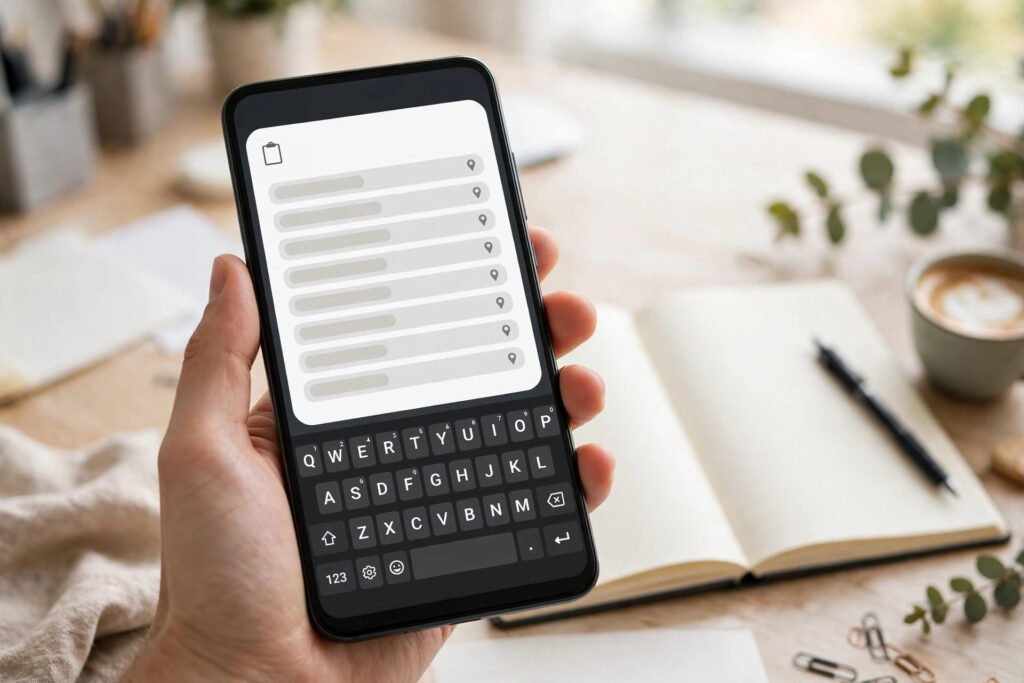
Every time you copy text on your Android phone — a password, an address, a link, a message — it goes to the clipboard, a temporary holding space you rarely think about. Android’s clipboard history, built into Gboard and many phone keyboards, lets you see and reuse things you copied earlier instead of copying them again. Used well, it saves constant app-switching; used carelessly, it keeps sensitive text lying around longer than you intended.
This guide explains how clipboard history works on Android in 2026, how to turn it on, how to manage it, and how to clear it safely.
1. What is clipboard history, exactly?
When you copy something, Android stores it on the clipboard so you can paste it somewhere else. Without history, only the most recent item is available — copy something new and the old item is gone. With clipboard history enabled in your keyboard (usually Gboard), the keyboard remembers recent copied items, so you can paste something you copied five minutes ago without going back to the original app.
Important: clipboard history lives in your keyboard app, not in Android itself, so the exact steps and limits depend on your keyboard. Gboard is the default on most Android phones, and this guide uses it. Samsung Keyboard and other keyboards have similar features under their own settings.
2. How to turn on clipboard history in Gboard
Open any app where you can type, tap the text field to open Gboard, then tap the clipboard icon in the toolbar above the keyboard. If you do not see it, tap the four-square menu icon and find Clipboard there. The first time you open it, Gboard will ask you to turn on clipboard history — toggle it on. From then on, copied text and images appear in that clipboard panel.
Tip: if the clipboard icon is missing entirely, update Gboard from the Play Store, or check Gboard settings under Settings, then System, then Languages and input, then On-screen keyboard, then Gboard, where clipboard options live. For help with Android keyboard and system settings generally, Google’s official guidance is at Google Android help.
3. How to paste an older copied item
Open the keyboard, tap the clipboard icon, and you will see a list of recent items. Tap any item to paste it into the current text field. You can also pin items you use often — an address, a frequently sent reply, a work email — so they stay at the top of the list instead of being pushed out by newer copies. Pinned items survive even when the history is cleared, so pin deliberately and unpin anything you no longer need.
Tip: clipboard history is a productivity tool, not a notes app. If you find yourself pinning ten items, move the permanent ones to a notes app and keep the clipboard for genuinely temporary text.
4. Copying images and links, not just text
Gboard’s clipboard also handles images and links you copy, which is handy for sharing a screenshot or a product link between apps without saving files. Copied images appear in the same clipboard panel. Be careful with images containing personal details — a copied screenshot of a document stays in the history just like text does, and it is just as easy to paste accidentally into the wrong chat.
5. The privacy part: what you should never leave on the clipboard
The clipboard is more exposed than most people realise. Any app with clipboard access could historically read it, and while modern Android restricts background clipboard access, the history still sits in your keyboard for anyone holding your unlocked phone to paste. Passwords, one-time codes, bank details, addresses and private messages should be pasted immediately and then cleared from history — or better, use your password manager’s autofill instead of copying passwords at all.
This connects directly to broader phone hygiene: our guides to Android security settings and which app permissions to allow and block cover the settings that limit what apps can see, including clipboard access.
6. How to clear clipboard history
Open Gboard’s clipboard panel, tap the edit or delete option (usually a pencil or trash icon), select the items you want to remove, and delete them. To clear everything at once, look for a “clear all” option in the same panel — pinned items may need to be unpinned first. If you want to stop history altogether, toggle clipboard history off in Gboard settings; the keyboard will then keep only the most recent copied item, as before.
Tip: make clearing the clipboard part of your routine after copying anything sensitive. It takes three taps, and it closes a small but real privacy gap that most people never think about.
7. Clipboard tricks that save real time
Combine clipboard history with split screen to move text between two apps without switching back and forth — copy in one app, paste in the other, both visible at once. Our guide to using split screen on Android explains the setup. Another useful combination is clipboard plus Google Lens: copy text from an image with Lens, then paste it from the clipboard into a message or document — see Google Lens on Android for that workflow.
Watch out for: pasting into the wrong field. Always glance at the text field before tapping a clipboard item — autocomplete and clipboard suggestions sit close together, and it is easy to paste an address into a public comment box by mistake.
The bottom line
Android clipboard history is a small feature with an outsized effect on daily phone use: less re-copying, faster replies, and fewer trips between apps. Turn it on, pin the two or three items you genuinely reuse, clear anything sensitive right away, and it becomes one of those settings you wonder how you lived without.


Pingback: Android Widgets 2026: 10 Widgets Worth Adding to Your Home Screen - AppTricko