
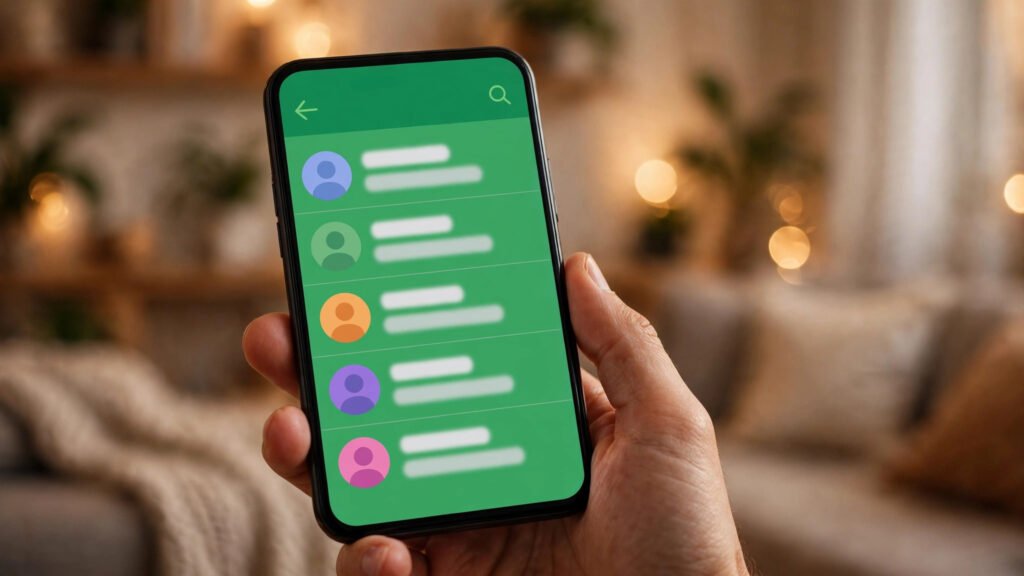
Most of us call the same five people over and over — family, a best friend, a colleague — yet every call starts with the same ritual: open WhatsApp, tap Calls, scroll past groups and old numbers, and finally find the right contact. WhatsApp’s Favorites feature exists to kill that ritual.
Favorites puts your most-called contacts and groups one tap away, at the top of your Calls tab. It takes thirty seconds to set up and quietly saves you time every single day. Here is how to use it properly.
1. What Favorites actually is
Favorites is a pinned list inside the Calls tab of WhatsApp. Add a contact or group to Favorites and it stays at the top of the tab with a star marker, above your recent calls. Tap it once to start a voice call, or open the contact to message them.
It is different from pinned chats, which live in the Chats tab and are about messages. Favorites is about calling — the people you phone regularly. If your chat list is already under control, our hidden features roundup has more tweaks in the same spirit.
2. How to add Favorites on Android and iPhone
On both platforms, the flow is nearly identical. Open WhatsApp and go to the Calls tab. Tap Add favorite (or the plus/star icon at the top). Your contact list opens — select the people and groups you call most, then confirm. They now sit in a Favorites row at the top of the Calls tab.
You can also add someone from their chat: open the contact’s info screen and look for the Add to Favorites option. This is the faster route when you have just finished a call with someone and realize they belong on the list. There is no published hard limit that most users will hit, but keep the list genuinely short — five to ten entries. A Favorites list with forty people is just a second contact list.
3. Reorder and remove Favorites
Your most-called person should be first. On Android, long-press a favorite to drag it to a new position or remove it; on iPhone, use Edit in the Calls tab to rearrange or delete entries. Removing someone from Favorites does not block or delete them — it just takes them off the quick-call list.
Review the list every few months. Work projects end, and the colleague you called daily in March may be irrelevant by October. A stale Favorites list is worse than none, because you stop trusting it and go back to scrolling.
4. Call faster with Favorites
The real win is muscle memory: open WhatsApp, tap Calls, tap the first face. Two taps to call your most important people, versus scroll-and-hunt. It also helps in a hurry — calling from Favorites skips the “which number was it” hesitation when you are walking out the door.
Pair Favorites with WhatsApp’s calling features and the routine gets even smoother: start the voice call from Favorites, then switch to video or share your screen mid-call without hanging up. For family groups you call weekly, add the whole group to Favorites and the group call is one tap away.
5. Favorites vs pinned chats vs filters: when to use which
WhatsApp now has three different “keep important things close” systems, and they solve different problems. Favorites (Calls tab) is for people you call. Pinned chats (Chats tab) is for conversations you message constantly — see our pinning guide for the setup. Chat filters (Unread, Favorites, Groups) are for slicing a crowded inbox — our chat filters guide explains those.
Use all three without guilt: pin the three chats you live in, favorite the five people you call, and let filters handle the rest. They do not conflict, and together they turn a chaotic WhatsApp into something calm.
6. Privacy: who knows they are your favorite?
Nobody. Favorites are stored on your phone and are completely private — contacts are not notified when you add or remove them, and there is no visible marker on their end. This is worth stating plainly because people hesitate to favorite a boss or an ex for fear it shows somewhere. It does not.
The usual WhatsApp privacy rules still apply: your profile photo, last seen, and about info are governed by your privacy settings, not by Favorites. And if you use WhatsApp on multiple devices, note that Favorites sync with your account, so the list follows you to WhatsApp Web and linked phones.
The bottom line
Favorites is a tiny feature with an outsized daily payoff: thirty seconds of setup, then two-tap calls to the people who matter, forever. Add your five most-called contacts today, prune the list quarterly, and combine it with pinned chats and filters for a WhatsApp that finally feels organized. If a step here looks different on your phone, check the official WhatsApp Help Center — menu names shift slightly between app versions, and the help articles track the current layout.
Frequently asked questions
1. What are WhatsApp Favorites?
Favorites is a shortcut list for the contacts and groups you want to reach quickly. It helps keep frequently called people near the top of the Calls area.
2. How do I add someone to WhatsApp Favorites?
Open WhatsApp, go to Calls and tap Add favorite or the plus option if it appears. Select the contact or group and confirm. Menu labels can vary by app version.
3. Can I add a group to Favorites?
Yes, supported versions allow you to add groups as well as individual contacts. Select the group from the list when adding a favorite.
4. How do I remove a contact from Favorites?
Open the Favorites list or its edit controls, select the contact and choose Remove. This does not block the person or delete the chat.
5. Can I change the order of WhatsApp Favorites?
Where reorder controls are available, open the edit/manage option and move contacts into your preferred order. The exact gesture can differ between Android and iPhone.
6. Does someone know when I add them to Favorites?
WhatsApp does not send a notification to the person when you add or remove them from your personal Favorites list.
7. Is WhatsApp Favorites the same as pinned chats?
No. Favorites helps you reach important contacts or groups quickly, particularly for calls. Pinned chats keep selected conversations at the top of the Chats tab.
8. Can I use Favorites on WhatsApp Web or linked devices?
Feature availability and sync behaviour can vary by app version and linked-device type. Check the current Calls or Favorites area on each device rather than assuming every control is identical.
9. Is there a limit to how many favorites I can add?
WhatsApp may apply a limit or change the interface over time. The app will show the available controls when you add favorites. Keeping the list short makes it more useful.
10. Why can’t I see Favorites in WhatsApp?
Update WhatsApp from the official app store, check the Calls tab and look for Add favorite or Manage favorites. If the option is missing, it may not be available in your current app version or account rollout.

