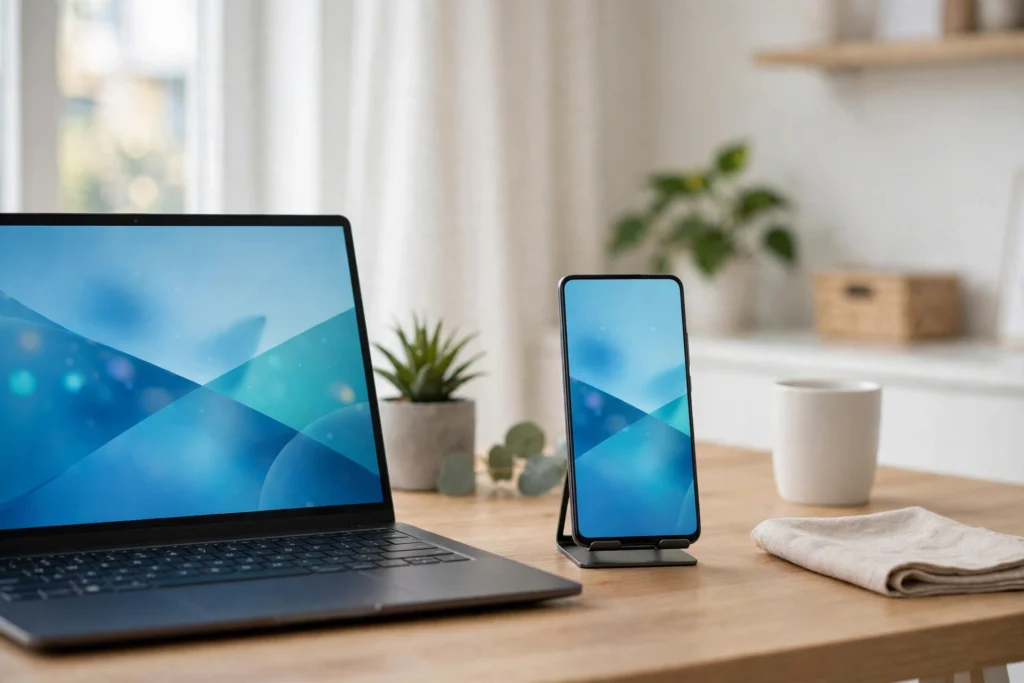
Your laptop screen is full — your chat window is buried behind your document and the notes you need keep disappearing. If you have an Android phone sitting next to you, learning how to use your android phone as a second monitor can give you that extra space without buying new hardware. Your phone becomes a small extra display for chat, notes, or music while your main work stays on the laptop. It will not replace a real monitor, but as a portable second screen it works well. Here are the answers to the questions most people ask first.
How to Use Your Android Phone as a Second Monitor in 5 Steps
The easiest free method for most Windows users is Spacedesk. It is free for personal use, and setup takes five minutes.
- Install the Spacedesk driver on your computer. Download it from the official Spacedesk website and run the installer, restarting if asked.
- Install the Spacedesk app on your phone. Get it from the Google Play Store. Keep your phone and computer on the same Wi-Fi network.
- Connect from the app. Your computer should appear in the list. Tap it, and your desktop will extend onto your phone’s screen in a few seconds.
- Set the display mode. On Windows, press Windows + P and choose Extend, so your phone acts as a second display, not a mirror.
- Arrange the screens. In Display Settings, drag the phone’s screen to the side where your phone actually sits, so your mouse moves naturally between the two.
That is the whole setup. Drag a window onto the phone’s screen and it stays there; if the connection drops, tap your computer’s name again to reconnect.
Frequently Asked Questions
Can I use my Android phone as a second monitor for free?
Yes. Spacedesk is free for personal use and covers the basic job: extending your Windows desktop onto your phone over Wi-Fi or USB. Splashtop Wired XDisplay also has a free version, though some features need a paid upgrade. Duet Display offers a free trial but needs a subscription afterwards. For notes, chat, and music, the free options are enough.
Does it work over Wi-Fi, or do I need a cable?
Both work. Wi-Fi is easiest because there is nothing to plug in, but a crowded or weak network will make the display stutter. A USB cable gives a steadier connection with lower delay, and it charges your phone at the same time. If your desk stays in one place, use a cable. If you move around, Wi-Fi is more practical. Try Wi-Fi first and switch to USB only if the picture feels choppy.
Will there be lag?
Yes, a little. The picture must travel over Wi-Fi or USB and be drawn on the phone’s screen, so some delay is unavoidable. Over a good connection the delay is small, and you will barely notice it while reading notes or checking chat. Over a weak connection it becomes obvious, with the mouse trailing behind your hand. A USB cable reduces the delay noticeably. Keep fast work like video editing on your main screen and put slow, static content on the phone.
Which apps work best?
It depends on your computer. For Windows, Spacedesk is the best free starting point. Splashtop Wired XDisplay is a good alternative if you prefer a wired connection and do not mind its free-version limits. Duet Display is a polished paid option, but it is not free for ongoing use. Samsung owners get extras: DeX turns a Galaxy phone into a desktop-style workspace, and Smart View mirrors it to a TV or monitor. Start with the free option that matches your computer.
Can I use it with a Mac?
Yes, but the options are thinner. Spacedesk supports macOS as well as Windows, so the same free setup works on a Mac. Duet Display also supports Mac and is popular there, though it is a paid app after the trial. Before installing, check the app’s official page to confirm it supports your macOS version. Setup is the same: install the companion software on the Mac, install the app on your phone, and connect over the same Wi-Fi network.
Does it drain the battery?
Yes, noticeably. Keeping the screen on and receiving a constant stream of data over Wi-Fi uses a lot of power, and the phone may feel warm after an hour. The fix is simple: keep the phone plugged in while you use it as a monitor. A USB connection charges it automatically, and on Wi-Fi you can just plug in a charger. Turn the brightness down and close apps you do not need; if the phone gets hot, disconnect for a few minutes.
Is my phone’s screen too small to be useful?
For a full second workspace, yes. A phone screen cannot comfortably hold a spreadsheet or a document you need to read closely. But for one simple panel it is genuinely useful: a chat window, a music player, a timer, or a reference page. Give the phone one job, not five, and rotate it sideways for a wider view. If you need a bigger second screen every day, a cheap used monitor is a better investment.
Can I use touch on the phone as a monitor?
In most apps, yes. Tapping the phone usually acts like a mouse click, and some apps let you scroll or drag with your finger. It feels natural for tapping a play button or checking a message. But touch is not precise enough for detailed work like selecting text or clicking small buttons, so keep a mouse handy. Think of touch as a bonus, not the main reason to set this up.
Can I use an old spare phone as a second monitor?
Yes, and this is one of the best uses for an old phone. A spare phone can live on your desk as a small status screen for chat, calendar, or music. Before you set it up, back up your Android phone so your photos, chats, and apps are safe, then remove accounts and apps you no longer need. If others use the spare phone too, Android guest mode keeps your personal data separate. An old phone is also easy to keep plugged in all day.
Is it safe to use these apps?
The well-known apps are safe when downloaded from the Play Store or the developer’s own website. Only connect on a Wi-Fi network you trust, and avoid display apps on public Wi-Fi. Keep the app updated, since updates often fix security and connection problems. Review your phone’s Android security settings so a lost phone does not expose your accounts, and know how to find a lost Android phone if you misplace it. Lock the phone when you step away.
Conclusion
Learning how to use your android phone as a second monitor is a free, quick fix for a crowded screen, not a replacement for a real display. Start with Spacedesk over Wi-Fi and give the phone one simple job. If the lag bothers you, switch to USB. If the small screen frustrates you, you now know what a bigger second display is worth to you.

Dr Vivek Garg runs drviram.in — a tech blog about AI tools, apps, and online earning. Every guide here is tested hands-on before it is published.