
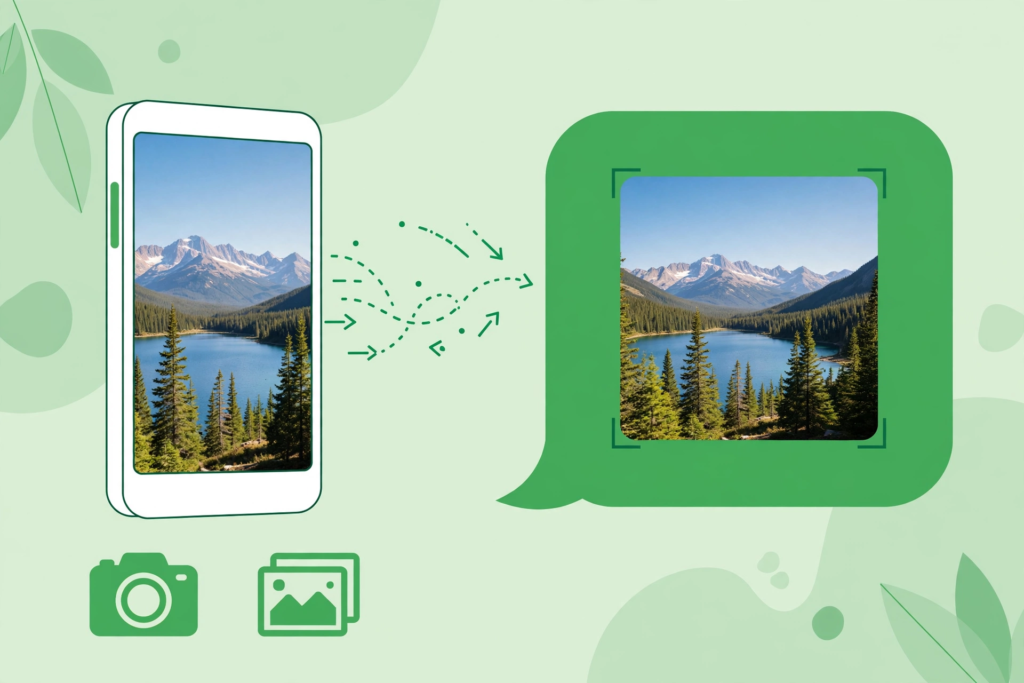
You take a stunning photo on your phone — crisp details, perfect lighting — and send it to a friend on WhatsApp. Then you look at what they received, and it looks… softer. Blurry. Like someone smeared a thin layer of fog over it. Sound familiar?
You are not imagining it. WhatsApp compresses every photo and video you send by default to save data and make messages send faster. The good news is that WhatsApp now gives you control over this — you can send photos and videos in HD quality without leaving the app. In this guide, I will show you every method: the built-in HD button, HD videos, the classic “send as document” trick for full original quality, and a setting that makes HD your default.
Why Does WhatsApp Compress Your Photos?
WhatsApp was built for fast messaging on slow networks, so it automatically reduces the file size of the media you send. A photo that is several megabytes on your phone can shrink to a fraction of its size by the time it reaches the other person. That is fine for a quick snapshot, but it hurts when you share travel photos, screenshots of text, product images, or anything where details matter.
Before you change anything, here is the key idea: compression is a trade-off between quality and convenience. Lower quality sends faster and uses less data. Higher quality looks much better but takes longer to upload. WhatsApp’s HD mode is the sweet spot — noticeably better quality, still quick to send. Let us walk through it.
This is the easiest way, and most people miss it because the option appears only after you pick a photo.
Step-by-step
- Open a WhatsApp chat and tap the attach (paperclip or plus) icon.
- Choose Gallery and select the photo you want to send.
- On the preview screen, look at the top of the screen for the HD button. Tap it.
- Choose HD quality from the popup, then tap Send.
That is it. The photo arrives looking far closer to the original. The recipient sees a small “HD” label on the photo, so they know it was sent in higher quality. If you want to save data for a particular message, you can leave HD off — the choice is per photo, so you stay in control.
Method 2: Send Videos in HD
Videos work the same way, with one thing to remember: the HD option for videos is only available for shorter clips. If your video is too long, WhatsApp will not show the HD button, and you will need the document trick below.
Step-by-step
- Attach a video from your gallery as usual.
- On the preview screen, tap the HD button at the top.
- Select HD quality and send.
HD videos are a big upgrade over the default compressed version — text in screen recordings stays readable and footage looks much cleaner. The upload takes a little longer, so use it when the quality actually matters.
Method 3: The “Send as Document” Trick for Original Quality
Here is the trick power users have relied on for years: instead of sending a photo or video as media, send it as a document. WhatsApp never compresses documents, so the file arrives bit-for-bit identical to the original.
Step-by-step
- Open the chat and tap the attach icon.
- Choose Document instead of Gallery.
- Browse and select the photo or video file from your phone’s storage.
- Tap Send.
The catch? The file arrives as a downloadable attachment rather than an inline photo, so it is slightly less convenient to view — the recipient has to tap to download and open it. Use this method when you need the exact original file, for example when sending photos for printing, sharing work files, or forwarding a video you plan to edit later.
Method 4: Make HD Your Default Upload Quality
If you find yourself tapping the HD button every single time, save yourself the trouble. WhatsApp lets you set the default media upload quality for all your chats.
Step-by-step
- Open WhatsApp and go to Settings.
- Tap Storage and data.
- Tap Media upload quality.
- Select HD quality instead of Standard quality.
From now on, every photo and video you send goes out in HD automatically. You can still drop back to standard for individual messages if you are on a slow connection — the per-message HD toggle keeps working either way. Note that this setting affects what you send; it does not change the quality of media other people send to you.
What About Receiving HD Media?
You do not need to change anything to receive HD photos and videos — if the sender used HD mode or sent the file as a document, you get the better version automatically. One practical tip: HD files are bigger, so if you are on mobile data, WhatsApp may take longer to download them. If storage space on your phone is tight, remember that HD media also takes up more room in your gallery and in your WhatsApp backup, so it is worth clearing out old media now and then.
Quick Comparison: Which Method Should You Use?
- Everyday sharing: Use the HD button (Method 1 and 2) — best balance of quality and convenience.
- Set-and-forget: Turn on HD as the default upload quality (Method 4) so you never think about it again.
- Maximum fidelity: Send as a document (Method 3) when the exact original file matters.
- Slow network or low data: Stick with standard quality — it sends fast and looks fine for casual viewing.
The Bottom Line
You no longer have to accept blurry WhatsApp photos as the price of fast messaging. Tap the HD button for a quick quality boost, set HD as your default if you always want it, and use the document trick when only the original file will do. It takes a few seconds to learn and seconds more to use — and your friends will notice the difference immediately.
Want to get even more out of WhatsApp? Check out our guides on hidden WhatsApp features and tricks, what you can actually do with Meta AI on WhatsApp, and how to recover deleted WhatsApp messages. For official documentation, WhatsApp’s own Help Center covers these settings too.
Tell us in the comments — did you know about the HD button, or were your photos getting compressed all this time? And keep following AppTricko for more WhatsApp tricks that actually make your daily messaging better.


Pingback: WhatsApp Status 2026: 9 Tricks That Stand Out
Pingback: WhatsApp Chat Themes 2026: Personalize Every Chat
Pingback: How to Manage WhatsApp Storage in 2026: Free Up Space Safely
Pingback: WhatsApp View Once: Send Disappearing Photos & Voice Notes