

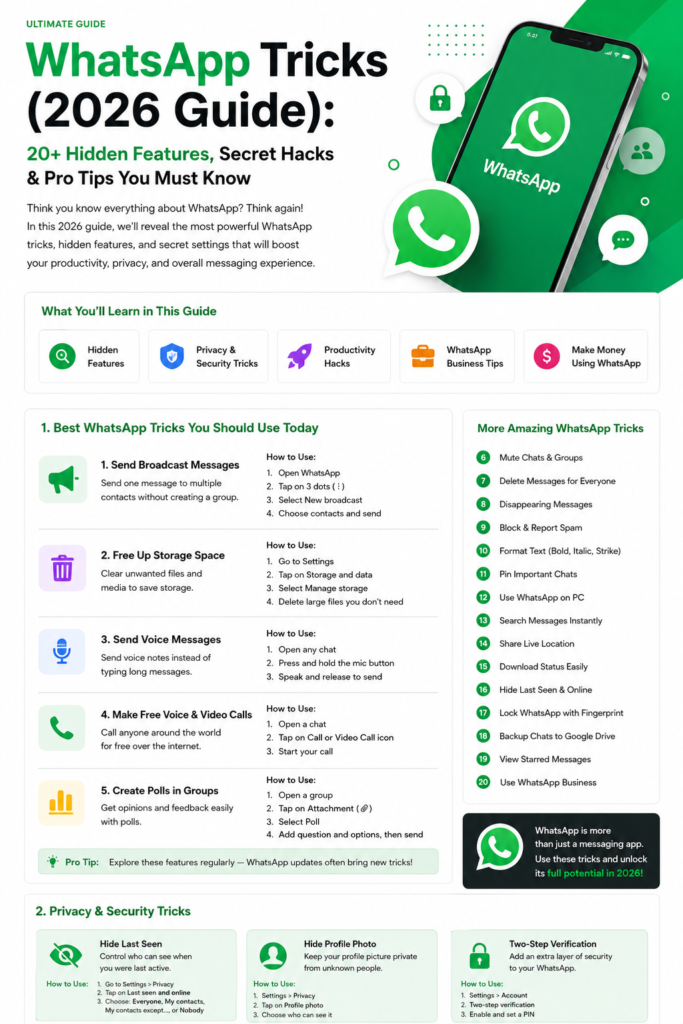
What if we told you that you’ve only been using WhatsApp at about 10% of its actual power? The WhatsApp hidden features you didnt know existed are the ones that save time, protect your privacy, and quietly make the app work harder for you.
Imagine being able to schedule messages so they send automatically while you’re asleep, hide your online status, or lock WhatsApp behind your fingerprint — all without installing anything extra. In this massive guide, we’ll walk you through over 25 secret WhatsApp tricks that even long-time users overlook, with the setting or button for each one.
WhatsApp has over 2 billion users worldwide, yet most of them stick to the basics — sending messages, making calls, and sharing the occasional photo. However, the app is packed with powerful tools designed to make your life easier. These hidden features will change how you use WhatsApp in 2026.
If you only try five of the WhatsApp hidden features you didnt know existed, make it these. They deliver the biggest everyday difference for the least effort:
- Schedule messages — write a message now and let it send itself at the right time.
- Hide your online status — stop the whole world from seeing when you’re online.
- Two-step verification — a PIN that stops someone else registering your number.
- Star messages — save addresses, codes, and links so you can find them in seconds.
- Multi-device — use WhatsApp on up to four devices, even when your phone is off.
The WhatsApp hidden features you didnt know existed below are grouped by what they do, so you can jump straight to the group that matters to you.
Everyday messaging
1. Schedule messages for later delivery. One of the most game-changing WhatsApp tricks is the ability to schedule messages. On Android, open WhatsApp and go to the chat, type your message, long-press the message bubble, select “Schedule message”, then pick the date and time and confirm. On iPhone, you can use the Shortcuts app to achieve the same result by creating an automation that sends the message for you.
2. Bold, italic, strikethrough, and monospace text. Most people type plain text, but WhatsApp supports rich text formatting that can make your messages stand out. Add *asterisks* around text for bold, _underscores_ for italic, ~tildes~ for strikethrough, and backticks for monospace. You can even combine them — for example, *_this is bold and italic_* will render as bold and italic text.
3. Star messages and search through them later. Have you ever received an important message — an address, a phone number, a verification code — and then lost it in the chat? Simply long-press any message and tap the star icon. You can then find all your starred messages later from the Starred Messages list.
4. Send disappearing photos and videos. If you want to share media that disappears after being viewed, WhatsApp has a built-in feature similar to Snapchat. Tap the “1” icon before sending, and once the recipient opens the media, they can view it only once. It won’t be saved to their gallery, so it is perfect for sharing sensitive information.
5. Use WhatsApp Status to share updates like Stories. WhatsApp Status works exactly like Instagram Stories. You can post photos, videos, text updates, and more, and your contacts can see what you’re up to at a glance.
6. React to messages with emojis. Instead of typing “haha” or “thumbs up”, you can react to any message with an emoji. Simply long-press a message and pick your reaction — a quick way to acknowledge something without starting a whole reply.
Privacy and security
These WhatsApp hidden features you didnt know existed protect your account and your attention.
7. Hide your online status. Many users think WhatsApp can’t hide their online status, but they may be surprised to learn that this is one of the most useful privacy settings. To hide your presence, go to Settings → Account → Privacy → Online, then select “Nobody”. Others won’t know when you’re online. This is one of the most popular WhatsApp hidden features for users who value their privacy.
8. Enable two-step verification. If security is a concern, WhatsApp provides its own two-step verification option. To enable it, go to Settings → Account → Two-Step Verification → Enable. This adds an extra layer of security by requiring a PIN when registering your number with WhatsApp. Set a PIN and make sure to save your recovery email. This feature can prevent unauthorized access to your account even if someone gets your SIM card.
9. Control who can add you to groups. Tired of getting added to random groups? WhatsApp actually lets you control who can add you to a group. Go to Settings → Account → Privacy → Groups. Choose from “Everyone,” “My Contacts,” or “My Contacts except…” to limit group invitations.
10. Lock WhatsApp with fingerprint or Face ID. Do you share your phone with others often? If so, privacy is a critical issue. On supported devices, you can add a biometric lock to WhatsApp. This means nobody can open the app without your fingerprint or face scan. Enable this from Settings → Account → Privacy → Fingerprint Lock (Android) or through your phone’s app lock settings (iPhone).
11. Archive chats you want out of sight. If you have old chats or conversations you’d rather not see daily, WhatsApp allows you to archive them. Archived chats move to a separate folder and won’t appear in your main chat list unless you search for them. To archive, swipe left on a chat and tap the archive icon, or open the chat, tap the contact name, and select “Archive.”
Chats and organisation
12. Use WhatsApp on multiple devices. Gone are the days when you needed your phone to be connected to use WhatsApp on your computer. Now you can use WhatsApp on up to four devices simultaneously — your phone doesn’t even need to be online. To set this up, go to Settings → Linked Devices → Link a Device, then scan the QR code on your other device.
13. Change font size and message preview. Did you know you can change the font size in WhatsApp? Go to Settings → Chats → Font size to adjust it. You can choose from small, medium, large, or custom sizes. You can also control the message preview length in notifications. Go to Settings → Notifications → Message notifications and adjust how much of the message you see before opening the chat.
14. Pin important chats to the top. With pinned chats, you’ll never lose track of your most important conversations. You can pin up to three chats, so your favourite contacts and work groups are always at the top. Simply open a chat, tap the contact name, and select “Pin.” You’ll see a pin icon next to the chat. This is especially useful for work groups, family chats, or any conversation you need quick access to.
15. Mute group notifications. Group chats can be a buzzkill when it comes to notifications. If your phone rings all day because of a work or family group, you can mute the notifications. Open the group, tap the group name, and select “Mute”. You can choose to mute for 8 hours, 1 week, or 1 year. You’ll still receive messages — they just won’t ping your phone.
16. Use WhatsApp as a document scanner. Did you know WhatsApp can double as a quick document scanner? When you share a document, tap the attachment icon and select “Document.” You can capture a photo of any document, receipt, or whiteboard and send it instantly. The built-in camera interface even lets you crop and adjust the image before sending.
Fun and expressive
17. Change your font with special codes. Besides basic formatting, you can use special Unicode characters to make your messages unique. For example, you can type messages in the Black Square font, in fancy cursive, and in other decorative styles. There are websites and apps that convert your regular text into special fonts — just type your message, pick a style, then copy and paste it into WhatsApp.
18. Use built-in formatting buttons. Don’t want to remember all the symbols? WhatsApp has built-in formatting buttons you can use directly, including B for bold, I for italic, and S for strikethrough. The formatting toolbar appears as you type, and you can use it to format text quickly and easily without memorising any codes.
For WhatsApp Business
19. Set up automated replies. If you use WhatsApp Business, you can set up automated replies for when you’re offline. Go to Settings → Business Tools → Away Message. When this feature is enabled, WhatsApp will send a message to anyone who contacts you while you’re unavailable. You can even customise the message and set the active hours, so it only replies at certain times, and you can filter it for specific contacts.
20. Create quick replies. If you find yourself typing the same messages repeatedly — like your address, business hours, or prices — WhatsApp lets you create quick replies. These are pre-written responses you can send with a single tap. To create one, go to Settings → Business Tools → Quick Replies, and save your most-used messages there.
21. Use WhatsApp labels to organise chats. If you’re running a business on WhatsApp, you can use labels to organise your chats and contacts. Go to Settings → Business Tools → Labels to tag each conversation — for example, Pending, Completed, Urgent, or VIP Customers. This feature helps you manage multiple client conversations efficiently and is especially valuable for small business owners.
5 setup mistakes that undo these features
It is easy to switch on the WhatsApp hidden features you didnt know existed and then undo them with the wrong settings. Avoid these five mistakes:
Skipping two-step verification
Without a PIN and a saved recovery email, your number is easier to hijack. Switch two-step verification on today — it takes less than a minute and protects your account even if someone gets your SIM card.
Leaving group adds on “Everyone”
With the default setting, any stranger can add you to a random group. Go to Settings → Account → Privacy → Groups and choose “My Contacts” or “My Contacts except…” so only people you choose can add you.
Never backing up your chats
If you haven’t backed up your chats to Google Drive or iCloud, deleted messages are gone for good. Set up a backup now — it is the only way to restore messages when you reinstall WhatsApp.
Using view-once for things you need to keep
A view-once photo or video can only be opened once, and it is not saved to the recipient’s gallery. Use it for sensitive media only, and for anything you need to keep, send it normally.
Leaving read receipts on when you want privacy
With read receipts switched on, senders see the blue ticks when you have read their messages. If you want to read quietly, switch Read Receipts off under Settings → Account → Privacy.
The bottom line
The WhatsApp hidden features you didnt know existed are only useful if you switch them on. You don’t need to be a tech expert — most of them are just a few taps away inside Settings. Open WhatsApp, try at least three of these tricks today, and watch how much smoother your chats feel.
WhatsApp is far more powerful than most people realise. Once you switch on the WhatsApp hidden features you didnt know existed, you’ll wonder how you used the app without them.
Frequently Asked Questions
Can I use WhatsApp without a phone number?
Yes. WhatsApp’s “Linked Devices” feature lets you use WhatsApp without a phone number. Through this feature, you can use your primary device to register your account, and then link up to four additional devices that can run WhatsApp without a SIM card.
Is it possible to read WhatsApp messages without the sender knowing?
Yes. If you want to read messages without the sender knowing, switch off Read Receipts under Settings → Account → Privacy. With read receipts off, the sender will not see the blue ticks when you have read their messages.
How do I make my WhatsApp number invisible to unknown contacts?
To make your WhatsApp number invisible to unknown contacts, go to Settings → Account → Privacy → Phone Number and choose “My Contacts” or “Nobody”. This limits who can see your number and helps protect your privacy.
Can I recover deleted WhatsApp messages?
Yes, but only if you backed up your chats to Google Drive or iCloud before deleting them. When you reinstall WhatsApp, you can restore the backup and recover your messages and media.
Does WhatsApp have a dark mode?
Yes, WhatsApp has a dark mode on both Android and iOS. To enable it, go to Settings → Chats → Theme and select “Dark”. Dark mode is easier on your eyes in low light and can help save battery on OLED screens.
Start with the five in the quick-pick list at the top of this guide: scheduling messages, hiding your online status, two-step verification, starred messages, and multi-device. They deliver the biggest everyday difference for the least effort.
How do I schedule a WhatsApp message?
On Android, type your message in the chat, long-press the message bubble, choose “Schedule message”, then pick a date and time and confirm. On iPhone, create an automation in the Shortcuts app to send the message at the time you choose.
How do I hide my last seen and online status on WhatsApp?
Go to Settings → Account → Privacy → Online and select “Nobody”. No one will see when you are online, and this is one of the most popular privacy settings in WhatsApp.
How do I lock WhatsApp with my fingerprint?
On Android, go to Settings → Account → Privacy → Fingerprint Lock and switch it on, so nobody can open WhatsApp without your fingerprint. On iPhone, use your phone’s app lock settings to protect WhatsApp with Face ID or a passcode.
Can I use WhatsApp on my computer without my phone being online?
Yes. Linked Devices lets you use WhatsApp on up to four devices at the same time, and your phone doesn’t need to stay online. Set it up from Settings → Linked Devices → Link a Device, then scan the QR code on the other device.
How do I pin a chat on WhatsApp?
Open the chat, tap the contact name, and select “Pin”. You can pin up to three chats, and a pin icon marks them at the top of your chat list, so your most important conversations are always easy to reach.
What are WhatsApp disappearing messages and view-once photos?
Disappearing photos and videos are sent by tapping the “1” icon before you send, and they can be viewed only once. They are not saved to the recipient’s gallery, so they are ideal for sharing sensitive information.
How do I star a message and find it later?
Long-press any message and tap the star icon to star it. Later, open the Starred Messages list to find every address, phone number, code, or link you have saved, instead of scrolling through the whole chat.
How do I stop random people adding me to WhatsApp groups?
Go to Settings → Account → Privacy → Groups and choose “My Contacts” or “My Contacts except…”, so only people you choose can add you to groups. This stops strangers adding you to random groups.
Most of them do, though the steps can differ between devices. Scheduling uses the Shortcuts app on iPhone and a long-press option on Android, while fingerprint lock is an Android setting and iPhone uses Face ID or its app lock. Check the steps for your device in the feature list above.
Keep reading
Want more WhatsApp hidden features you didnt know existed explained simply? These guides on DrViram.in will help you get more out of the apps you use every day:
- Instagram Growth Strategies That Work in 2026 — WhatsApp Status works like Instagram Stories, and these strategies show how story-style updates reach more people.
- Best Free AI Tools 2026 — free AI tools for writing, design, study, and video, including tools you can use to create Status updates and stickers.
- Online Earning Methods for Beginners 2026 — five realistic ways to start earning online, including using WhatsApp Business to reach customers.
- How to Start Freelancing 2026 — if you use WhatsApp Business to talk to clients, this guide shows how to turn those conversations into paid work.
Official sources
- WhatsApp Help Center — official help articles for WhatsApp features, privacy settings, and troubleshooting.
- WhatsApp official website — download WhatsApp and read about its latest features.
Here is the complete list of the WhatsApp hidden features you didnt know existed in this guide — all 21 of them — so you can tick them off as you switch them on. Want the details for any of them? Scroll back up to the full list above, where each WhatsApp hidden feature you didnt know existed comes with its settings path. If you try just one of the WhatsApp hidden features you didnt know existed this week, make it two-step verification.
- Schedule messages for later delivery
- Bold, italic, strikethrough, and monospace text
- Star messages and search through them later
- Send disappearing photos and videos
- Use WhatsApp Status to share updates like Stories
- React to messages with emojis
- Hide your online status
- Enable two-step verification
- Control who can add you to groups
- Lock WhatsApp with fingerprint or Face ID
- Archive chats you want out of sight
- Use WhatsApp on multiple devices
- Change font size and message preview
- Pin important chats to the top
- Mute group notifications
- Use WhatsApp as a document scanner
- Change your font with special codes
- Use built-in formatting buttons
- Set up automated replies (Business)
- Create quick replies (Business)
- Use WhatsApp labels to organise chats (Business)
One last tip: the WhatsApp hidden features you didnt know existed work best when you check back in Settings → Account → Privacy and Settings → Chats from time to time. Most of the WhatsApp hidden features you didnt know existed take less than a minute to switch on. That is the point of the WhatsApp hidden features you didnt know existed — small switches, big difference. If this guide helped, share it with someone who still only uses WhatsApp at 10% of its power, and try them together.

Dr Vivek Garg runs drviram.in — a tech blog about AI tools, apps, and online earning. Every guide here is tested hands-on before it is published.
Pingback: WhatsApp Disappearing Messages 2026: Setup Guide
Pingback: How to Pin Chats and Messages on WhatsApp in 2026 - AppTricko
Pingback: WhatsApp Read Receipts 2026: How to Read Messages Without the Blue Ticks - DrViram.in
Pingback: WhatsApp Favorites 2026 Pin Favorite Contacts: Best Guide