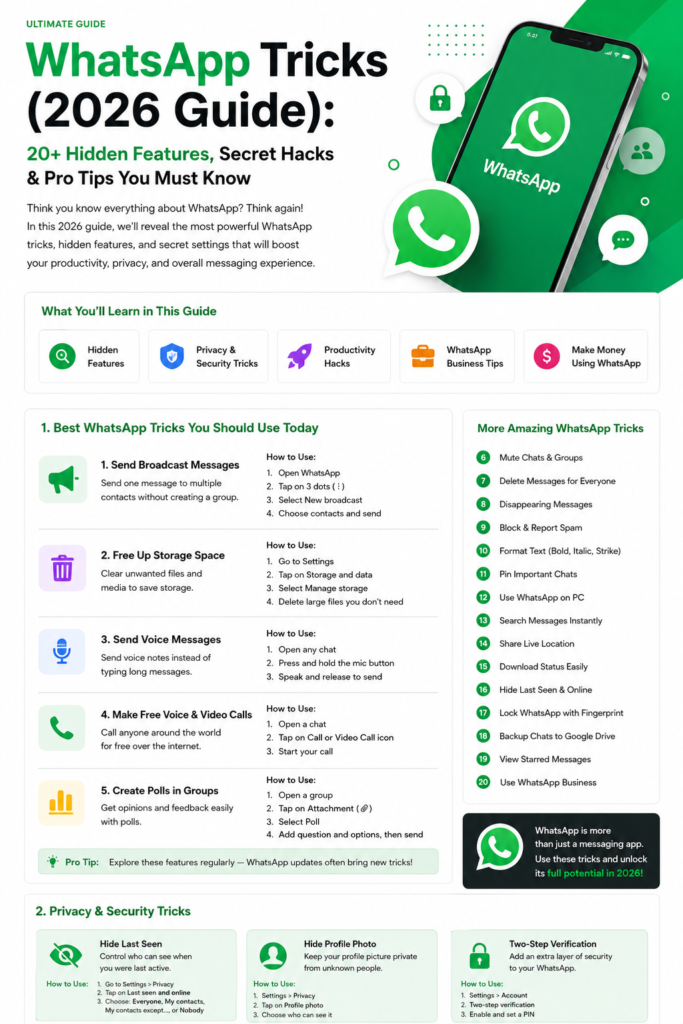
You have probably received one without noticing: a small video bubble in a WhatsApp chat that plays the moment you tap it, no download, no separate app, no link to open. WhatsApp video messages are 60-second video clips you record and send right inside a chat — the video version of a voice note. Learning how to use WhatsApp video messages takes about a minute, and once you know the trick, you will use it far more than you expect: birthday wishes, a quick look at something you are buying, a face-to-face hello when a call is too much.
They work in personal chats and groups, on Android and iPhone, and the person receiving them does not need to update anything special — if their WhatsApp is reasonably current, the video message simply plays. This guide covers how to record and send one, the settings that control it, and answers the questions everyone asks after trying it for the first time.
How to Use WhatsApp Video Messages in 3 Steps
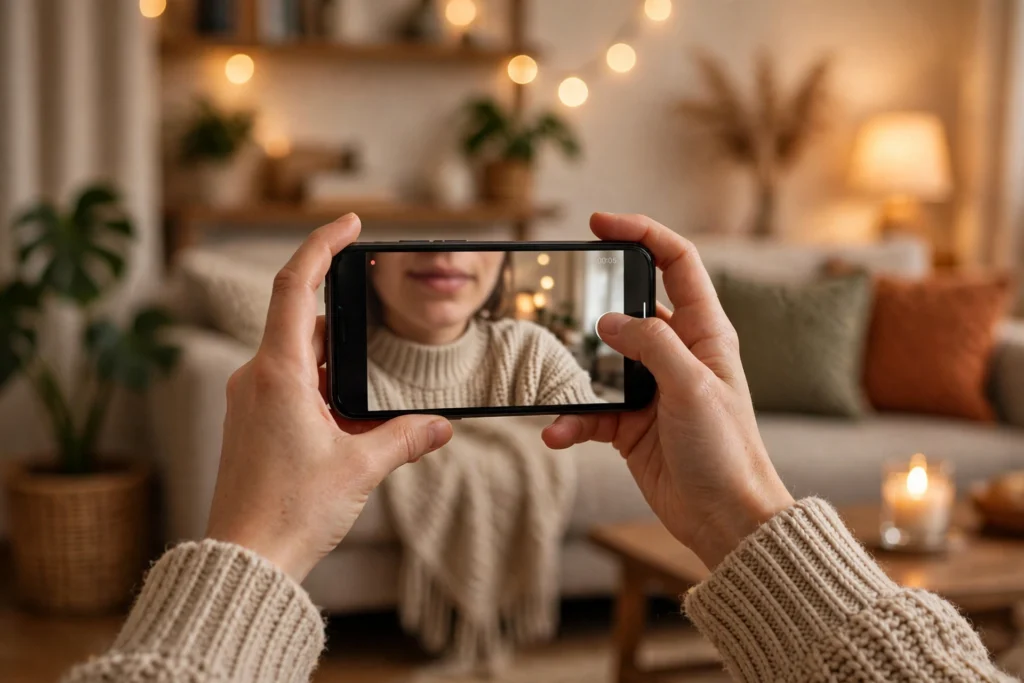
Open any chat and find the microphone icon at the bottom right. Tap it once — not hold, just tap — and it switches to a small video camera icon. That single tap is the whole secret: microphone mode becomes video message mode. Tap and hold the camera icon to start recording, and your face appears in a circle on screen while you record. Release to send, or slide up to lock recording hands-free and tap send when you are done.
If you only see the microphone and tapping it does nothing, your app may need updating, or your phone’s camera permission for WhatsApp may be off — check both before assuming the feature is missing. And if you prefer the familiar voice version, our guide to WhatsApp voice messages covers the eight tricks most people never discover.
Frequently Asked Questions
How long can a WhatsApp video message be?
Sixty seconds, maximum. That limit is deliberate — video messages are meant to be quick reactions and updates, not full video calls. If you need longer, record a normal video with your camera app and send it as a file, or start a video call instead. The 60-second cap keeps the feature fast and keeps your chat from turning into a video inbox.
Can I switch back to voice messages after enabling video mode?
Yes — tap the camera icon once and it switches back to the microphone. WhatsApp remembers your last choice, so if you prefer voice notes, leave it on the microphone and you will never see the camera icon again until you tap it. This toggle is per device, so switching on your phone does not change anything on WhatsApp Web or desktop.
Do video messages download automatically and eat my storage?
They follow the same auto-download rules as every other WhatsApp media. If auto-download is on, they save to your phone automatically — and a lot of 60-second videos add up fast. If storage is tight, turn auto-download off for videos in Settings, then Storage and data. Our guide to stopping WhatsApp auto-downloads walks through the exact settings, and it is worth doing before video messages become a habit.
Can the other person save or forward my video message?
Yes, like any message, a video message can be forwarded or saved by the receiver. It is not a disappearing message and it does not have screenshot protection. Do not send anything in a video message that you would not be comfortable with being shared — the same rule applies to voice notes, but video carries your face and your surroundings too. For messages that should truly vanish, use view-once media instead; our guide to WhatsApp View Once explains how that works.
Why do my video messages look blurry or dark?
Three usual causes: low light, a dirty front camera, or a weak connection. Record facing a window or a lamp, wipe the front lens first, and wait for decent signal before sending — WhatsApp compresses video heavily on a poor connection. If the problem persists, update WhatsApp.
Can I send video messages in groups?
Yes, they work in groups exactly like in one-to-one chats — record, send, and everyone in the group sees the bubble and can play it. They are actually most fun in groups: a quick reaction to a joke, a look at the place you are standing, a birthday wish the whole group can watch. Group admins can delete them like any other message if needed.
Yes — tap and hold the camera icon, then slide your finger up to lock recording. A lock icon appears, and you can let go and keep talking hands-free. Tap the send arrow when you finish, or tap the trash icon to delete the recording and start over. The hands-free lock works the same way as the one for long voice notes.
Do video messages work on WhatsApp Web or desktop?
You can watch received video messages on WhatsApp Web and desktop, but recording them is a phone feature. If you use WhatsApp mainly on a computer, record on your phone and the message appears in the same chat everywhere. For a proper video conversation on desktop, a video call is still the better option — and if you ever need to keep a record of one, read our guide to recording WhatsApp calls legally before you press record.
When a Video Message Beats a Text or a Call
Knowing how to use WhatsApp video messages well also means knowing when not to use them. Use video messages for things text cannot carry: your reaction to good news, showing someone a product in a shop, a quick birthday wish with your face in it, or proof that the thing you are describing is real. Do not use them for anything urgent — the other person may not watch a video immediately, and a missed video message is worse than a missed text. And never send one when a call would be kinder: bad news and apologies deserve a real voice, not a 60-second clip.
One practical tip: keep them short. The best video messages are 10 to 20 seconds — long enough to say the thing, short enough that nobody hesitates to tap play. If you find yourself recording for the full minute, you probably needed a call. WhatsApp’s own FAQ pages confirm the current limits and availability if anything changes.
Final Thoughts
Video messages are a small feature, but they fill a real gap: warmer than a text, lighter than a call. Tap the microphone to switch to the camera, hold to record, and you are done — sixty seconds of you, in a bubble, in the chat where it belongs. Try it once on a friend who will forgive a shaky first attempt. That is how to use WhatsApp video messages, and it will probably become your favourite way to say hello.
Dr Vivek Garg runs drviram.in — a tech blog about AI tools, apps, and online earning. Every guide here is tested hands-on before it is published.

Dr Vivek Garg runs drviram.in — a tech blog about AI tools, apps, and online earning. Every guide here is tested hands-on before it is published.