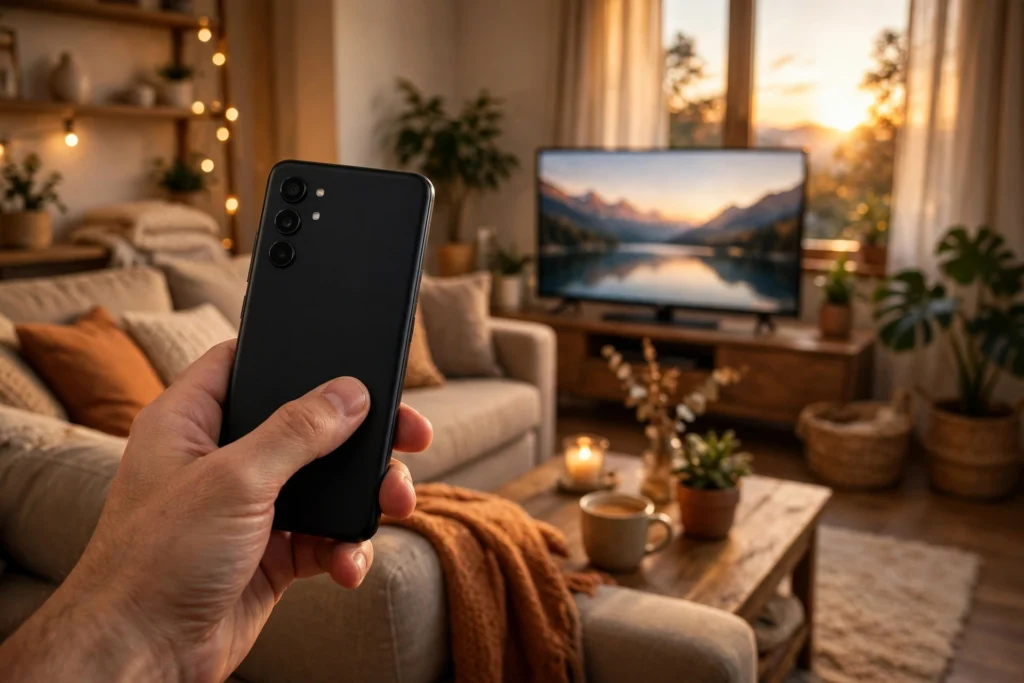
The TV remote has vanished again — under the sofa, in the kitchen, or in the hands of a toddler who considers it a toy. Your phone is right there in your pocket, and learning how to use your Android phone as a remote control takes about five minutes, costs nothing, and works for your TV, your set-top box, and often the air conditioner too.
Step 1: Try the Built-In Google TV Remote First
Most Android phones already have a remote control hiding in the quick settings. Swipe down from the top of your screen twice to open the full quick-settings panel, look for a tile called “TV Remote” or “Google TV Remote”, and tap it. If the tile is not there, tap the pencil icon to edit your tiles and add it. The first time you open it, the phone will ask you to pick your TV — choose the one on the same Wi-Fi network — and a simple remote appears on your screen, with power, volume, navigation, and a touchpad.
This works with Google TV, Android TV, and most Chromecast devices. If your TV does not appear, check that both devices are on the same Wi-Fi network and the TV is switched on. The official steps are on Google’s TV remote help page, which also covers pairing failures.
Step 2: Use Your TV Brand’s Own Remote App
If the Google TV remote does not fit your television, your TV’s manufacturer almost certainly has its own app: Samsung SmartThings, LG ThinQ, Mi Remote, Sony’s TV SideView, or the app for your set-top box. Install it from the Play Store, connect it to the same Wi-Fi network as the TV, and sign in if asked. Brand apps usually go further than the generic remote — they can open apps on the TV, cast photos from your phone, and show a full keyboard for typing passwords, which is the part of TV life everyone hates.
One caution: check what permissions the app asks for. A remote app needs Wi-Fi access and little else — if it demands your contacts or location, skip it. Our guide to which Android app permissions to allow and block explains how to judge these requests.
Step 3: Check Whether Your Phone Has an IR Blaster
Some Android phones — many Xiaomi, Redmi, and Poco models, and some older Huawei and Samsung phones — have a small infrared blaster on the top edge. It works like a real remote: it sends infrared signals, so it controls older TVs, set-top boxes, and air conditioners without Wi-Fi, and it works even when the internet is down. Open your phone’s built-in remote app (on Xiaomi phones it is called Mi Remote), pick the brand of your TV or AC, and point the top of the phone at the device while you test the buttons.
To check whether your phone has one, look for a tiny dark window on the top edge, or search your model name with “IR blaster” online. If it does not, skip to Step 4 — the Wi-Fi methods above cover most modern TVs.
Step 4: Set Up a Universal Remote App for Everything Else
For the devices the other methods miss — an old set-top box, a soundbar, a fan — a universal remote app can fill the gap. If your phone has an IR blaster, apps like Mi Remote or Universal TV Remote can learn almost any brand. If it does not, look for Wi-Fi-based apps from the device manufacturer first, and only then try third-party apps. When you test a third-party app, try the power and volume buttons first; if those work, the rest usually follows.
Keep the number of remote apps small. One good app you trust beats five half-working ones, and every extra app with network access is a small privacy trade-off. Our guide to using Circle to Search covers another built-in tool worth setting up properly the first time.
Step 5: Mirror Your Screen When the Remote Is Not Enough
Sometimes the real goal is not changing the channel — it is getting your phone’s content onto the big screen. Casting a video or presentation uses the same Wi-Fi connection, and our guide to mirroring your Android screen to a TV covers the four methods that work.
Step 6: Fix It When the Remote Stops Working
Phone remotes fail in a handful of predictable ways, and the fixes are quick. If the TV does not appear in the remote app, restart both the phone’s Wi-Fi and the TV — a stale connection is the cause nine times out of ten. If the buttons respond slowly, move closer to the router; a weak Wi-Fi signal makes the remote feel broken when it is just slow. If an IR remote stops working, check the phone’s top edge for a case or cover blocking the blaster, and point it directly at the device — infrared needs a clear line of sight, just like a real remote.
If nothing works, remove the TV from the app and add it again — re-pairing fixes most mysterious failures in under a minute.
How to Use Your Android Phone as a Remote Control Every Day
Once the setup is done, make the remote easy to reach: keep the TV Remote tile in your quick settings, or add the brand app’s widget to your home screen. That way the remote is one swipe away whenever the physical one goes missing — which, in most homes, is about once a week.
Frequently Asked Questions
Can I use my phone as a remote without Wi-Fi?
Only if your phone has an IR blaster — Wi-Fi remotes need both devices on the same network, while IR remotes work offline.
Does using my phone as a remote drain the battery?
Barely — a remote app uses a little Wi-Fi and screen time. If your battery is already a concern, keep the screen timeout short.
Can one phone control two TVs?
Yes. The Google TV remote and most brand apps let you switch between devices from a list. Add each TV once, and switching takes a single tap.
Is it safe to install a third-party remote app?
Stick to the official app from your TV’s brand or a well-known app with millions of downloads and recent updates. Avoid apps that ask for permissions unrelated to controlling a TV, and read the most recent reviews before installing.
Final Thoughts
A lost remote is a small annoyance that adds up — and your phone solves it in minutes. Start with the built-in Google TV remote, add your TV brand’s app if you need more, and check for an IR blaster if you have older devices. Once it is set up, the phone in your pocket is the remote you can never lose. That is the whole trick behind learning how to use your Android phone as a remote control — five minutes of setup, and the sofa cushions can keep the old remote forever.
Dr Vivek Garg runs drviram.in — a tech blog about AI tools, apps, and online earning. Every guide here is tested hands-on before it is published.

Dr Vivek Garg runs drviram.in — a tech blog about AI tools, apps, and online earning. Every guide here is tested hands-on before it is published.