Open your phone’s storage settings and you will often find one app sitting at the top of the list: WhatsApp. Every photo, video, voice note and document you receive stays on your phone unless you remove it, and in busy family and work groups that pile grows surprisingly fast. The good news is that you do not need to delete your chats or buy a new phone to fix it. These whatsapp storage tricks work inside the app itself, so you can reclaim space in a few minutes and keep every conversation intact.
1. Open WhatsApp’s Built-In Storage Manager
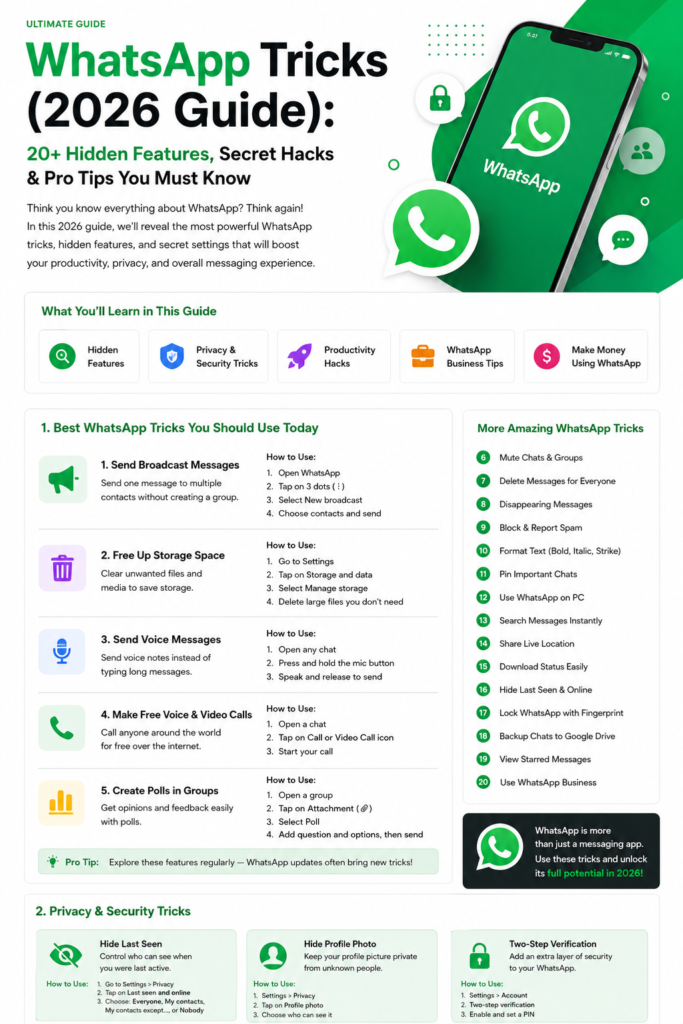
WhatsApp has its own storage tool, and it is the best place to start. On Android, go to Settings > Storage and data > Manage storage; on iPhone, go to Settings > Storage and Data > Manage Storage. You will see how much space WhatsApp is using in total, a breakdown by chat, and a “review and delete items” section. The per-chat list shows which conversations use the most room.
2. Review Large Files First — the Fastest of These WhatsApp Storage Tricks
Inside the storage manager, tap the Larger than 5 MB section. This is where the real space hides: long videos, forwarded clips and high-resolution photos that were sent months ago and forgotten. You can preview each file before deleting it, and you can select several at once, so a single pass here can free hundreds of megabytes. Pay special attention to the Forwarded many times section too — the same joke video that circulated through five groups is stored once per chat. Your messages stay in place; only the media you choose is removed.
3. Stop Auto-Download Before It Fills Your Phone Again
Cleaning up once is not enough if WhatsApp keeps downloading everything automatically. Go to Settings > Storage and data > Media auto-download and set photos, audio, videos and documents to Never on mobile data, and to photos-only — or nothing at all — on Wi-Fi. From then on, media only downloads when you tap it, so you choose what is worth keeping. Keep in mind that the HD photos and videos you send and receive are larger files, so if you share a lot of media in high quality, read our guide on how to send HD photos and videos on WhatsApp and remember that sharper files take up more room.
4. Clear the WhatsApp Cache on Android
On Android, WhatsApp builds up temporary cache files that are safe to remove. Go to your phone’s Settings > Apps > WhatsApp > Storage > Clear cache. This deletes temporary files only — your chats, media and login stay exactly where they are. Do not tap Clear data by mistake: that wipes your account setup and forces you to log in and restore again. On iPhone there is no cache button, so use the storage manager instead. For a wider clean-up, see our guide on freeing up space when Android storage is full.
5. Export an Important Chat, Then Delete It
Some old chats are too valuable to delete and too heavy to keep. The fix is to export first and delete second. Open the chat, tap the three-dot menu (or the contact name on iPhone), choose More > Export chat, and save the file without media — or with media, if you have the space — to your email or cloud drive. Once the export is safely stored, you can delete the chat or clear its media from the storage manager without losing the conversation. If you are unsure how backups fit into this, our complete WhatsApp backup and transfer guide explains how to keep a safe copy of your chats first.
6. Turn Off Media Visibility to Stop Gallery Clutter
By default, every photo and video you receive on WhatsApp is also saved to your phone’s gallery, which means the same file sits in two places and your gallery becomes a duplicate of your chats. Turn this off under Settings > Chats > Media visibility and new media will stay inside WhatsApp only. You can also set it per chat: open a group, tap its name, and switch off media visibility for that group alone, which is ideal for the noisy groups you read but never save from. For more hidden settings like this one, see our collection of WhatsApp hidden features and tricks.
7. Delete Old Voice Notes and Documents
Voice notes are easy to forget and surprisingly heavy. In the storage manager, sort by chat and look for the friends and groups who send long voice messages — you can delete individual voice notes by long-pressing them in the chat, or clear a whole chat’s media at once. Documents deserve the same treatment: old PDFs, scanned forms and presentation decks sit in WhatsApp long after you needed them. Check the storage manager’s documents section, keep the two or three files you still need, and delete the rest.
8. Back Up Your Chats, Then Clear Space With Confidence
The reason most people hesitate to delete WhatsApp media is fear: what if I need that photo later? A fresh backup removes the fear. Before a big clean-up, run a manual backup under Settings > Chats > Chat backup and confirm it completed — check the date and time of the last successful backup rather than assuming it worked. Once the backup is done, you can delete large videos and old media freely, knowing the chat history is safely stored in your Google Drive or iCloud account. Our WhatsApp backup and transfer guide covers automatic and encrypted backups too.
9. Tame the Busiest Groups and Delete Forwarded Duplicates
A handful of active groups usually causes most of the storage problem. For each one, open the group info and turn off automatic media saving for that group, so future photos and videos only download when you tap them. If a group has finished its purpose — a wedding, a trip, a one-time event — leave it or at least clear its media; the chat history can be exported first using trick number five. Finally, hunt down duplicates: the same video forwarded into three groups is stored three times, and deleting two of the copies frees space without losing the video itself.
What to Check Monthly
Storage clean-up works best as a small monthly habit, not a once-a-year emergency. Once a month, open the storage manager and check the total, review files larger than 5 MB, confirm auto-download is still switched off, and clear the cache if you use Android. Check that your last backup is recent before deleting anything big. If your phone is still short on space after all nine tricks, the problem may be bigger than WhatsApp — work through our guide on 12 proven ways to free up space on Android for the rest of the phone. For the latest instructions for your app version, check the official WhatsApp Help Center. These whatsapp storage tricks only work if you repeat them, so a few minutes a month is all it takes to keep WhatsApp fast, your chats safe and your storage free.

Dr Vivek Garg runs drviram.in — a tech blog about AI tools, apps, and online earning. Every guide here is tested hands-on before it is published.