
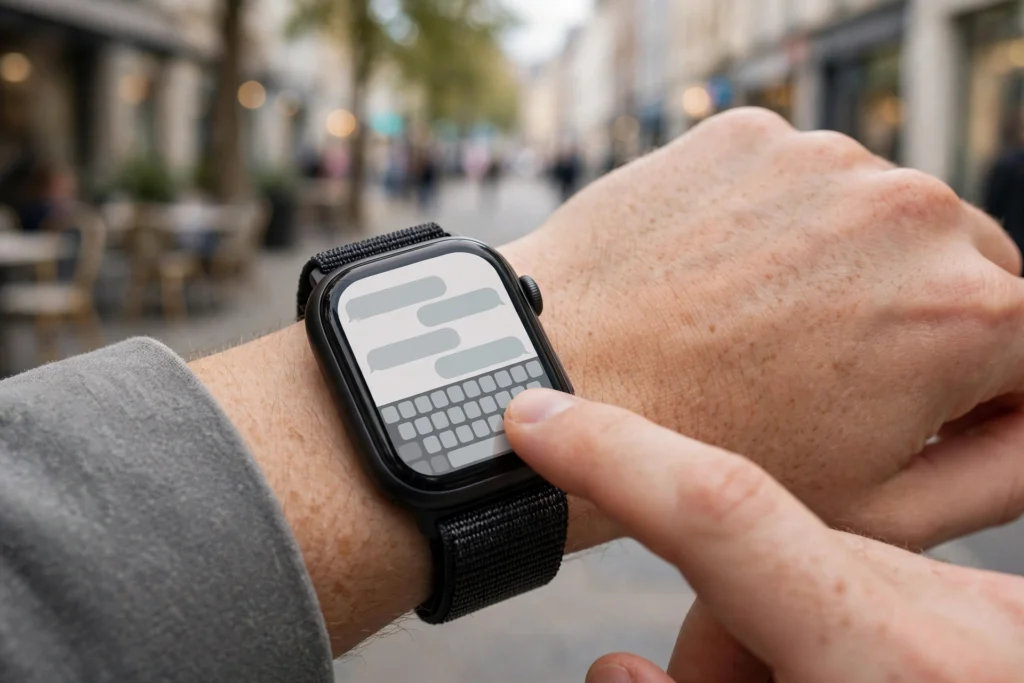
Your phone stays in your pocket during a workout, a meeting, or a drive — but your wrist is always within reach. That is why using WhatsApp on a smartwatch is so useful: you can glance at messages, reply quickly, and stay reachable without pulling out your phone. The setup depends on which watch you own, and what you can actually do varies a lot between Wear OS watches and the Apple Watch. This guide covers both, step by step, plus the limits nobody tells you about upfront.
Which Smartwatches Support WhatsApp?
There are two different situations. Wear OS watches — including the Samsung Galaxy Watch series and the Google Pixel Watch — have an official WhatsApp app you can install from the Play Store on the watch itself. It works as a linked companion to the WhatsApp on your phone, much like WhatsApp Web.
The Apple Watch has no official WhatsApp app. Instead, it mirrors your iPhone’s WhatsApp notifications: you see incoming messages on your wrist and can reply with quick responses or voice dictation. It is more limited, but for most people it covers the main use case — reading a message and sending a short reply without touching the phone.
Before you start, make sure your watch is paired with your phone, both devices are updated, and WhatsApp is installed and set up on your phone. If your watch is very old or runs an outdated system, the official app may not be available — check the Play Store on the watch first.
Setting Up WhatsApp on a Wear OS Watch
On a Galaxy Watch or Pixel Watch, the setup takes about two minutes:
- Open the Play Store on your watch and search for WhatsApp.
- Install the app, then open it on the watch. It will show a code or a prompt to link the device.
- On your phone, open WhatsApp and go to the linked-devices section (Settings → Linked devices on Android) — this is the same system WhatsApp uses for multi-device logins. Scan the code or confirm the link request.
- Wait for chats to sync. Recent conversations will appear on the watch; older history may not fully transfer, which is normal.
- Allow notifications on the watch so new messages arrive on your wrist even when the app is closed.
Once linked, you can read full messages, send text replies using the watch keyboard or voice dictation, send voice messages, react with emojis, and view photos — all from the watch. Calls work too: you can answer a WhatsApp voice call on the watch if it has a speaker and microphone, though the sound quality is best for short calls. For more on voice messages, our guide to WhatsApp voice message tricks covers recording and playback tips that apply on the watch as well.
Setting Up WhatsApp on an Apple Watch
Apple Watch owners use the notification route, and it works better than most people expect:
- On your iPhone, open the Watch app and go to Notifications.
- Find WhatsApp in the list and turn on “Mirror iPhone alerts”. Make sure WhatsApp notifications are enabled on the iPhone itself first (Settings → Notifications → WhatsApp).
- When a message arrives, it appears on your watch. Tap it to read the full message.
- Reply using one of the suggested quick replies, dictate a reply with your voice, or scribble text letter by letter on the watch screen.
You cannot start a new chat from the Apple Watch or browse your full chat list — you can only reply to messages that arrive as notifications. Voice messages cannot be recorded directly from the watch either. Think of it as a fast reply tool, not a full WhatsApp replacement. It is genuinely useful for “on my way”, “call you in 10 minutes”, and other short replies while your phone is in another room.
What You Can and Cannot Do From Your Wrist
The honest picture: on Wear OS, you can do most everyday WhatsApp tasks — read, reply, react, send voice notes, and view images. You cannot easily send documents, share your live location, or manage groups and settings; those still need the phone. On Apple Watch, you can read and reply to incoming messages only.
Both platforms share one important limit: the watch depends on the phone. If your phone is switched off or out of range (and your watch has no independent mobile connection), new messages will not arrive. Some LTE-enabled watches can stay connected on their own, but only if your mobile plan supports it. If you rely on your watch while travelling, our guide to using WhatsApp Web productively is worth reading too — the same linked-device idea powers both setups.
Tips to Make It Actually Useful
- Set up quick replies. On Wear OS, save a few custom replies (“Driving, will call back”, “In a meeting”) so you can answer in one tap.
- Use voice dictation for longer replies. Typing on a tiny watch keyboard is slow; dictating is faster and more accurate.
- Mute noisy groups on the watch. Group chats can flood your wrist all day. Mute the loud ones on your phone and the watch stays quiet too.
- Keep the watch charged. WhatsApp syncing and notifications use battery. If your watch dies by evening, the feature is useless — charge it during your morning routine.
- Check privacy settings. Message previews on your wrist are visible to anyone nearby. If that bothers you, hide message previews in your phone’s notification settings — the same hidden WhatsApp features guide explains where those controls live.
Troubleshooting: When Messages Do Not Arrive
If notifications stop reaching your watch, work through this checklist: is Bluetooth on and the watch connected? Is Do Not Disturb turned on by mistake? Are WhatsApp notifications enabled on the phone? On Android, check that battery optimisation is not killing WhatsApp in the background. If the watch app shows old chats only, unlink and relink the device — it takes a minute and fixes most sync problems. As a last resort, update both the phone app and the watch app; mismatched versions cause more sync issues than anything else.
For official help with linked devices and supported watches, WhatsApp’s own Help Center publishes the current requirements and setup steps.
Wrap-Up
WhatsApp on a smartwatch is a small convenience that adds up: fewer phone pickups, faster replies, and a phone that stays in your pocket during workouts, meetings, and drives. Wear OS owners get the fullest experience with the official app; Apple Watch owners get a solid notification-and-reply setup. Either way, set it up once, customise your quick replies, and mute the noisy groups — then let your wrist handle the messages that do not need your full attention.

