
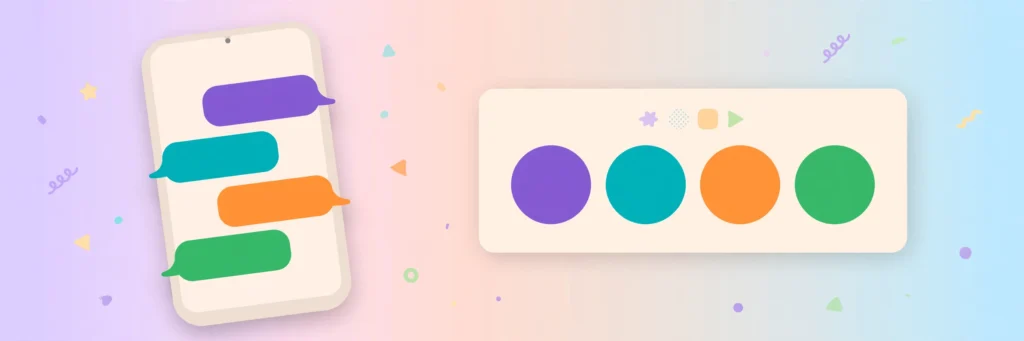
WhatsApp chat themes let you change the look of your conversations with preset colour combinations, custom wallpapers and message-bubble colours. You can apply one default style across your chats or choose a different look for an individual conversation. The change is personal: other participants continue to see their own WhatsApp theme.
This 2026 guide explains how to set a default chat theme, customize one chat, change wallpaper and bubble colours separately, use AI-generated wallpapers where available and reset a theme if you want to return to the default appearance.
What WhatsApp chat themes change
A chat theme changes the visual appearance of the conversation on your device. Depending on the option you choose, it can change:
- Chat wallpaper: the background image or colour behind messages.
- Outgoing message bubbles: the colour of the messages you send.
- Preset theme combinations: a coordinated wallpaper and bubble colour selected together.
WhatsApp also offers additional wallpaper choices and lets you mix and match colours. The company says the theme is visible only to the person who applies it; the other person in a one-to-one chat or group sees their own theme. Chat themes do not change message encryption, privacy settings or the content of the conversation.
WhatsApp introduced the feature in its official Chat themes announcement.
How to set a default theme for all WhatsApp chats
The default theme is used by chats that do not have their own individual theme. Menu labels can vary slightly between app versions and languages.
On Android
- Open WhatsApp and tap the three-dot menu.
- Choose Settings.
- Open Chats or Appearance, depending on your version.
- Tap Default chat theme.
- Choose a preset theme or customize the wallpaper and bubble colour.
- Preview the result and tap Set or the confirmation button.
On iPhone
- Open WhatsApp and tap Settings or your profile picture.
- Choose Appearance.
- Tap Default chat theme.
- Select a preset theme or customize the wallpaper and bubble colour.
- Preview it and tap Set.
WhatsApp’s current official theme instructions show the latest paths for supported platforms. If your menu looks different, use the Settings search or check the Help Center for your device.
How to change the theme for one WhatsApp chat
Use an individual chat theme when you want a particular conversation to look different without changing the default for all your other chats.
On Android
- Open the individual or group conversation.
- Tap the three-dot menu in the top-right corner.
- Choose Chat theme.
- Select a preset or adjust the wallpaper and bubble colour.
- Preview the result and tap Set.
On iPhone
- Open the conversation.
- Tap the contact or group name at the top.
- Choose Chat theme.
- Select a preset or customize the wallpaper and bubble colour.
- Preview the result and tap Set.
Individual chat themes override the default look for that conversation on your phone. They do not send a theme change to the other participants.
How to change only the wallpaper
If you like your current bubble colour but want a different background, change the wallpaper separately rather than applying a complete preset theme.
- Open WhatsApp’s Default chat theme settings to change the wallpaper for chats using the default theme.
- Choose Wallpaper.
- Select a built-in wallpaper, a solid colour or a photo from your camera roll where available.
- Adjust the preview or brightness if the option appears.
- Tap Set to apply the change.
For one conversation, open that chat’s Chat theme menu and choose Wallpaper. A custom wallpaper can make a chat easier to recognize, but choose a background that does not make the message text difficult to read.
How to change WhatsApp message-bubble colours
You can adjust the outgoing message-bubble colour independently from the wallpaper where the control is available.
- Open Settings → Appearance → Default chat theme, or the equivalent theme menu on your version.
- Choose Chat bubble colour or Chat colour.
- Select a colour from the available options.
- Preview the bubbles against your current wallpaper.
- Tap Set to confirm.
To change the bubble colour for one chat, open the conversation’s Chat theme menu and choose the bubble-colour control. The available options and labels can differ between Android and iPhone.
Can you create an AI-generated WhatsApp wallpaper?
WhatsApp’s Help Center documents an AI wallpaper option in some regions and languages. Where available, you can enter a prompt and use Meta’s service to generate an image for your chat wallpaper.
- Open the wallpaper or chat-theme settings.
- Choose Create with AI or the AI wallpaper option if it appears.
- Enter a short description of the background you want.
- Review the generated options and select one you like.
- Preview the wallpaper with your message bubbles before applying it.
Meta AI and AI wallpaper features are not available to every user or country. The supported language list is limited and can change. If the option is missing, use a built-in wallpaper or a photo from your gallery instead. See the availability notes in the WhatsApp Help Center theme guide.
Pick a theme that stays readable
A colourful theme should make conversations easier to recognize, not harder to read. Try these simple checks:
- Check contrast: make sure outgoing bubbles stand out clearly from the wallpaper.
- Avoid busy backgrounds: detailed photographs can make long messages difficult to scan.
- Preview dark mode: a wallpaper that looks good in light mode may become too dark or low-contrast at night.
- Use calm colours for work chats: strong patterns can become distracting when you read many messages each day.
- Keep sensitive screens in mind: if you share your screen in a meeting, remember that your personal theme and wallpaper may be visible to others.
Why is Chat theme missing in WhatsApp?
- Update the app: install the latest WhatsApp version from Google Play or the App Store.
- Check the right menu: global themes are under Default chat theme; individual themes are inside a conversation’s Chat theme menu.
- Check platform instructions: Android and iPhone can use slightly different menu paths.
- Wait for a rollout: some new wallpaper and AI options may be released gradually by account, region or language.
- Check app support: theme controls may not be identical on WhatsApp Web, Desktop or every linked device.
If the feature is still missing after updating, use WhatsApp’s official theme support instructions rather than installing an unofficial WhatsApp version.
How to reset a WhatsApp chat theme
If you want to undo a theme, open the same theme settings you used to apply it and select the default or reset option shown by your app version. For a single chat, reset its individual theme. To change the baseline for chats that use the default, update the Default chat theme setting.
Changing the default theme should not be treated as a guaranteed way to remove every individual chat override. Check each customized conversation if you want all chats to look the same again.
Frequently asked questions
1. How do I change my WhatsApp chat theme?
Open WhatsApp Settings and find Default chat theme under Chats or Appearance, depending on your version. Choose a preset or customize the wallpaper and bubble colour, then tap Set.
2. Can I set a different theme for each WhatsApp chat?
Yes. Open a conversation, choose Chat theme from the chat menu or chat information screen, select a theme and apply it. Each theme is visible only on your own device.
3. Can I change WhatsApp wallpaper without changing bubble colours?
Yes. Open the wallpaper control inside Default chat theme or an individual Chat theme and choose a new wallpaper. You do not need to apply a complete preset combination.
4. Can I change the colour of WhatsApp message bubbles?
Yes. Use the Chat bubble colour or Chat colour option in the theme settings, where available. You can change the default look or customize an individual conversation.
5. Does the other person see my WhatsApp theme?
No. WhatsApp says chat themes are visible only to the person who applies them. Other participants see their own wallpaper and bubble colours.
6. Can I use my own photo as a WhatsApp wallpaper?
Yes. The wallpaper picker can let you choose a photo from your camera roll. The exact option may vary by platform and app version.
7. Can WhatsApp create a wallpaper with AI?
Some users can use an AI wallpaper option powered by Meta’s service. Availability is limited by country, account and supported language. If it is missing, use a preset or a photo from your device.
8. Do WhatsApp chat themes change privacy or encryption?
No. Chat themes change the visual appearance of a conversation. They do not change end-to-end encryption, read receipts, online status or other privacy settings.
9. Why can’t I find Chat theme on WhatsApp?
Update WhatsApp, check the correct global or per-chat menu and review the current Help Center instructions for your platform. Some features can roll out gradually.
10. How do I restore the default WhatsApp theme?
Open the same Default chat theme or individual Chat theme menu and choose the default or reset option shown. If you customized individual chats, you may need to reset those separately.
Final takeaway
WhatsApp chat themes are a simple way to personalize your conversations without changing how messages work. Set a readable default, customize the chats you use most and choose wallpapers that keep text clear in both light and dark mode. Remember that the theme is private to your own device and does not change the other person’s view.
Related guide: managing WhatsApp read receipts and privacy.

