Every photo, video, and voice note someone sends you on WhatsApp is downloaded to your phone automatically — by default. A few active groups later, your storage is full of memes, forwarded videos, and photos you never asked for. The fix takes two minutes. Here is how to stop WhatsApp auto downloads on Android and iPhone, plus the answers to every question people ask about it.
How to Turn Off Auto-Download on Android
Open WhatsApp and tap the three-dot menu in the top-right corner, then go to Settings > Storage and data. Under “Media auto-download”, you will see three options: when using mobile data, when connected on Wi-Fi, and when roaming. Tap each one and uncheck everything — photos, audio, videos, and documents. That is it. From now on, media arrives as a small preview with a download arrow, and nothing is saved to your phone until you tap it.
How to Turn Off Auto-Download on iPhone
On iPhone, open WhatsApp and go to Settings > Storage and Data. Under “Media Auto-Download”, tap Photos, Audio, Videos, and Documents one by one and set each to Never. There is one more setting worth changing on the same screen: turn off “Save to Camera Roll” under Chats settings, so the photos you do download manually do not get duplicated into your iPhone’s Photos app.
What About WhatsApp Web and Desktop?
WhatsApp Web and the desktop app do not auto-download media to your computer in the same way — files are only downloaded when you click them. But there is one exception: if you have the desktop app set to download files automatically, check its settings under Storage. For most people, the phone setting is the only one that matters, because the phone is where storage runs out.
Frequently Asked Questions
Will turning off auto-download delete my old photos and videos?
No. This setting only affects media you receive from now on. Everything already downloaded stays exactly where it is. To clear old media, go to Settings > Storage and data > Manage storage, where WhatsApp shows you the biggest chats and the largest files so you can delete them selectively.
Can I stop auto-downloads for groups but keep them for personal chats?
Not directly — the auto-download setting is global, not per-chat. The workaround is to turn auto-download off completely, and then tap to download the media you actually want. It takes one extra tap, but it stops group forwards from filling your phone.
Do voice messages still download automatically?
Voice messages are treated as audio. If you uncheck “Audio” in the auto-download settings, voice messages will show a download arrow and will only play after you tap to download them. Most people leave audio enabled because voice notes are small, and turn off photos and videos, which are the real storage hogs.
Will I still receive photos if auto-download is off?
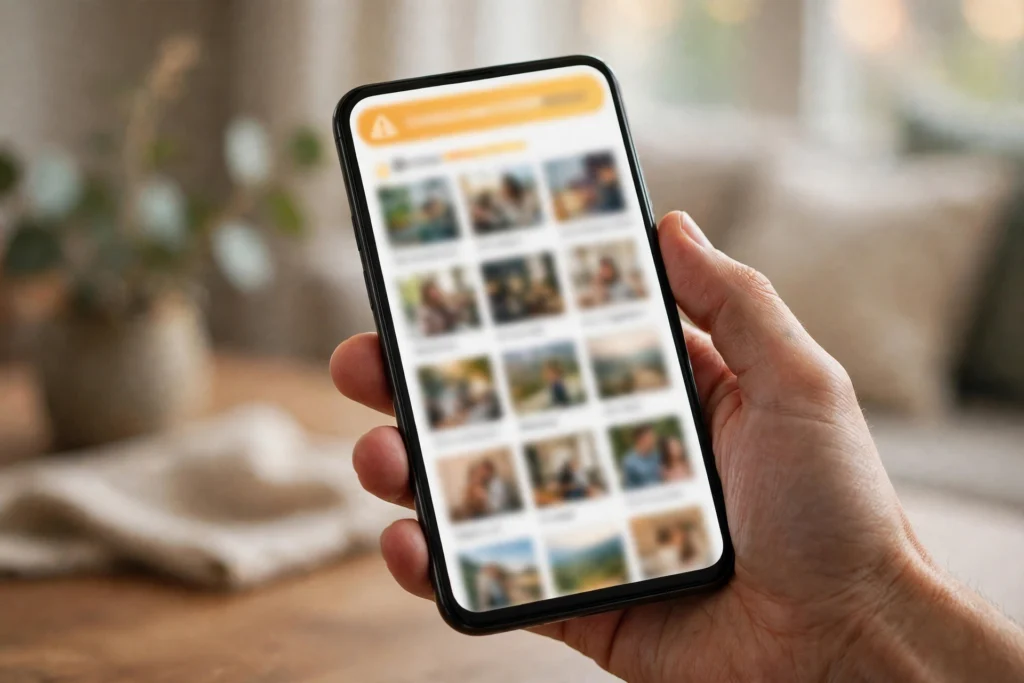
Yes. You still receive everything — it just waits for you. Each photo or video appears blurred with a download arrow. Tap it once and it downloads and displays normally. Nothing is lost or delayed in any meaningful way.
Does turning off auto-download save mobile data?
Yes, and this is the second big benefit. With auto-download on, every video in every group is downloaded over your mobile data the moment it arrives. Turning it off, or setting mobile-data auto-download to “No media”, stops that background data usage completely.
I turned it off, but my storage is still full. What now?
The setting only stops future downloads. For the media already on your phone, use WhatsApp’s built-in storage manager: Settings > Storage and data > Manage storage. It lists chats by size and lets you delete large videos and forwarded files without touching your important conversations.
Can I make WhatsApp auto-download only photos, not videos?
Yes. In the same media auto-download menu, check only “Photos” and leave videos and documents unchecked. This is a good middle ground if you like seeing photos instantly but do not want heavy videos eating your storage.
One More Storage Tip
While you are in the settings, check your backup size too. WhatsApp backs up all your media to Google Drive or iCloud, and a bloated backup can fill your cloud storage as fast as it fills your phone. Turning off auto-download now means smaller backups later — and a phone that stops warning you about storage every week.
WhatsApp has plenty of other settings worth knowing. Our list of 15 WhatsApp hidden features and tricks covers the best ones. If you share a lot of photos, read how to send HD photos and videos on WhatsApp so your pictures arrive in full quality. To keep your chats organised, see how to use WhatsApp Web, and for safety, our WhatsApp backup and transfer guide explains how to protect your chats before anything goes wrong.
For official instructions, see the WhatsApp Help Center.
Conclusion
Knowing how to stop WhatsApp auto downloads is one of those two-minute fixes that pays off every single day: no more mystery storage warnings, no more mobile data wasted on forwarded videos, and no more scrolling through a gallery full of images you never wanted. Turn it off once, and your phone will thank you quietly for months.

Dr Vivek Garg runs drviram.in — a tech blog about AI tools, apps, and online earning. Every guide here is tested hands-on before it is published.