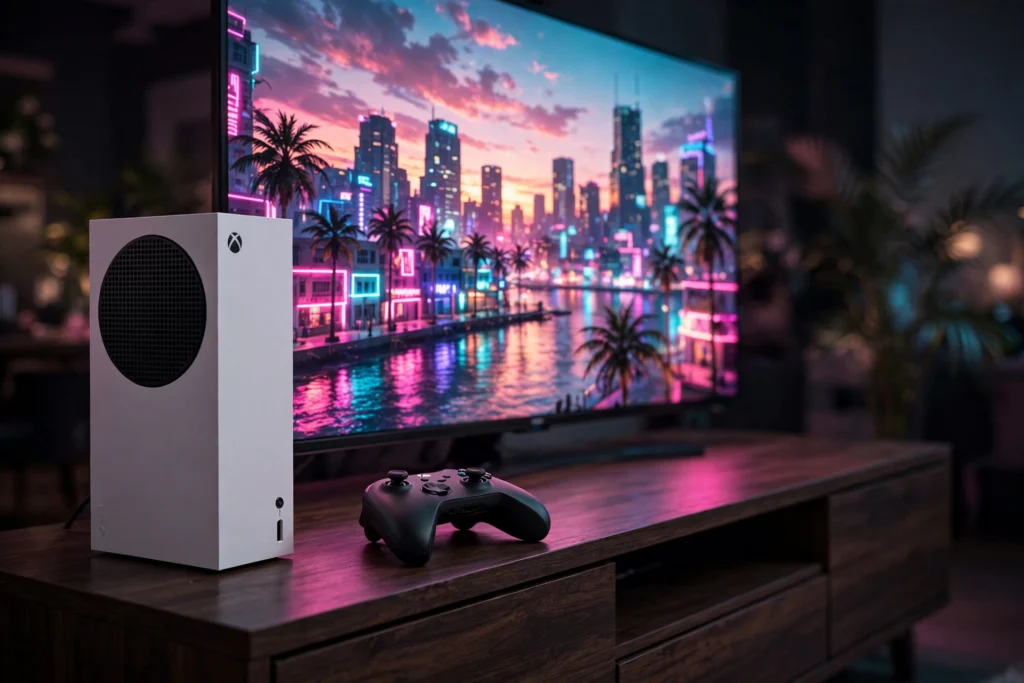
Quick Answer: The GTA 6 Xbox Series S best settings are 1080p resolution, HDR10 on, VRR on, 120Hz output if your TV supports it, TV Game Mode on with motion smoothing off, and in-game Motion Blur Strength set to 1. GTA 6 targets 30 FPS on every console with no performance mode, so these settings do not raise the frame rate — they make the 30 FPS the Series S delivers feel smoother and more responsive.
Grand Theft Auto VI launched on November 19, 2026, and the Xbox Series S is the cheapest way into Leonida at $499.99 — and the weakest console running the game. Digital Foundry measured it at just 720p internally, upscaled to roughly 1080p with AMD’s FSR 4, with frame rates in the mid-to-high 20s for long stretches. Settings matter more on the Series S than on any other console. This guide covers the GTA 6 Xbox Series S best settings: the Xbox system settings, the in-game options, and the honest limits of what any setting can fix.
GTA 6 Xbox Series S Best Settings at a Glance
| Setting | Recommended value |
|---|---|
| Resolution | 1080p |
| Refresh rate | 120Hz (if your TV supports it) |
| Allow HDR10 | On (if your TV supports HDR) |
| Allow variable refresh rate (VRR) | On |
| Auto low-latency mode (ALLM) | On |
| TV picture mode | Game Mode |
| TV motion smoothing | Off |
| HGiG | On, if supported |
| Audio | 360 Spatial Sound / Windows Sonic |
| Motion Blur Strength | 1 |
| Effects intensities | 3 |
| Cinematic Kill Shot / Vehicle Crash frequency | 0–1 |
| Stick dead zones | 2–3 |
| Brightness calibration | Logo barely visible |
What the Series S Actually Runs
Rockstar confirmed in its November 10, 2026 Newswire briefing that GTA 6 targets 30 frames per second on every console with no 60 FPS performance mode. Digital Foundry’s four-console comparison, published November 18, 2026, put numbers on it: the PS5, PS5 Pro and Xbox Series X render at 1440p internally and reconstruct toward 4K, while the Series S renders at 1280×720 — four times fewer pixels — and reconstructs to roughly 1080p with FSR 4.
Frame rates follow the same pattern: the PS5 Pro stays close to a locked 30 FPS, the base PS5 and Series X flicker between 30 and the high 20s, and the Series S spends long stretches in the 25 to 30 range, falling toward 20 under heavy destruction. No setting raises the frame rate above 30 FPS — the ones that help reduce input delay, smooth out the dips and clean up the image.
Step 1: Set Your Xbox Output — Resolution, 120Hz, VRR and HDR
- Press the Xbox button, then go to Profile & system > Settings > General > TV & display options.
- Set Resolution to 1080p. The Series S renders GTA 6 at 720p internally and upscales to 1080p, so a 4K output only stretches that image further and makes it softer.
- Set Refresh rate to 120Hz if the option appears — it only shows when your TV reports 120Hz support, which usually needs an HDMI 2.1 port. GTA 6 still runs at up to 30 FPS, but the 120Hz container with VRR smooths how those frames are presented and eases judder when the frame rate dips.
- Open Video modes and turn on Allow variable refresh rate. On Xbox, VRR works inside the 120Hz container and helps most where the Series S struggles: the dips into the mid-20s. PlayStation’s system VRR only engages above 48 FPS, so at 30 FPS it never turns on.
- In the same Video modes screen, turn on Allow HDR10 if your TV supports HDR, and turn on Allow auto low-latency mode (ALLM) so the TV switches into Game Mode whenever you play. Then run Calibrate HDR for Games.
- On your TV, switch the picture preset to Game Mode and turn motion smoothing off. Motion smoothing (MotionFlow, TruMotion or Auto Motion Plus) invents extra frames and adds delay; at 30 FPS it makes Leonida look like a soap opera and makes the controls feel sluggish. If your TV supports HGiG, turn it on.
Step 2: In-Game Display Settings — Motion Blur, Effects and Brightness
GTA 6 has no graphics mode selector — no Quality, Performance or Balanced preset — so these sliders, in Settings > Display, are the only visual controls you get.
Motion Blur Strength: set it to 1. This is the single most impactful in-game change. The default is 3, and at 30 FPS heavy blur smears every camera turn and fast drive through Vice City. Dropping it to 1 keeps a little blur to hide the judder of a 30 FPS image, while making the picture far clearer. 0 is sharpest, but camera turns can look choppy.
Effects intensities: set Player Status Effects, Hit Effects and Awareness Effects to 3. All three default to 5, the maximum. At 5, damage flashes and hit markers are at their loudest, which is distracting in exactly the busy firefights where the Series S is already dropping frames. At 3 you still see when you are hurt and when an enemy notices you.
Brightness calibration: set the symbol to barely visible. The game asks you to calibrate brightness on first launch; otherwise it is in Settings > Display. A wrong brightness setting crushes dark scenes into black or washes bright ones into white. Calibrate on the console first, then in the game.
Cinematic Kill Shot Frequency and Cinematic Vehicle Crash Frequency: set both to 0 or 1. Both default to 3, and at 3 the camera regularly takes control for a slow-motion kill or crash shot. They interrupt your control mid-fight — and on the Series S, a cinematic camera move during a frame-rate dip is the worst moment to lose control. At 0 they never trigger; at 1 they stay rare.
Step 3: Controller and Aim Settings — Dead Zones and Sensitivity
At 30 FPS, small control improvements are noticeable: every millisecond of delay is a bigger fraction of each frame.
Stick dead zones: lower them from 4 to 2–3. The dead zone is how far you push a stick before the game registers movement. The default of 4 hides stick drift, but it also adds a dead spot to the start of every aim adjustment. Dropping it to 2 or 3 makes aiming feel more immediate.
Look and Aim Sensitivity: raise by 1–2 steps from the defaults of 6–7. One or two steps up makes turning to face a threat meaningfully faster, and it pairs well with the smaller dead zone. Raise it one step at a time.
Targeting: leave it on Partial, or switch to Lock-On if you are new. Partial, the default, nudges your aim toward a nearby target without locking on. Lock-On snaps your aim to the nearest target when you raise your weapon and is the single biggest aiming improvement available — it matters even more on the Series S, where the lower frame rate makes fine aiming harder. Free Aim gives no help at all.
Aim Assist Strength: keep it at the default of 4. This slider slows your reticle while it is over a target. With Lock-On it matters less, but with Partial or Free Aim it is doing real work. Full controller setup: our GTA 6 controller settings guide (https://drviram.in/gta-6-controller-settings/).
A wired controller also helps, because it removes the small but real wireless latency from the chain. The PowerA wired controller for Xbox on Amazon costs $20.99.
As an Amazon Associate, we earn from qualifying purchases.
Step 4: Audio Settings — 360 Spatial Sound
Audio is easy to overlook, and on the Series S it costs no performance at all. In Xbox Settings > General > Volume & audio output, set Headset audio to Windows Sonic for Headphones or Dolby Atmos for Headphones if you own a licence. Beebom’s Xbox settings guide recommends enabling 360 Spatial Sound for GTA 6: directional audio tells you where gunfire, sirens and traffic are coming from before you can see them. Source table: https://beebom.com/gta-6-best-xbox-settings/
A good headset is the cheapest meaningful upgrade for a Series S player, because it improves the game without touching the frame rate. The BENGOO G9000 gaming headset on Amazon costs $21.99 and plugs into the Xbox controller’s 3.5mm jack.
As an Amazon Associate, we earn from qualifying purchases.
Storage and the 512GB Squeeze
The Series S has a second problem: storage. GTA 6 needs up to 212 GB, and the 512GB Series S has only about 364 GB of usable space — so the game takes up roughly 58 percent of the entire drive, leaving about 152 GB for everything else. Before installing, uninstall something: on Xbox, go to My games & apps > Manage > Free up space. Full breakdown: our GTA 6 download size guide (https://drviram.in/gta-6-download-size/).
Heat matters too: keep the Series S well ventilated, out of an enclosed cabinet, with clear space around the vents. Also turn on automatic updates: GTA 6 shipped with two title updates before launch (1.002.000 on November 13 and 1.002.001 on November 16, 2026). Our GTA 6 update tracker (https://drviram.in/gta-6-update/) lists every patch so far.
What These Settings Cannot Fix
The GTA 6 Xbox Series S best settings will not give you 60 FPS, a performance mode, a 4K image or a locked 30 FPS. Rockstar confirmed the 30 FPS target before launch, and no console setting unlocks a higher frame rate. The Xbox FPS Boost feature does not apply either — Microsoft built it for backward-compatible Xbox One and Xbox 360 games, and GTA 6 is a native Series X|S game.
What the settings do is narrower and still worth doing: they cut input delay, keep the image as sharp as the hardware allows, stop the TV from adding its own lag and smoothing, and smooth out the presentation of the frames the console does produce. On the Series S, where the frame rate is the loosest of all four consoles, that is the difference between a game that feels choppy and one that feels playable. Our GTA 6 PS5 vs Xbox comparison (https://drviram.in/gta-6-ps5-vs-xbox/) breaks down all four versions with Digital Foundry’s numbers.
FAQ: GTA 6 Xbox Series S Best Settings
What are the GTA 6 Xbox Series S best settings?
Set the Xbox to 1080p, 120Hz if your TV supports it, HDR10 on, VRR on and ALLM on; put the TV in Game Mode with motion smoothing off; then in the game set Motion Blur Strength to 1, the effects intensities to 3, and the cinematic frequencies to 0 or 1. Lower the stick dead zones from 4 to 2–3.
Can the Xbox Series S run GTA 6 at 60 FPS?
No. GTA 6 targets 30 FPS on every console, and Rockstar has confirmed there is no 60 FPS or performance mode. No setting raises the frame rate above 30 FPS, and the Xbox FPS Boost feature does not apply to native Series X|S games.
What resolution does GTA 6 run at on Xbox Series S?
The game renders at 720p internally on the Series S and upscales to roughly 1080p using AMD’s FSR 4, according to Digital Foundry. Set the Xbox output to 1080p to match — 4K output only adds a second round of upscaling and makes the image softer.
Why does GTA 6 stutter on my Xbox Series S?
The Series S is the weakest console running the game: its frame rate spends long stretches in the mid-to-high 20s, falling to around 18 to 20 FPS in heavy destruction. Put your TV in Game Mode with motion smoothing off, turn on 120Hz output and VRR in the Xbox settings, and set Motion Blur Strength to 1 — these smooth the presentation, though they cannot raise the frame rate.
Does VRR help GTA 6 on Xbox Series S?
Yes. Turn on Allow variable refresh rate in the Xbox Video modes settings, ideally with 120Hz output. On Xbox, VRR works inside the 120Hz container and smooths how the game’s 30 FPS — and its dips below 30 — are presented. PlayStation’s VRR only engages above 48 FPS, so this is one area where Xbox has an edge.
The Bottom Line
The GTA 6 Xbox Series S best settings are not a magic fix — they are a careful setup for the weakest console running the biggest game of the decade. Set the Xbox to 1080p with 120Hz and VRR on, HDR10 calibrated, and the TV in Game Mode with motion smoothing off. In the game, drop Motion Blur Strength to 1, the effects intensities to 3, and the cinematic frequencies to 0 or 1, then tighten the dead zones and raise sensitivity a step. You will still be playing at 30 FPS, with dips into the 20s in the heaviest scenes — but the game will look sharper and feel more responsive.

Dr Vivek Garg runs drviram.in — a tech blog about AI tools, apps, and online earning. Every guide here is tested hands-on before it is published.