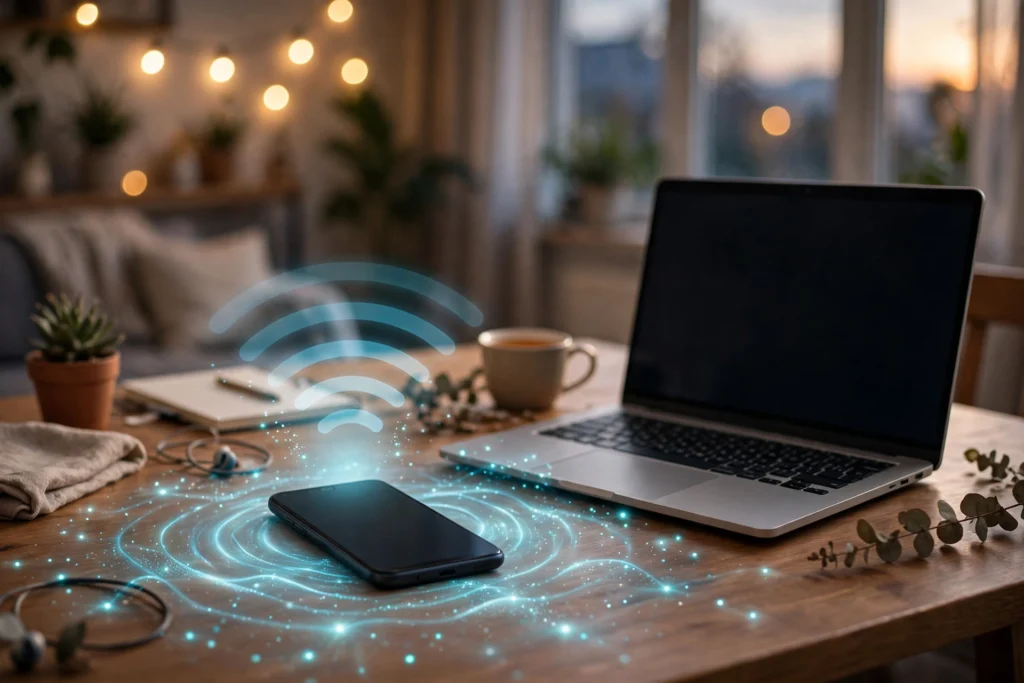
Your laptop needs internet, your home Wi-Fi has stopped working, and your phone is sitting right there with full signal bars. That is exactly the moment when learning how to use android phone as mobile hotspot 2026 becomes genuinely useful. A mobile hotspot turns your phone into a small, portable Wi-Fi router, so your laptop or tablet can get online using your mobile data.
How to Use Android Phone as Mobile Hotspot 2026: Turn It On in Minutes
Follow these steps, and your hotspot will be ready in under two minutes. Menu names vary slightly between Samsung, Pixel, Xiaomi, and other brands, but the path is almost the same everywhere.
- Open Settings on your Android phone.
- Go to Network & internet (on Samsung phones, this is under Connections).
- Tap Hotspot & tethering, then Wi-Fi hotspot.
- Tap the hotspot name and password to change them. Pick a clear name, like “Vivek’s Hotspot”, and set a strong password with letters and numbers.
- Turn the toggle on. Your hotspot is now live.
- On your laptop or tablet, open the Wi-Fi list, select your phone’s hotspot name, enter the password, and connect.
That is all there is to it. If you cannot find the option, swipe down twice from the top of your screen — most Android phones have a Hotspot tile in Quick Settings that you can tap to switch it on instantly. For brand-specific details, Google’s official help pages are a reliable reference: Google Android support.
One quick warning before you share your connection: a hotspot runs on your mobile data, not on free air. If your plan has a daily data limit, keep an eye on it. Our guide on how to reduce mobile data usage on Android with 8 simple settings will help you stretch every gigabyte further.
Myths vs Facts About Using Your Phone as a Hotspot
Hotspots have been around for years, yet plenty of wrong ideas still float around. Here are the most common ones.
Myth 1: A hotspot drains your battery in an hour
Fact: A hotspot does use more battery than normal use, because your phone runs its Wi-Fi and mobile data radios at the same time. But it will not kill a healthy battery in an hour — most modern Android phones can run a hotspot for three to five hours of light browsing on a full charge. The real battery eaters are video streaming and large downloads on the connected device, so plug your phone into a charger for long sessions. If your battery already feels weak, check how to check your Android battery health in 2026 before blaming the hotspot.
Myth 2: A hotspot is always slower than home Wi-Fi
Fact: Not necessarily. Your hotspot speed depends on your mobile network, not on the hotspot feature itself. On a strong 4G or 5G signal, a hotspot can easily handle video calls, emails, document work, and HD streaming. It only feels slow when the signal is weak, when too many devices are connected, or when someone starts a heavy download.
Myth 3: Anyone nearby can join your hotspot
Fact: Only if you let them. By default, Android hotspots are password-protected, and nobody can connect without the password you set. Change the default password the first time you use the hotspot, and avoid simple passwords like “12345678”. As long as your password stays private, your hotspot is as closed as your home Wi-Fi.
Myth 4: A hotspot uses the same data as normal browsing
Fact: This one is half true, and the half that matters is the billing. Everything connected through your hotspot uses your phone’s mobile data and counts toward your plan’s limit, exactly like data used on the phone itself. The difference is speed of consumption: a laptop can burn through data much faster than a phone, because laptops download updates, sync cloud files, and autoplay videos in the background. Always check your remaining data before a long hotspot session.
Myth 5: You cannot use a hotspot while you are on a call
Fact: You can. Making or receiving a phone call does not switch your hotspot off — on most modern Android phones, it keeps running in the background while you talk. What can happen on older networks is a small dip in data speed during the call. On 4G and 5G, this is rarely noticeable.
Myth 6: Using a hotspot damages your phone
Fact: A hotspot does not damage your phone. Your phone will get warm during a long session, and that warmth is normal — the processor and radios are working hard. It only becomes a problem if the phone gets very hot, which usually happens when it is charging in direct sunlight or buried under a pillow. Keep it on a hard surface, out of the sun, and take a short break if it feels uncomfortably hot.
How to Save Battery and Data While Hotspotting
A few small habits make a big difference when your phone is doing the job of a router. First, connect only the devices you actually need — every extra device adds battery drain and data use. Second, turn off auto-updates and cloud sync on the connected laptop, so it does not quietly download a gigabyte in the background. Third, lower video quality to 480p while on hotspot data; the difference on a laptop screen is small, but the data saving is huge. Fourth, set a hotspot timeout, so it switches itself off when no device is connected. Finally, keep your phone plugged in during long sessions. If screen time is eating into your day as well as your data, our piece on Android Digital Wellbeing and how to cut screen time in 2026 pairs well with these habits.
Hotspot Not Working? Quick Fixes
If your hotspot refuses to cooperate, work through this list before assuming something is broken.
- Hotspot option is greyed out: check that mobile data is on and you have an active data balance. Some plans need hotspot or tethering enabled by your carrier.
- Connected but no internet: turn mobile data off and on, then restart your phone. This fixes most cases.
- Wrong password error: retype the password slowly — it is case-sensitive — or change it in the hotspot settings and try again.
- Hotspot keeps switching off: check the automatic timeout setting, and make sure battery saver mode is not killing it.
- Very slow speeds: move near a window for a better signal, disconnect extra devices, and pause any downloads.
If none of these work, restart both your phone and the connected device — it resolves the majority of hotspot problems. And if you often move files between your phone and laptop while working this way, how to share files on Android with Quick Share in 2026 is faster than emailing files to yourself.
Conclusion
Your Android phone is a perfectly good backup internet connection — one that fits in your pocket and switches on in under two minutes. Once you know how to use android phone as mobile hotspot 2026 style — strong password, an eye on your data, and the facts above — the next Wi-Fi outage will not slow you down.

Dr Vivek Garg runs drviram.in — a tech blog about AI tools, apps, and online earning. Every guide here is tested hands-on before it is published.