
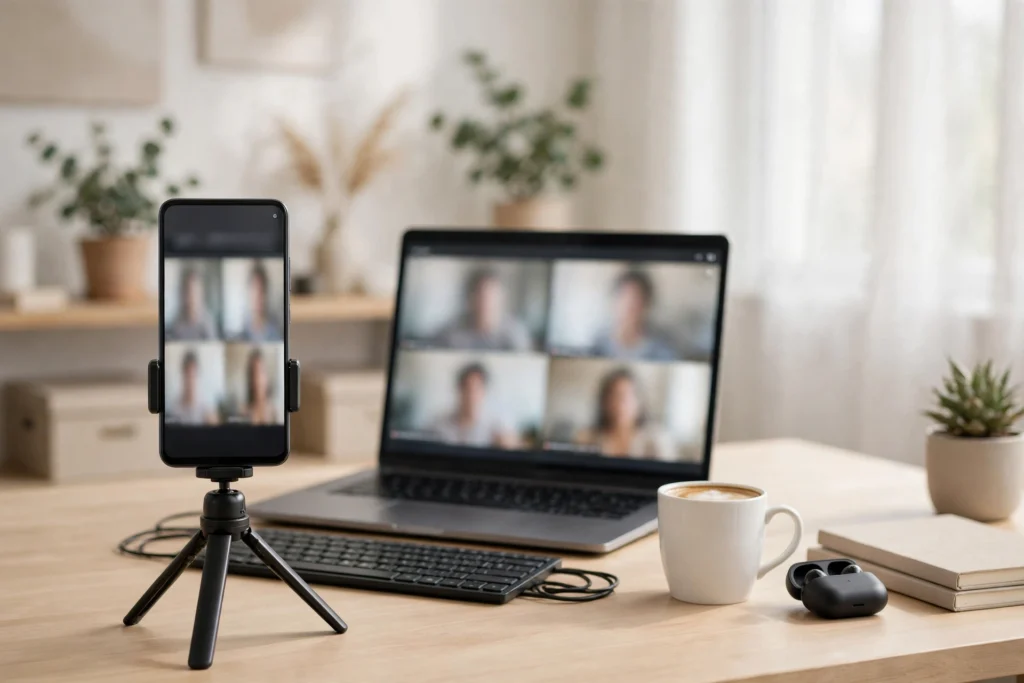
Ten minutes before a job interview, my laptop camera died. Not the graceful kind of dead — the grey, frozen, “camera not found” kind, with the interviewer already waiting in the meeting room. My phone, meanwhile, had a camera that cost more than the laptop. That morning I learned how to use android phone as webcam in 2026 the hard way, and I got the job. If your laptop camera is blurry, broken, or simply embarrassing, your phone is a better webcam than most webcams you can buy — here are the three methods that actually work, in the order I would try them.
Method 1: The Built-In USB Webcam Mode (Android 14 and Newer)
If your phone runs Android 14 or later, Google quietly built this feature in, and it is the cleanest option of the three. Connect your phone to your computer with a USB cable, swipe down the notification shade, and tap the USB notification. Among the options — file transfer, charging only — you will see “Webcam”. Tap it, and your computer sees your phone as a camera.
Open Zoom, Meet, or Teams, go to the video settings, and select your phone from the camera list. You can switch between the front and rear cameras from the phone screen, and the rear camera is the one to use — it is dramatically sharper than any laptop webcam. Keep the phone plugged in, because the camera drains the battery fast, and prop it at eye level. A stack of books works; a cheap phone tripod works better. This method needs no app, no account, and no Wi-Fi — which is why it is first on the list. The only catch is the Android version: phones on Android 13 or older do not have this option, and some manufacturers hide it under a different name in their own settings.
Method 2: DroidCam — The Reliable App Route
When the built-in mode is not available, DroidCam is the app I recommend first. It has been around for years, it works over both USB and Wi-Fi, and the free version is genuinely usable. Install DroidCam on your phone from the Play Store, install the DroidCam client on your computer from the developer’s site at dev47apps.com, and connect the two — over Wi-Fi by typing the address the phone app shows, or over USB with a cable.
Once connected, your computer lists “DroidCam” as a camera in any video app. The free version is limited to standard-definition video and shows a small watermark, which is fine for a job interview but worth knowing about. The paid version removes both limits. The Wi-Fi mode is convenient, but use USB for important calls — Wi-Fi adds a slight delay that makes you look like you are answering a beat too late, and in an interview that beat matters. If your call needs your phone’s screen visible too, our guide on mirroring your Android screen covers the display side of the same trick.
Method 3: Iriun Webcam — The Simplest Setup
Iriun Webcam is the easiest of the three to set up, which makes it the best choice if you are doing this five minutes before a meeting. Install the app on your phone and the client on your computer, make sure both are on the same Wi-Fi network, and the phone appears as a camera automatically — no codes to type, no cable needed. It supports high-definition video in the free version and works with Zoom, Meet, Teams, Skype and OBS.
The trade-off is that it is Wi-Fi only, so a weak network means a stuttering picture. Put your phone and your computer on the same 5 GHz Wi-Fi band if you can, close other apps on the phone, and keep the phone within a few metres of the router. Iriun is also the best option if you want to record rather than just call — pair it with our guide on recording your Android screen and your phone becomes a small recording studio.
How to Get a Picture That Actually Looks Good
The method matters less than the setup. Light is everything: face a window, never sit with a window behind you, and if the room is dark, turn on a desk lamp pointed at your face from the front. Frame yourself from the chest up, with a little space above your head, and put the phone at eye level — a camera looking up your nose is the fastest way to look unprofessional, and every laptop webcam does exactly that.
Use the rear camera when you can, because it is sharper and handles low light better, and clean the lens before the call — a fingerprint on the lens is the most common reason a phone webcam looks worse than it should. Turn off notifications or enable Do Not Disturb so a message does not flash across your screen mid-sentence, and test the whole setup with a friend for two minutes before the real call. If you want to go further, our guide on controlling your Android phone from your PC shows how to manage the phone entirely from your keyboard once the camera is running.
How to Use Android Phone as Webcam in 2026: Which Method Should You Choose?
Use the built-in USB mode if your phone has Android 14 or newer — it is free, sharp, and needs no app. Use DroidCam if you need USB reliability on an older phone or want the most control. Use Iriun if you want the fastest setup and do not mind Wi-Fi. All three beat a laptop webcam, and all three cost nothing to try. If you are curious about what else your phone’s camera can do, our guide on Google Lens on Android shows eight practical tricks for the same hardware.
The bottom line: learning how to use android phone as webcam in 2026 takes about five minutes, and it is the cheapest video upgrade you will ever make. My interview that morning went fine — the interviewer even asked what camera I was using. I told her it was my phone, and she wrote it down.

